
Archiving Certificates
The feature enables automatic archival of certificates that have been renewed, revoked, regenerated, or expired, ensuring that older certificate versions are retained for reference and audit purposes without cluttering the active inventory. Archival actions can be triggered through manual UI operations, automation workflows, or API requests, with audit logs capturing the user and source details.
Archived certificates appear in the discovery inventory with Status = Archived. Unlike active certificates, they are not moved to the certificate category inventories but are instead stored in the Archived Certificates inventory.
Certificates in the archived inventory are excluded from discovery scans, issuance workflows, alerts, and active certificate counts, ensuring cleaner operational management while preserving a complete lifecycle history.
ACF Permissions Required for Certificate Archival and Recovery
For Archiving Certificates
-
Go to
 (Menu) >
Platform > Identity .
Role.
The Role inventory is displayed.
(Menu) >
Platform > Identity .
Role.
The Role inventory is displayed. -
To enable certificate archival for a role, click the corresponding role
Name.
The Role > Modify :: <role name> page is displayed.
- Go to the Authorized Functions tab.
-
For the selected role:
- To enable certifcate archival for server certificates, go to Cert+ > Certificate Inventory > Server and select the checkbox for Archive Certificates.
- To enable certifcate archival for client certificates, go to Cert+ > Certificate Inventory > Client and select the checkbox for Archive Certificates.
- To enable certifcate archival for code signing certificates, go to Cert+ > Certificate Inventory > Code signing and select the checkbox for Archive Certificates.
For Recovering Certificates
-
Go to (Menu) >
Platform > Identity .
Role.
The Role inventory is displayed.
-
To enable certificate recovery for a role, click the corresponding role
Name.
The Role > Modify :: <role name> page is displayed.
- Go to the Authorized Functions tab.
- For the selected role, go to Cert+ > Certificate Inventory > Archive and select the checkbox for Restore.
- Click Save.
For Viewing the Archived Certificates Inventory
-
Go to (Menu) >
Platform > Identity .
Role.
The Role inventory is displayed.
-
To enable viewing the certificate inventory for a role, click the
corresponding role Name.
The Role > Modify :: <role name> page is displayed.
- Go to the Authorized Functions tab.
- For the selected role, go to Cert+ > Certificate Inventory > Archive and select the checkbox for View inventory.
- Click Save.
For Managing Certificates in the Archived Certificates Inventory
-
Go to (Menu) >
Platform > Identity .
Role.
The Role inventory is displayed.
-
To enable viewing the certificate inventory for a role, click the
corresponding role Name.
The Role > Modify :: <role name> page is displayed.
- Go to the Authorized Functions tab.
-
For the selected role:
- To enable inventory view customization, go to
Cert+ > Certificate
Inventory > Archive and
select the checkbox for Columns.
This will give the role the permission to show and hide columns in the Archived Certificates inventory, as required.
- To enable exporting certificates from the Archived Certificates inventory, go to Cert+ > Certificate Inventory > Archive and select the checkbox for Export.
- To enable deletion of certificates from the Archived Certificates inventory, go to Cert+ > Certificate Inventory > Archive and select the checkbox for Delete.
- To enable inventory view customization, go to
Cert+ > Certificate
Inventory > Archive and
select the checkbox for Columns.
- For the selected role, go to Cert+ > Certificate Inventory > Archive and select the checkbox for View inventory.
- Click Save.
For Configuring Auto Archival and Recovery Settings
-
Go to (Menu) >
Platform > Identity .
Role.
The Role inventory is displayed.
-
To enable viewing the certificate inventory for a role, click the
corresponding role Name.
The Role > Modify :: <role name> page is displayed.
- Go to the Authorized Functions tab.
- For the selected role, go to Cert+ > Certificate Inventory > Archive and select the checkbox for Settings.
- Click Save.
Archiving Certificates
-
Go to (Menu) > CERT+ > CERTIFICATE
INVENTORY and select the certificate type for viewing the
inventory.
For example, to view the certificate inventory for server certificates, under CERTIFICATE INVENTORY, select Server.The inventory page for the selected certificate type is displayed.
-
From the certificate inventory, select the checkbox for certificate you
want to archive.
You can also select multiple certificates.
-
From the Actions dropdown menu, select
Archive.
A confirmation dialog box is displayed.
-
(Optional) From the Reason dropdown list, from the following
options, select a reason for archiving the certificate:
- Renewed
- Regenerated
- Revoked
- Expired
- Deprecated
- Others
The archived certificate is moved to the Archived Certificates inventory.
Viewing the Archived Certificates Inventory
(Menu) > CERT+ > CERTIFICATE
INVENTORY > Archived Certificates.
The Archived Certificates inventory structure is explained here.
Understanding the Archived Certificates Inventory
The inventory provides a comprehensive set of columns to display certificate metadata and supports pagination, search, and filter functionalities, making it easy to locate specific certificates and understand their archival context.
| Column/Field | Description |
|---|---|
| Groups | Use the Groups dropdown menu to filter
the inventory and display only certificates associated with the
selected groups.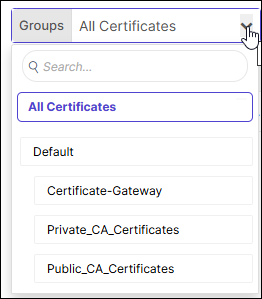 |
| Search | Use the search field to execute a free text certificate search on certificate metadata such as common name, Subject Alternative Names, serial number, issuer, and so on. |
 |
Use the Actions
dropdown menu to:
|
 |
Use the archived certificates Settings to
configure the behavior of the auto-archival and recovery
features for archived certificates. Ensure that you have the required ACF permissions for configuring certificate archival settings. The instructions for configuring both features are covered in the Configuring Auto-Archival Settings and Recovering Archived Certificates sections. |
 |
Use the Columns list to show/hide columns
in the inventory. By default, the following columns are
displayed:
|
 |
Use the pagination control dropdown to select
the number of records that will be displayed per page of the
inventory. You can select to display 25, 50, 75, or 100 records per page of the inventory. |
 |
Use the pagination navigation buttons to move between pages in the inventory. |
 |
Use the Refresh button to reload the inventory to display the up-to-date records. |
Configuring the Auto-Archival and Recovery Settings
Ensure that you have the required ACF permissions for configuring certificate archival settings.
To configure the auto-archival rules and recovery behavior for certificates:
-
Go to (Menu) > CERT+ > CERTIFICATE
INVENTORY > Archived Certificates.
The Archived Certificates inventory is displayed.
-
From the Archived Certificates inventory, click
Settings.
The Settings dialog box is displayed.
-
In the Auto-Archival Rules section:
- (Mandatory) From the Auto-Archive When field, select the certificate status values that should trigger automatic archival.
- In the Auto-Archive After field, enter the number of days after which automatic archival will be triggered, for the certificate status values selected in the above step.
-
In the Recovery section:
This behavior comes into effect when the Recover action is selected in the certificate inventory.
-
Click Save.
The Archival settings updated confirmation message is displayed.
Recovering Archived Certificates
-
Go to (Menu) > CERT+ > CERTIFICATE
INVENTORY > Archived Certificates.
The Archived Certificates inventory is displayed.
- From the Archived Certificates inventory, select the checkboxes corresponding to the certificate(s) you want to recover.
-
From the Actions dropdown menu, select
Recover.
The selected archived certificates are restored according to the recovery behavior configured here.
