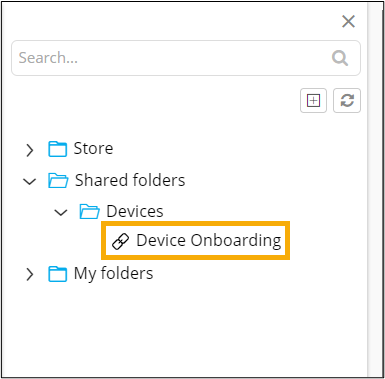
Saving a Widget in Folders
To save a widget to a folder:
-
From the top right corner of the widget to be saved, click
 (Folder) icon.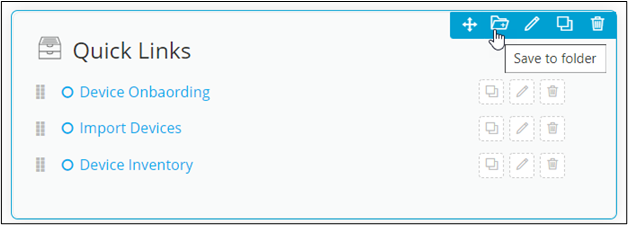
-
In the Save to Folder window, enter or select the field information.
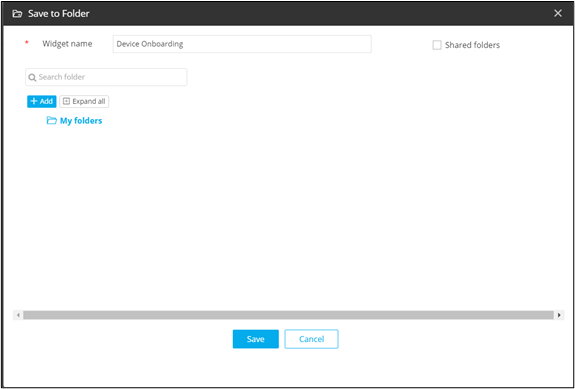
Table 1. Field descriptions for Save to Folder Field Description *Widget name Enter a suitable widget name. Search bar Allows users to search for a particular folder. Add Allows users to add new folders and sub-folders. Expand All Allows users to expand and collapse folders. My folders Shows sub-folders within My folders. Shared folders Allows users to save a widget in a shared folder. *: Mandatory fields
Saving a widget in My Folders
-
In the Save to Folder window, under My folders,
click on the folder in which you want the widget to be saved.
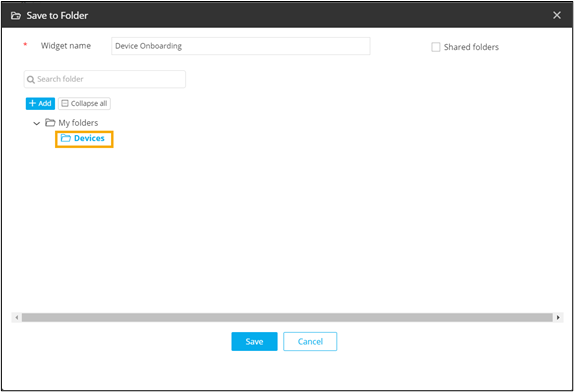
- To create a new folder for saving the widget, click Add.
-
Enter the folder name.
A new folder is created.
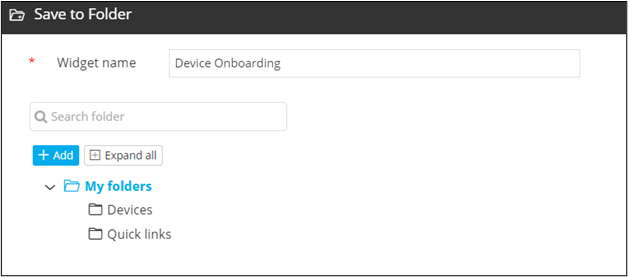
- Select the folder in which you want to save the widget.
-
Click Save.
The widget is saved in the selected folder.
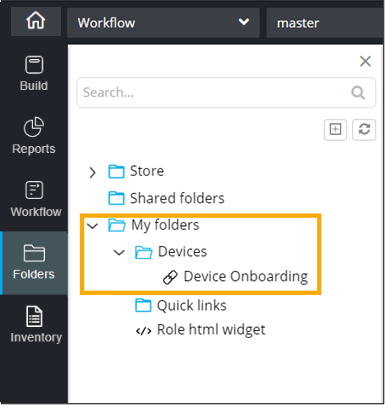
Saving a widget in Shared Folders
-
In the Save to Folder window, select the Shared
Folders checkbox.
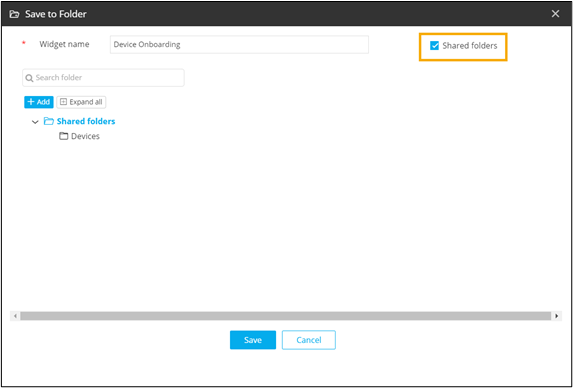
- Click on the shared folder where you want the widget to be saved. For example, Devices.
- To create a new folder under the Shared folders, click Add.
-
Select the required folder and click Save.
The widget is saved in the selected shared folder.