Reissuing a Server Certificate
-
Go to
 (Menu) > CERT+ > CERTIFICATE
ACTION > Reissue Certificate >
Server.
The Server Certificate page is displayed.
(Menu) > CERT+ > CERTIFICATE
ACTION > Reissue Certificate >
Server.
The Server Certificate page is displayed. - To reissue a certificate,under Common Name, select the required certificate name.
The certificate topology view for the selected certificate is displayed.
-
From the
 (More) menu for the
certificate, click Reissue.
(More) menu for the
certificate, click Reissue. 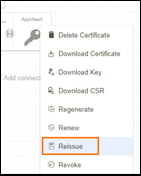 The Server Certificate > Reissue page is displayed.
On the Server Certificate > Reissue page, if required, you can edit the Subject Alternate Names. The Key Type, Bit Length, Vendor Specific Details, Attachments, Generic Fields, Vendor-Specific Details, and Custom Attributes can also be modified.
- Click Reissue.
- In the Reissue dialog box, enter the Reason for removal and any additional details as Comments.
- Click Yes.
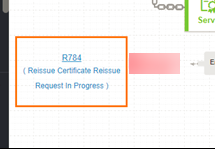
The reissue process is initiated, as is displayed in the certificate topology view, alongside the connector
 If the
Approval Required checkbox is enabled on the Certificate
Policy page, the request goes to the Approve and
Implementation stages.
If the
Approval Required checkbox is enabled on the Certificate
Policy page, the request goes to the Approve and
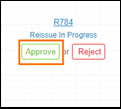
Implementation stages. - To approve the reissue request, from the certificate topology view, click
Approve.
- In the Approvedialog box, enter your Comments.
- Click Yes.
- If the workflow request has to be approved automatically in the future, click Schedule later.
- Click Implement.
- In the Implement dialog box, enter your Comments.
- Click Yes.
-
If the workflow request has to be approved automatically in the future, click
Schedule later.
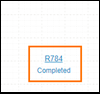
After the certificate is reissued, the status updates to Completed.