Executing a Ping Check using Command Task 
- Design a new workflow.
-
In the design workspace, from the User Interface section in the left
menu, drag and drop a Form task.
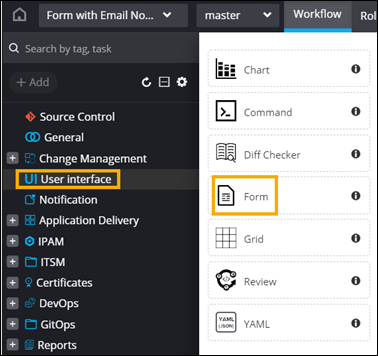 The Gallery window is displayed on the screen.
 -
In the Gallery window, to design a new form, click
 (Create Form) icon.
-
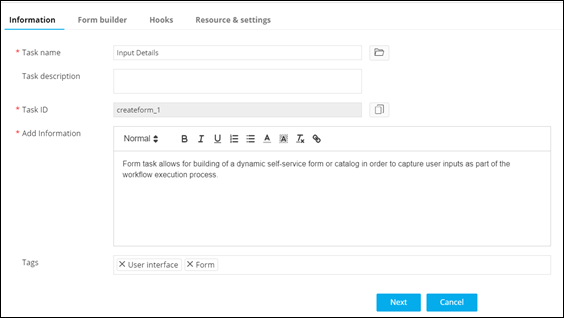
In the Form task window that is displayed, under the Information
tab, enter the Task name.
-
Click Next.
The Form builder tab opens with the Field Properties window displayed at the bottom right corner of the screen.
-
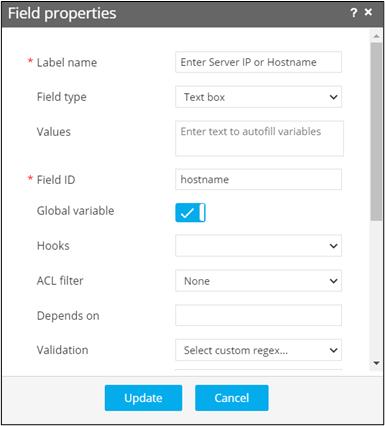
In the Field properties window, define the form field to get the Server
IP or Hostname as shown.
-
To declare the Field ID as a global variable,
<%hostname%>, and refer it in the next task, turn on the Global variable toggle.Note: For more information on adding form fields, click here. - Click Save.
- From the User Interface section in the left menu, drag and drop the Command task.
-
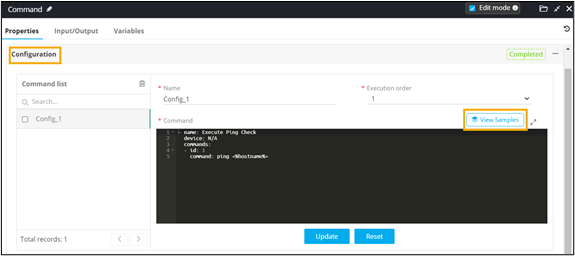
In the Command task window, under Properties, in the
Configuration section, click View Samples.
 The Command Samples window is displayed.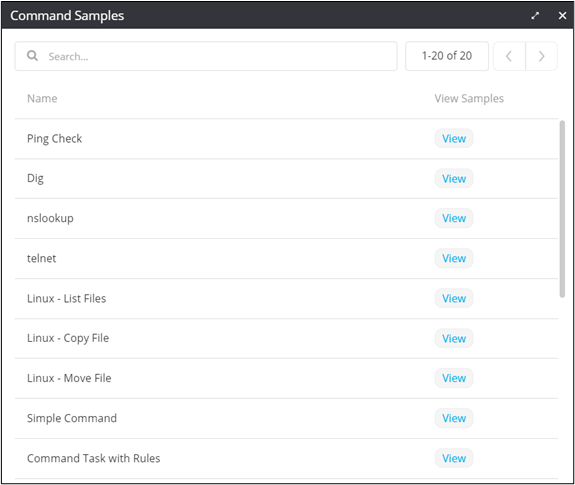
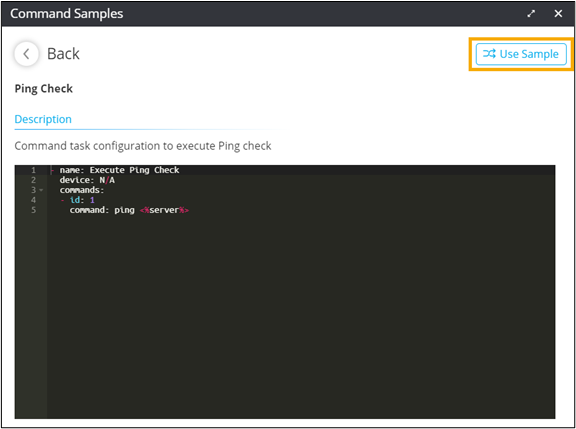
- Click View next to the Ping Check command.
-
To use this command, click Use Sample.
-
In the Configuration section, refer the global variable
<%hostname%>defined in the form task.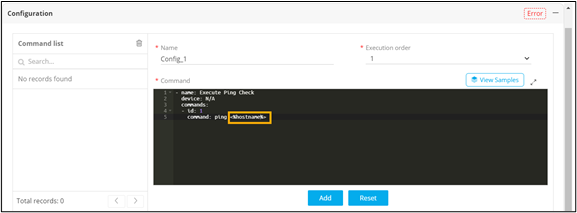 Note: device: N/A implies that the command will be executed on AppViewX server.
 - To add this configuration, click Add.
- Click Save.
- Connect the workflow tasks and enable the workflow.
-
Trigger the workflow.
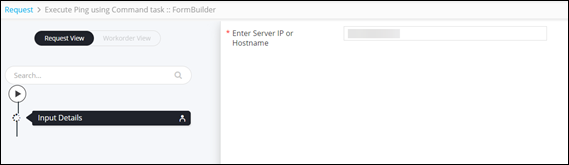
The workflow execution page is displayed with the workflow inputs requested at the first stage.
-
Enter the Server IP or Hostname in the form.
- Click Submit.
-
In the next stage of workflow execution, to execute the command for performing
ping checks on the server, click Submit.
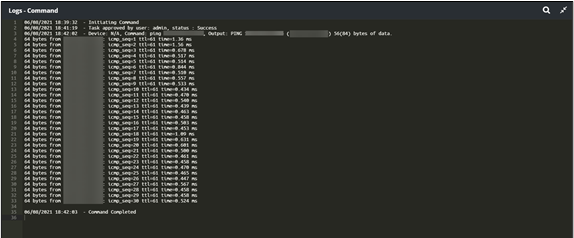
Command is executed with the Logs showing the server response.