
Ansible - Visual Workflow Northbound Integration 
To trigger a workflow by creating an Ansible playbook:
- Design a workflow.
- Connect all workflow tasks and enable the workflow.
-
To download the Ansible <.zip> file, click
 icon above the
Start task.
icon above the
Start task. 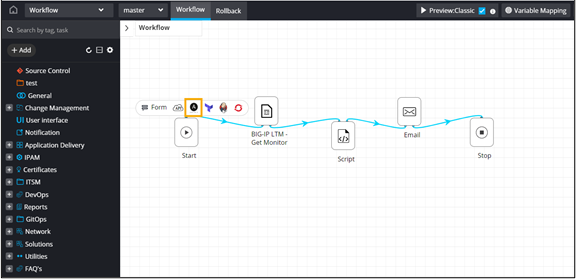
-
Extract the files.
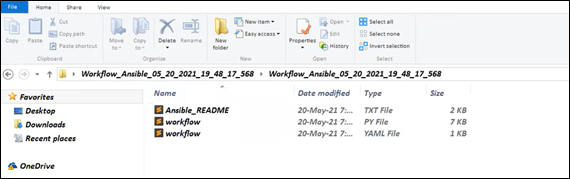 The downloaded <.zip> folder contains the following files:
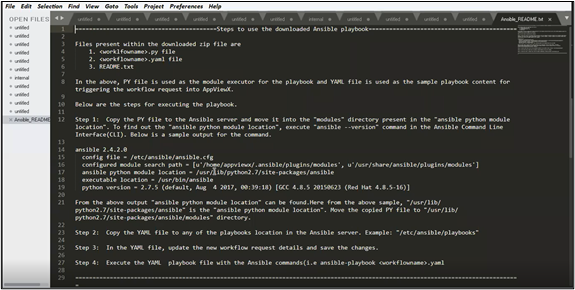
- Ansible_README txt file - This contains the steps to use the
downloaded Ansible playbook.
- <workflowname>.py - Workflow Python file (Ansible executor file)
- <workflowname>.yaml - Workflow YAML file
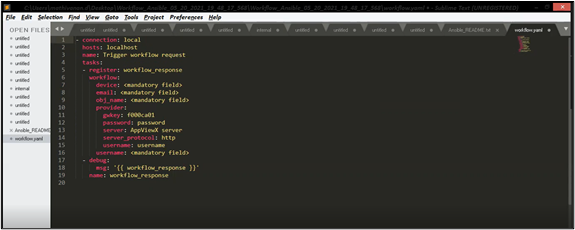
In the above, the Python (.py) file is used as the module executor for the playbook and the YAML file (.yaml) is used as the sample playbook content for triggering the workflow request into AppViewX.
- Ansible_README txt file - This contains the steps to use the
downloaded Ansible playbook.
- To execute the playbook, copy the Python <.py> file to the Ansible server and move it into the modules directory present in the ansible python module location.
-
To find out the ansible python module location, execute the ansible --version
command in the Ansible Command Line Interface (CLI).
Here is a sample output for the command:
ansible 2.4.2.0
  config file = /etc/ansible/ansible.cfg
  configured module search path = u'/home/appviewx/.ansible/plugins/modules', u'/usr/share/ansible/plugins/modules']
  ansible python module location = /usr/lib/python2.7/site-packages/ansible
  executable location = /usr/bin/ansible
  python version = 2.7.5 (default, Aug  4 2017, 00:39:18) [GCC 4.8.5 20150623 (Red Hat 4.8.5-16)]
In this sample command, the ansible python module location is
/usr/lib/python2.7/site-packages/ansible -
Copy the YAML file to any of the playbooks location in the Ansible server. For
example:
/etc/ansible/playbooks - In the YAML file, update the new workflow request details and save the changes.
-
Execute the YAML playbook file with the Ansible commands -
ansible-playbook <workflowname>.yaml
