
Manage Gateway Endpoints
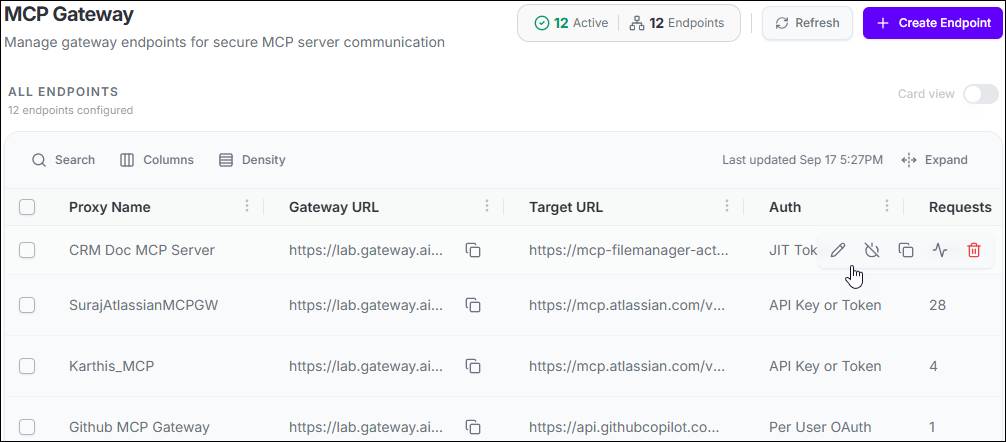
- In the left navigation sidebar, select Secure, then select MCP Gateway.
- Locate the endpoint you want to manage using the search bar or by scrolling the list.
-
Perform the action you need:
Action How to trigger it What it does Edit Select the pencil icon on the endpoint row. Opens the endpoint form with all fields pre-filled. Make changes and select Update Proxy Endpoint. Changes take effect immediately. Activate Select Activate (available when the endpoint is disabled). Switches the endpoint on. It begins accepting and forwarding agent requests immediately. Deactivate Select Deactivate (available when the endpoint is active). Switches the endpoint off. Agents receive an error if they try to use the Gateway URL. The endpoint configuration and request history are kept. Copy URL Select the copy icon in the Gateway URL column. Copies the Gateway URL to the clipboard. Use this to configure agents or share the URL with a team member. Delete Select the bin icon on the endpoint row. Permanently removes the endpoint and its Gateway URL after a confirmation prompt. This action cannot be undone. - To manage multiple endpoints at once, select the checkboxes on the rows you want to affect, then choose Bulk Activate or Bulk Deactivate from the toolbar.
Important: Deleting an active gateway endpoint immediately stops all traffic
proxying. Update any AI agents or MCP clients that reference the deleted gateway URL
before or immediately after deletion to prevent service disruption.
