
Integrating Tenable SC with AppViewX
-
Go to Menu > Automation >
Workflow > Integration.
The Workflow > Integration page is displayed.
-
On the Workflow > Integration page, click Add
new vendor.
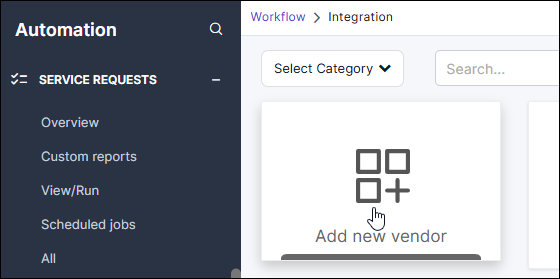 The Select vendor dialog box is displayed.
 - From the Select category dropdown list, select ASM and click Apply.
-
From the search results displayed, select Tenable
SC.
The Workflow > Integration > Vendor configuration page is displayed.
-
For the Tenable SC integration, in the Information section, enter the
following details:
-
In the Credentials section:
- From the Auth Type dropdown list, select Basic Auth.
- In the URL field, enter the Tenable URL.
- From the Credential Type dropdown list, select AWS Signature.
- In the corresponding fields, enter your Access Key and Secret Key.
-
Click Add.
The integration is added and is displayed on the Workflow > Integration page, identified by the name assigned to the integration.
