
Provisioning for Workflow Tasks
To define the configurations:
| New Menu | Old Menu |
|---|---|
|
|
|
Note: For more information on how to
switch between menus, click here.
|
|
- Under the Work order configuration section, define the configurations for Both or Manual or Auto of the Implementation type.
- In the Implementation type field, select the Implementation type from the dropdown.
- Under the Command configuration section, define the configurations for success or failure of the implementation task.
-
In the Failure messages field, enter the keywords for
error responses to identify the task as failed as shown in the image
below.
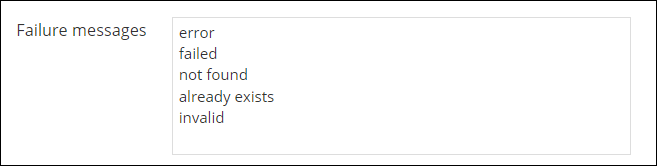
If the workflow execution displays any of the keywords defined above as error messages, the task will be considered as failed.
- In the Excluded failure messages field, enter the keywords to be excluded for identifying the task as failed.
- In the Commands to wait field, you can enter a set of commands and define a time out for the implementation task. If the task contains the configured commands, then it will time out as per the time out defined. This is useful for tasks or commands that take longer than the default time to execute.
-
In the Time out (mins) field, enter the timeout value
for the tasks having the configured set of commands.
Note: The default value is 0.5 minutes or 30 seconds.
- Turn on the Continue on a command failure toggle, to proceed in case of a command failure.
-
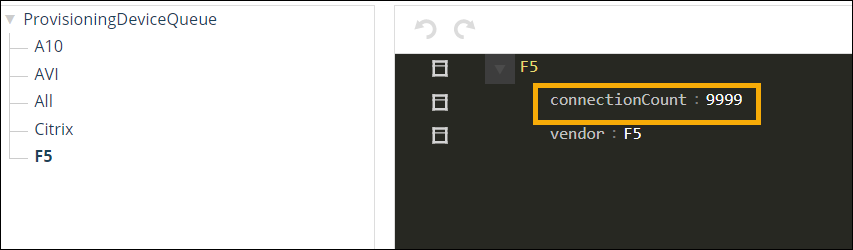
Turn on the Enable Device Queue toggle to enable queuing
of device connections as per the defined connection count in the Collection.
- Turn on the Enable Device Session Cache toggle, to check for any existing open sessions for the device and execute other requests in the same session.
-
Turn on the Rollback work order toggle to rollback
configurations that are partially implemented.
Note: Configurations that were successfully implemented will be excluded from the rollback work order.
- Under the Rest configuration section, define the different success status codes in the Rest success status code field.
- Under the Collection configuration section, turn on the Enable default collection toggle to create a collection in the name of the device and store all the IPs in the device (using a predefined parsing logic) during the next device parsing.
