
Subscribe AppViewX Trial Application
Note: If you have already subcribed for the trial application, skip
this procedure and proceed with the Onboarding
Journey.
To subscribe AppViewX trial application,
- Launch your preferred web browser, and then enter the AppViewX website URL.
The AppViewX home page is displayed.
- Click the Free Trial button.
The Free Trial page is displayed.
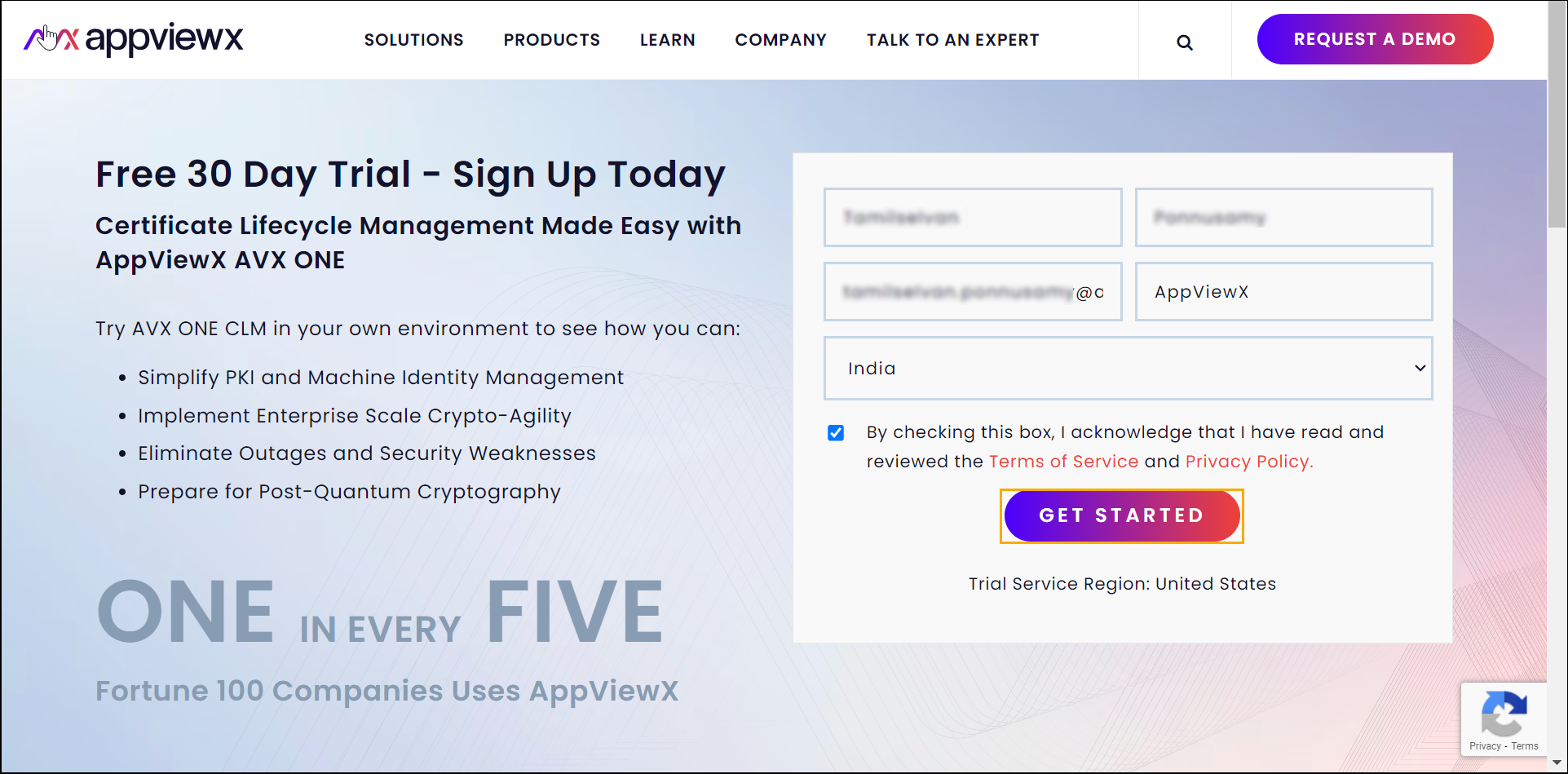
- Enter the required details in the field such as First
Name, Last Name, Business
Email, and Company Name.Note: *: Mandatory fields
- Select the country name from the Select Country dropdown list.
- Click GET STARTED.
- You will receive an email for the confirming your email address.
- Click the GET STARTED button from the email.
- Your email address will be verified.Note: Once you sign up, it takes a few minutes to create a tenant and send a welcome email to the provided email address.
- You will get a welcome email.
The email subject as Welcome to your Free AppViewX <on-prem or SaaS> Trial.
- The email contains Login URL, Username, and Temporary Password.
- Click the login URL.
The Sign in page is displayed in the new browser window.
- Enter the User name and then
Password in its field.Note: For example,
- User name: [email protected]
- Password: Temporary password that has been received via email.
- Click Sign in.
- The Change password page is displayed.
- Enter your new password in the New Password field. Ensure that it meets the password requirements. For example, mix of upper and lower case letters, numbers, and special characters).
- Re-enter your new password in the Confirm New Password field to verify it.
- Click Continue.
The Change password page is displayed with the message as Your password has been changed successfully. You will be redirected to login page. Please login again.
- (or) Click Back to Login, to return to the login page.
- Click the login URL in the message.
You are redirected to Sign in page.
- Enter the valid credential, and then click the Sign in
button.
The Terms of Service page is displayed.
- Read the terms and conditions, and then click the check box to I accept these terms and conditions.
- Click Continue.
