
Enabling RBAC for CERT+ Native Workflows
To be able to execute a CLM action from the AppViewX UI, users are required to have the requisite access to the corresponding native workflow.
Native Workflows in CERT+
| Native Workflow | CLM Action |
|---|---|
| certificate_new_request | Enroll certificate |
| certificate_renew_request | Renew certificate |
| certificate_new_request | Regenerate certificate |
| certificate_reissue_request | Reissue certificate |
| certificate_revoke_request | Revoke certificate |
| certificate_reinstate_request | Reinstate certificate |
| certificate_suspend_request | Suspend certificate |
Enabling RBAC for CERT+ Native Workflows
Note: The following process is the same for all native
workflows.
-
Login to AppViewX and go to
 (Menu) > Automation >
Workflow > Design.
(Menu) > Automation >
Workflow > Design.
-
In the Search field, enter the name of the workflow you
want to enable RBAC for.

-
Turn off the toggle button to disable the workflow before editing it.
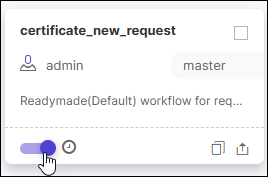
-
To open the workflow settings, click
 .
.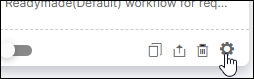 The Settings :: <workflow name> dialog box is displayed.
 - Under the General tab, select Assign workflow.
-
From the list of resources displayed on the right, for the required
resource, click RW.
This will enable the read-write permission for the selected resource.
- Click Save.
-
Under the RBAC tab:
- Close the dialog box and turn on the toggle button to enable the workflow.
