
Executing the Code Scan Agent
Linux Executable-based Execution
Case 1: Executing the AppViewX Code Scan Agent via the CI/CD Pipeline
./code-scan-agent \
  --input-folder "/path/to/repository" \
  --output-folder "/path/to/output-folder" \
  --config "/path/to/config.ini" \
  --key "/path/to/secret.key" \
--log-dir "/path/to/log-directory"- /path/to/repository: absolute path of the input folder
- /path/to/output folder: absolute path of the output folder
- /path/to/config.ini: absolute path of the config.ini file
- /path/to/secret.key: absolute path of the key file that will be used to decrypt the config file
- /path/to/log-directory: absolute path of the log directory where logs needed to be stored
Case 2: Executing the AppViewX Code Scan Agent in the Local File System
./code-scan-agent --config /path/to/config.ini --key /path/to/secret.key- /path/to/config.ini: absolute path of the config.ini file
- /path/to/secret.key: absolute path of the key file that will be used to decrypt the config file
Note:
- The code scan agent reads through the .git directory that will be available in full depth clone. The details such as the actual name of the repository branch will be derived from the .git folder. Therefore, the working directory must be checked out to an actual branch and not left in a detached HEAD state.
- If you are performing a CICD scan and the location for an input folder has been provided, note that the --input-folder expects the .git folder to be present.
- If you are not performing a CICD scan, the input folder location being a cloned repository location is optional. However, if the input folder is not a git repository, ensure that the repository name is provided in the config file.
Output (for both, Case 1 and Case 2)
The code scan agent will begin scanning the code in the input folder
specified.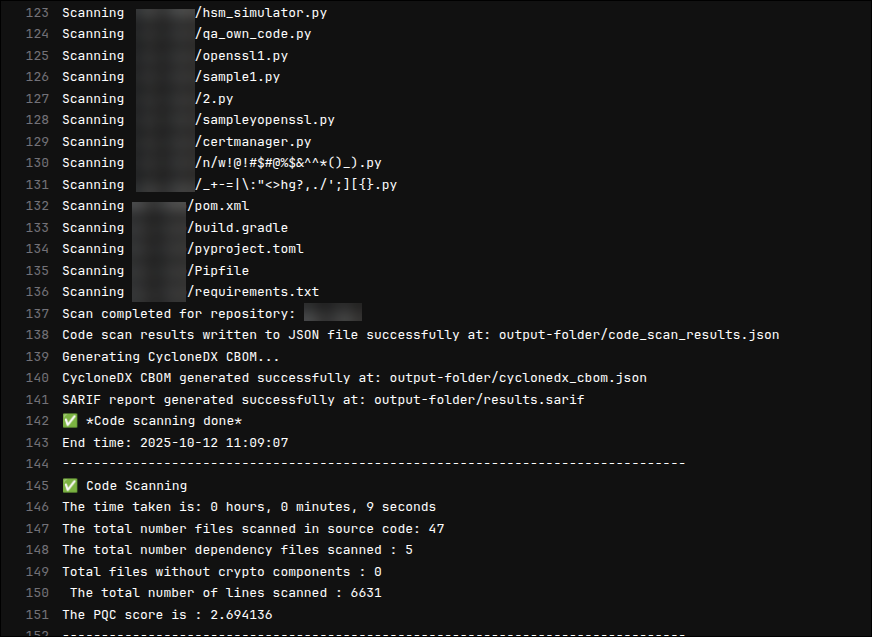 The CycloneDX CBOM output will be
generated in the specified output folder. Along with CBOM, a SARIF report
will be generated while running in CICD pipelines, which can be integrated
with security dashboards like GitHub.
The CycloneDX CBOM output will be
generated in the specified output folder. Along with CBOM, a SARIF report
will be generated while running in CICD pipelines, which can be integrated
with security dashboards like GitHub.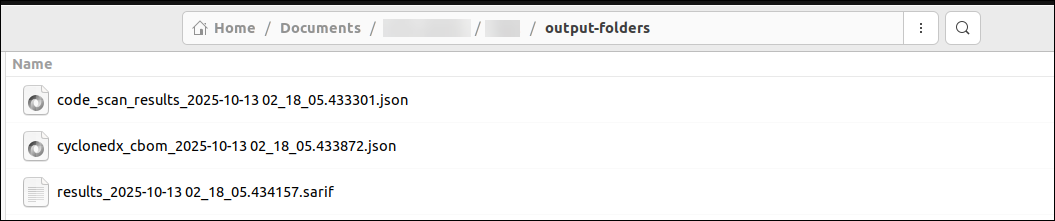 After the scan is completed, if
your response to the question prompt Do you wish to send reports to AppViewX? was Yes, the
scan results will be automatically uploaded to the AppViewX platform. These
reports are displayed on the Code Scan
dashboard and in the Code
Scan Inventory in the Quantum
Trust Hub.
After the scan is completed, if
your response to the question prompt Do you wish to send reports to AppViewX? was Yes, the
scan results will be automatically uploaded to the AppViewX platform. These
reports are displayed on the Code Scan
dashboard and in the Code
Scan Inventory in the Quantum
Trust Hub.
Docker-based Agent Execution
Case 1: Executing the AppViewX Code Scan Agent via the CI/CD Pipeline
sudo docker run --rm \
  -v "/path/to/input-folder:/input-folder-name" \
  -v "/path/to/output-folder:/output-folder" \
  -v "/path/to/config.ini:/config.ini" \
  -v "/path/to/secret.key:/secret.key" \
  -v "/path/to/log folder:/logs" \
  code-scan-agent:v1.0.0 \
  --input-folder /input-folder-name \
  --output-folder /output-folder \
  --log-dir /logs \
  --config /config.ini \
--key /secret.key- /path/to/input-folder: absolute path of the input folder in which code scanning needs to be done
- /path/to/output-folder: absolute path of the output folder to store the scan results
- /path/to/config.ini: absolute path of the config.ini file,
- /path/to/secret.key: absolute path of the key file that will be used to decrypt the config file
- /path/to/log-folder: absolute path of the log directory where logs must be stored
Case 2: Executing the Code Scan Agent in the Local File System
sudo docker run --rm \
  -v "/path/to/input-folder:/input-folder-name" \
  -v "/path/to/output-folder:/output-folder" \
  -v "/path/to/config.ini:/config.ini" \
  -v "/path/to/secret.key:/secret.key" \
  -v "/path/to/log-folder:/logs" \
  code-scan-agent:v1.0.0 \
  --log-dir /logs \
  --key /secret.key \
--config /config.ini- /path/to/input-folder: absolute path of the input folder in which code scanning needs to be done
- /path/to/output-folder: absolute path of the output folder to store the scan results
- /path/to/config.ini: absolute path of the config.ini file,
- /path/to/secret.key: absolute path of the key file that will be used to decrypt the config file
- /path/to/log-folder: absolute path of the log directory where logs must be stored
Tip: It is advised that you mount the
input folder path with same name as the repository. For example, if the
repository name is repo_1 and the path is /home/User/repo_1,
then to mount the input folder, execute the command:
 -v
“/home/user/repo_1:/repo_1”.This ensures a valid relative path of the filePath from the repository name is shown in the inventory instead of showing the absolute path of the runner machine.
Note:
- The code scan agent reads through the .git directory that will be available in full depth clone. The details such as the actual name of the repository branch will be derived from the .git folder. Therefore, the working directory must be checked out to an actual branch and not left in a detached HEAD state.
- If you are performing a CICD scan and the location for an input folder has been provided, note that the --input-folder expects the .git folder to be present.
- If you are not performing a CICD scan, the input folder location being a cloned repository location is optional. However, if the input folder is not a git repository, ensure that the repository name is provided in the config file.
Output (for both, Case 1 and Case 2)
The code scan agent will begin scanning the code in the input folder
mounted.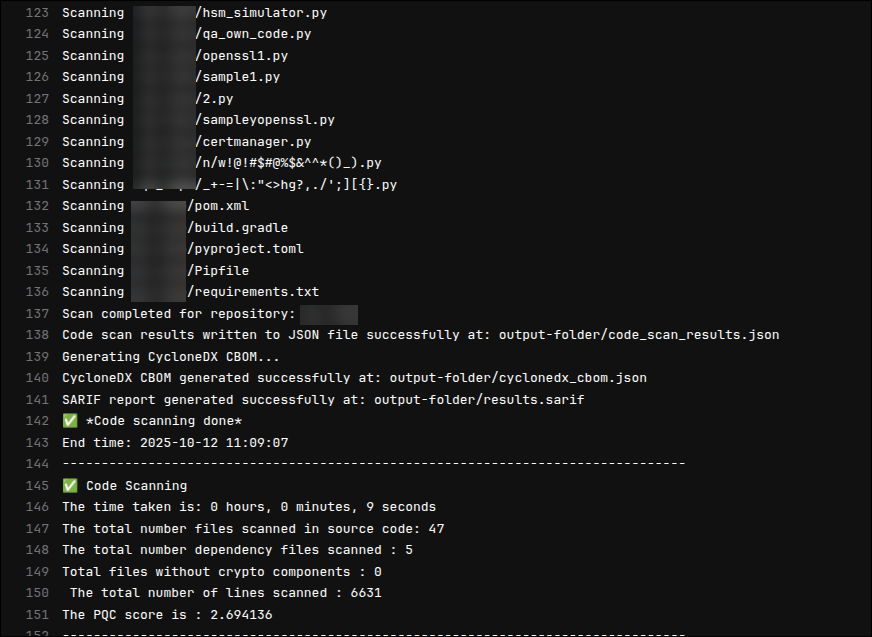 The CycloneDX CBOM output will be
generated in the mentioned output folder. Along with CBOM, a SARIF report
will be generated while running in CICD pipelines, which can be integrated
with security dashboards like GitHub.
The CycloneDX CBOM output will be
generated in the mentioned output folder. Along with CBOM, a SARIF report
will be generated while running in CICD pipelines, which can be integrated
with security dashboards like GitHub. After the scan is completed, if
your response to the question prompt Do you wish to send reports to AppViewX? was Yes, the
scan results will be automatically uploaded to the AppViewX platform. These
reports are displayed on the Code Scan
dashboard and in the Code
Scan Inventory in the Quantum
Trust Hub.
After the scan is completed, if
your response to the question prompt Do you wish to send reports to AppViewX? was Yes, the
scan results will be automatically uploaded to the AppViewX platform. These
reports are displayed on the Code Scan
dashboard and in the Code
Scan Inventory in the Quantum
Trust Hub.
Windows-based Agent Execution
Case 1: Executing the Code Scan Agent via the CI/CD Pipeline
.\code-scan-agent.exe `
  --input-folder "C:\path\to\repository" `
  --output-folder "C:\path\to\output-folder" `
  --config "C:\path\to\config.ini" `
  --key "C:\path\to\secret.key" `
  --log-dir "C:\path\to\log-directory"
- C:\path\to\repository: Absolute path of the input folder
- C:\path\to\output-folder: Absolute path of the output folder
- C:\path\to\config.ini: Absolute path of the config.ini file
- C:\path\to\secret.key: Absolute path of the key file that will be used to decrypt the config file
- C:\path\to\log-directory: Absolute path of the log directory where logs must be stored.
Case 2: Executing the Code Scan Agent in the Local File System
For executing the
AppViewX Code Scan Agent in the local file system, execute the following
command:
Here:
.\code-scan-agent.exe --config C:\path\to\config.ini --key C:\path\to\secret.key- C:\path\to\config.ini: Absolute path of the config.ini file
- C:\path\to\secret.key: Absolute path of the key file that will be used to decrypt the config file
Note:
- The code scan agent reads through the .git directory that will be available in full depth clone. The details such as the actual name of the repository branch will be derived from the .git folder. Therefore, the working directory must be checked out to an actual branch and not left in a detached HEAD state.
- If you are performing a CICD scan and the location for an input folder has been provided, note that the --input-folder expects the .git folder to be present.
- If you are not performing a CICD scan, the input folder location being a cloned repository location is optional. However, if the input folder is not a git repository, ensure that the repository name is provided in the config file.
Output (for both, Case 1 and Case 2)
The code scan agent will begin scanning the code in the input folder
mounted.The CycloneDX CBOM output will be
generated in the mentioned output folder. Along with CBOM, a SARIF report
will be generated while running in CICD pipelines, which can be integrated
with security dashboards like GitHub.After the scan is completed, if
your response to the question prompt Do you wish to send reports to AppViewX? was Yes, the
scan results will be automatically uploaded to the AppViewX platform. These
reports are displayed on the Code Scan
dashboard and in the Code
Scan Inventory in the Quantum
Trust Hub.
