
Bookmarks
AppViewX allows the user to bookmark the frequently used search items.
Create a Bookmark
If any search strings or search queries are repeatedly used, it can be bookmarked for future access.
To create a bookmark for the ADC frequent search items,
- Click Menu > ADC+ > TRAFFIC MANAGEMENT > App Search. The Control Center search screen appears.
- Run a search.
-
On the search results screen, click the
 icon next to the
search bar.
icon next to the
search bar.
-
Click the
 (Add) icon to create a bookmark folder.
-
Click the
 (Star) icon on
the search bar. A pop-up message will be displayed at the top of the screen,
Bookmark(s) created successfully.
(Star) icon on
the search bar. A pop-up message will be displayed at the top of the screen,
Bookmark(s) created successfully.
- On the Bookmark Added pop-up screen, enter a name for the bookmark to help the users identify it.
- Select the folder to which you want to add this bookmark from the
dropdown list and click Done.
Note: If you want to delete the bookmark, click the Remove button. A pop-up message will be displayed at the top of the screen, Bookmark(s) deleted successfully.
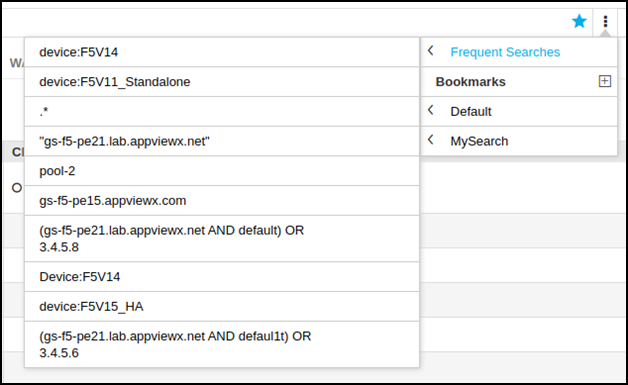
Queries that are frequently used are added to the frequent searches by default and the top 10 queries can be accessed in a single click as below:
Delete Bookmark
Follow the below steps to delete a bookmark.
- Log in to the AppViewX application with valid credentials.
- Select Menu > ADC+ > TRAFFIC MANAGEMENT > App Search.
- Run a search.
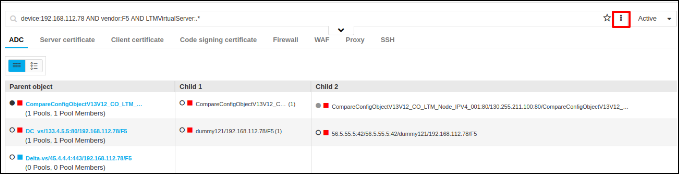
- In the grid / infrastructure view click on More Options button (3
vertical dots) next to the search bar.
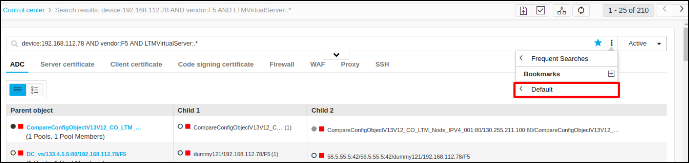
- Mouse hover the folder name under the bookmarks menu.
 All the bookmarks under the folder will be displayed.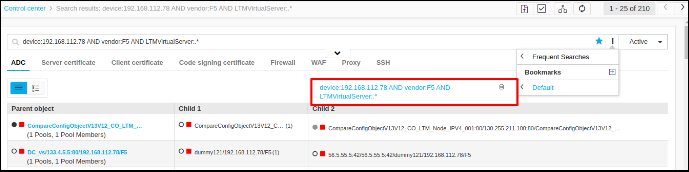
- Mouse hover on the bookmark name and the delete button will be displayed.
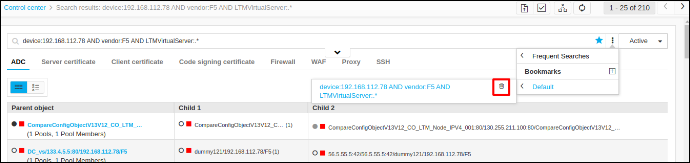
- Click Delete.
