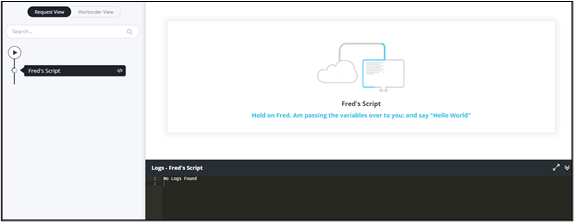
Saving and Reusing a Task 
- Open an existing workflow in the Workflow Studio.
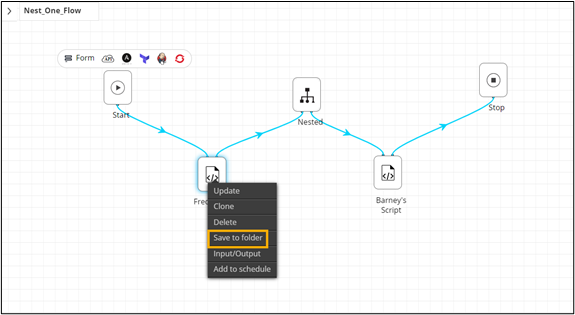
- Right-click on the task to be saved.
-
From the options displayed, select Save to folder.
-
To save the task to an existing folder, in the Save to folder window,
select a folder from the list.
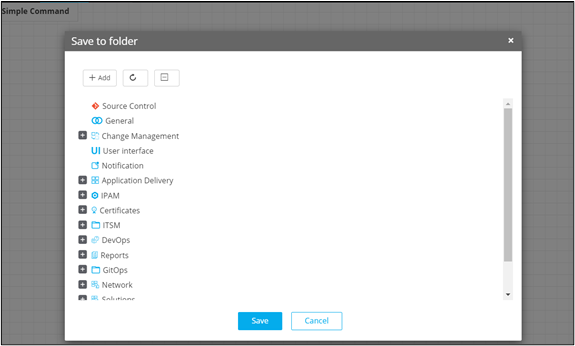 Note: When naming a folder, the same naming conventions must be followed as those when naming a workflow. If a folder is created without providing a name, it will show up as untitled.
 - Click Save.
- To save the task to a new folder, click Add.
-
Enter the folder name and click Save.
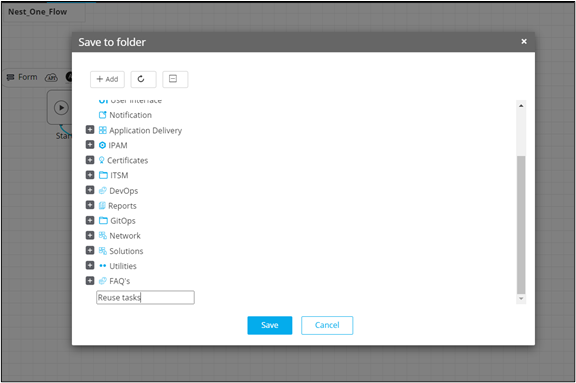 The new folder is added to the left menu.
 - Exit the workflow.
- Design a new workflow.
- Drag and drop the task saved to the folder in the previous workflow and reuse in the current workflow.
-
To reuse a workflow, click
 (Cart) icon.
-
From the options displayed, click Import.
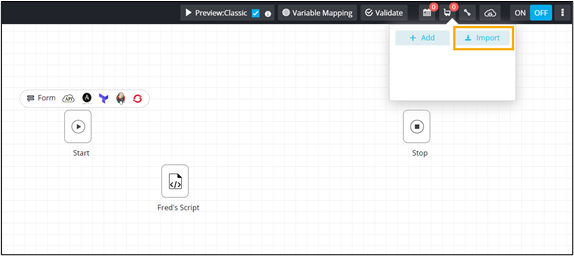
- In the Import flows, window, select the workflow(s) and click Import.
-
Drag and drop the imported workflow into the workspace.
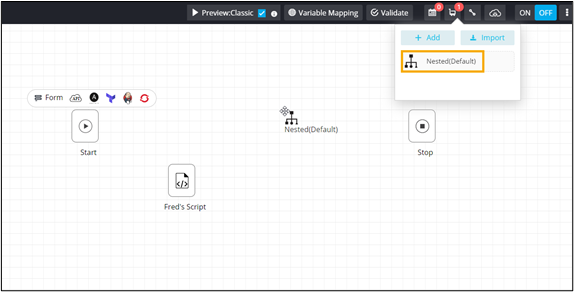
- Refer the Global variables if needed.
- Connect the workflow tasks and enable the workflow.
-
Trigger the workflow.
Workflow executed with the reused task.