
Restore
Restore from Backup
Users can restore the device/objects added in AppViewX from the Backup generated. The
users should have ACF permission for Restore and ACL permission on those devices for
which restore has to be performed.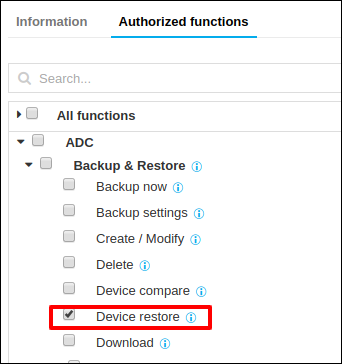
Restore Device/Object with the Backup Generated
- Go to Menu > ADC+ > CONFIG MANAGEMENT > Restore Configuration.
- Click the Restore tab to navigate to the
Restore page.

- Click Device or Object that needs
to be restored.
-
Device Restore:

- Provide the device name whose backup is to be restored in
the Device Name text box.All the Backups generated for this particular device will be listed below.
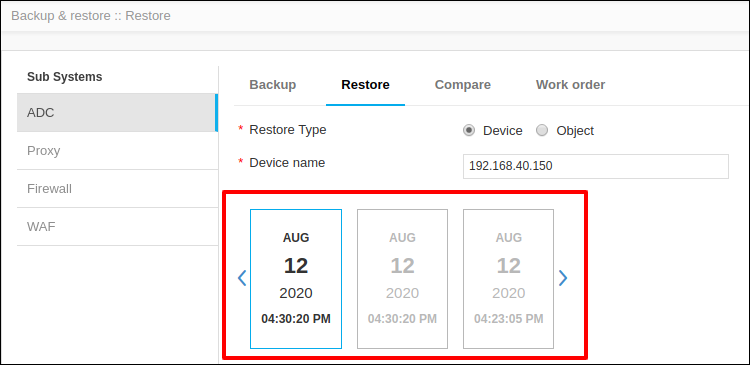
- Select which backup to be used and provide the device name to which the restore needs to be performed.
- Click Proceed to navigate to the next page, where the Reason for restore is to be provided.
- Click Restore.
- Provide the device name whose backup is to be restored in
the Device Name text box.
-
Object Restore:
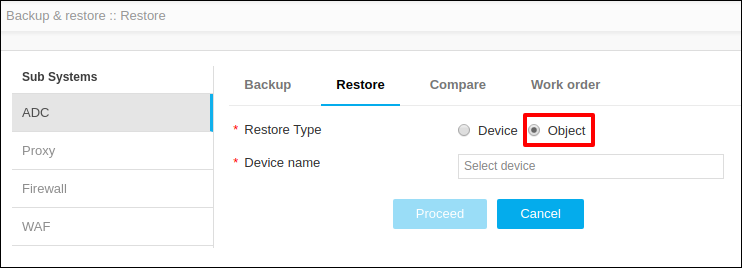
- Provide the device name whose object is to be taken for
restore in the Device Name text
box.All the Backups generated for this particular device will be listed below.
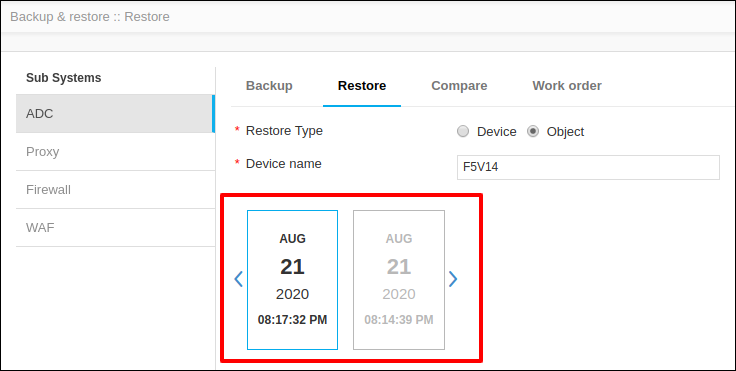
- Select which backup to be used for restoring the object.
- Select which type of object is to be restored by clicking on the drop down menu for Object Type.
- All the objects pertaining to the selected object type will be listed below. Users can select which all objects to be restored by moving the objects from the available object list to selected object list.
- If the restore needs to be performed on sub-objects as well, then the user can check the checkbox provided to Restore sub-objects.
- Provide the device name to which the back up objects need to be restored.
- Users can restore an object to a single/many devices.
Restoring more than one device can be done by clicking
+ (Add) sign and providing
the device name.
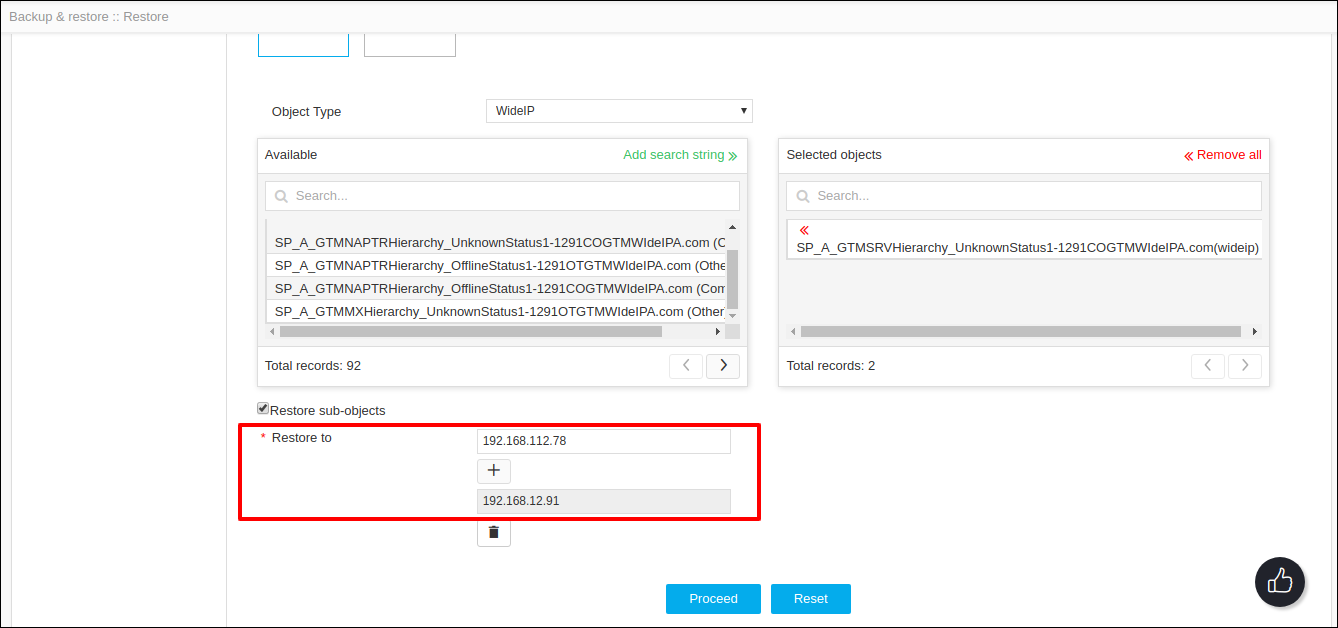
- Click proceed to navigate to the next page where Confirmation to Object Restore is requested.
- Check or compare the configuration of objects from the back up and the current object and cross verify the same.
- Provide the reason for restore, and then click
Restore all.
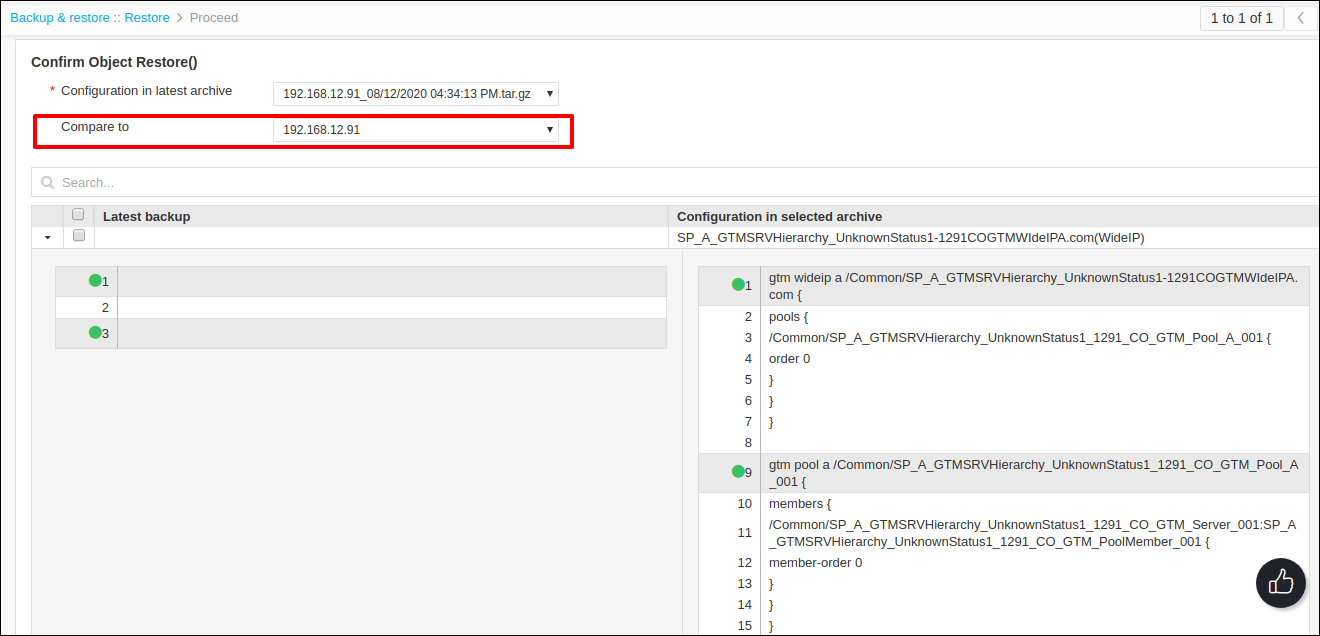
The restore success message is displayed on the screen once restore is successful.
- Provide the device name whose object is to be taken for
restore in the Device Name text
box.
-
Device Restore:
