
Compare Backup
Overview
Users can compare between two archives generated. They can compare between both the devices as well as objects.
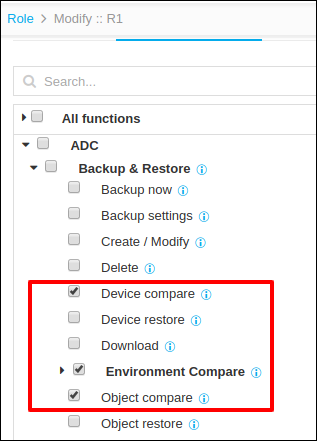
Comparing Between Two Backup Generated
- Go to Menu > ADC+ > CONFIG MANAGEMENT > Compare Configuration.
- Click on the Compare tab to navigate to the Restore
page.
-
Device compare:
-
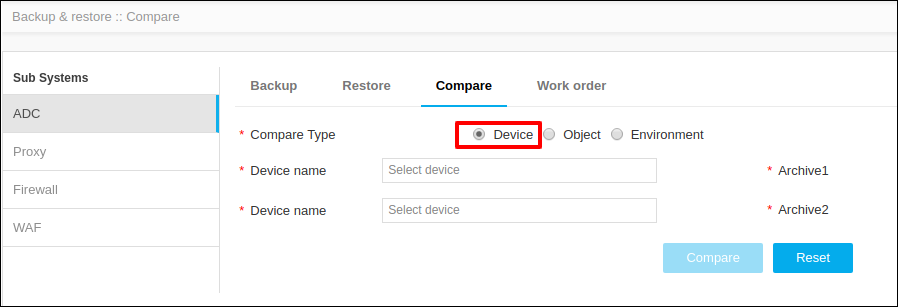
Select the Device radio button in Compare Type.
-
Provide the device names across which the backup is to be compared.
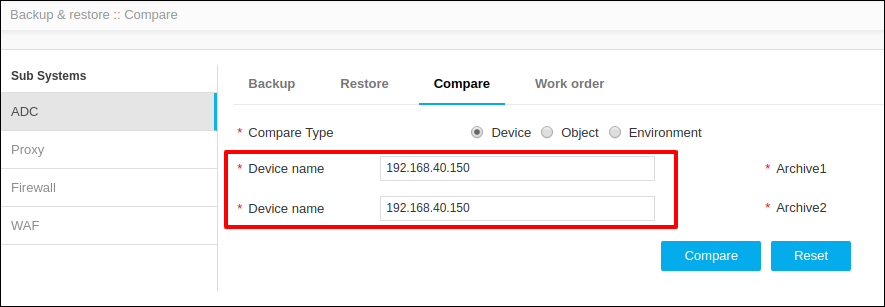 Note: The backup compared either between the same devices or different devices as well.
 -
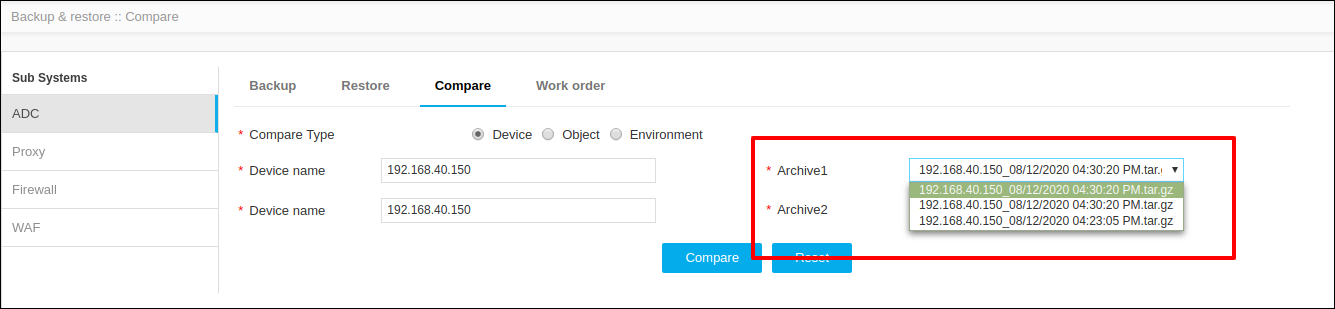
After the device is selected, the backups generated for that particular device will be brought up in the archive list.
-
Select which archive is to be compared from the drop down list.
-
Click Compare.
The two archives along with the change summary will be displayed in the same page below.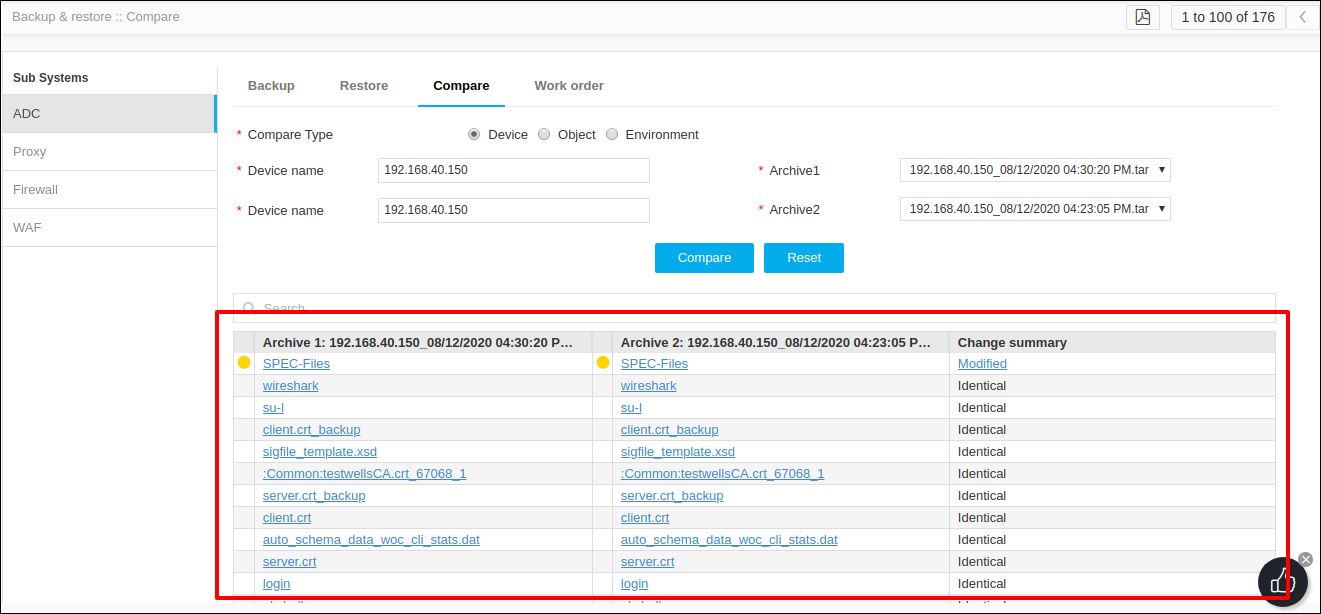
-
-
Object compare:
-
Select the Object radio button in Compare type.
-
Select the Vendor and Object type to be compared from the drop down menu.
-
Select the object name to be compared from the drop down menu of Object Name. This will automatically populate the device name tab corresponding to this object.
-
From the drop-down menu of Archive names, select which archive to be compared. Users can either select the latest archive generated or select any of the archives generated earlier for the object.
-
Similarly users can add other objects to be compared.
-
Users can add more than two objects to be compared by clicking the + (Add) icon near the Archive names. Users can add maximum of five objects to compare.
-
Click Compare.
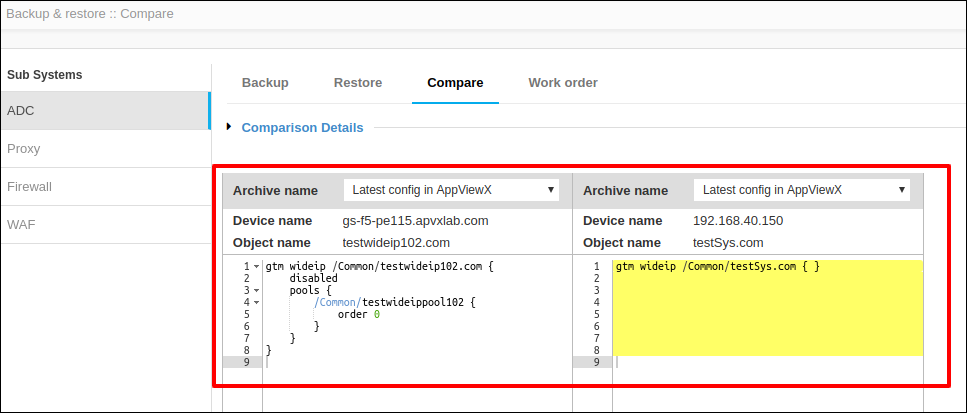
-
-
Device compare:
