
Application Overview
Before you start configuring integrations, familiarize yourself with how Agent Identity Security is structured. Understanding the layout, navigation, and common controls will help you follow this guide confidently.
Application Layout
The Agent Identity Security interface is organized into three zones: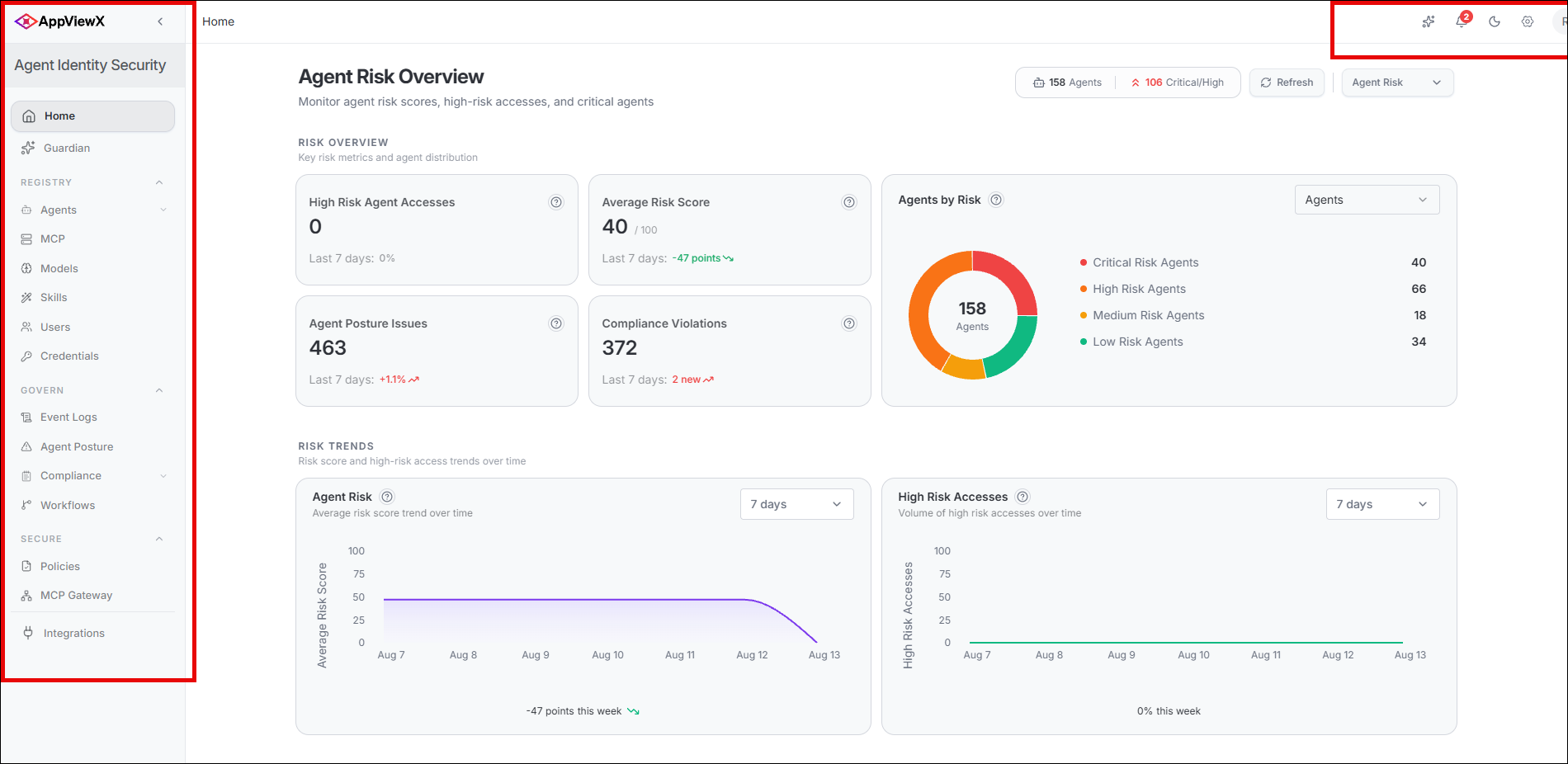
| Zone | Purpose |
|---|---|
| Sidebar Navigation | Primary navigation menu; collapsible; groups features by functional area. |
| Global Toolbar | Guardian shortcut, notifications, dark mode toggle, settings, user account. |
| Main Content Area | The active page: dashboard, tables, detail views, and forms. |
Left Navigation Menu
The application uses a left sidebar for primary navigation. All sections are
accessible via the sidebar direct URL navigation.
| Menu Item | Purpose |
|---|---|
| Home | Executive dashboard with risk overview and quick-access cards |
| Guardian | AI assistant for querying data and building dashboards |
| Agents | Inventory of all discovered AI agents by platform |
| ↳ Endpoint Agents | Endpoint-level detection of IDE-assistant and agent-like behaviour |
| MCP | MCP server connections, tools, and credentials |
| Models | AI/LLM model governance sanctioned vs. unsanctioned |
| Users | User-to-agent relationships and access distribution |
| Event Logs | Full audit trail of security events and agent actions |
| Agent Posture | Posture issues, misconfigurations, and risk exposure |
| Compliance | Compliance frameworks, controls, and violation tracking |
| Workflows | Automated remediation and security workflows |
| Policies | Access policies controlling what agents can do |
| MCP Gateway | Secure proxy endpoints for MCP server communication |
| Integrations | Connected AI platforms, identity providers, and event streams |
Global Toolbar Controls
The Toolbar provides navigation context and quick-access controls. The breadcrumb on
the left indicates the current page.
| Controls | Icon | Action |
|---|---|---|
| Open Guardian | (✨) | Navigates to the Guardian AI assistant page
(/guardian). Guardian answers natural-language
questions about agents, posture, and policies. |
| Notifications | (🔔) | Opens the Notifications panel listing real-time alerts policy violations, posture issue detections, workflow approval requests, and integration sync events. |
| Dark Mode | (🌙) | Switches the application between light and dark colour themes. The preference is saved per user account. |
| Settings | (⚙️) | Navigates to the Settings page platform preferences, API keys, user management, and display options. |
| User Avatar | Profile icon | Opens the user context menu with My Account and Sign Out options. |
Common UI Controls
The following conventions apply across all pages in Agent Identity Security:
- Column sorting: Click any column header to sort ascending; click again to sort descending. A sort indicator arrow appears in the active column header.
- Column filtering: Open the column context menu (three-dot icon) or use the Columns panel to apply a filter. Text columns support: contains, equals, does not contain, does not equal.
- Search: Use the Search bar above any grid to filter rows by keyword in real time.
- Export: Most grids include an Export button that downloads the current view as CSV or JSON.
- Density: Toggle between compact and comfortable row height using the Density control.
- Refresh: Click Refresh to force an immediate data reload without a full page refresh.
Risk Level Badges
Agent Identity Security uses four severity levels consistently across all pages. Each level has a defined score range and remediation priority:
| Badge | Score Range | Remediation Priority |
|---|---|---|
| Critical | ≥ 80 | Immediate action required. Same-day remediation recommended. |
| High | 60–79 | Investigate and remediate promptly. Within 7 days. |
| Medium | 30–59 | Schedule review. Address in the next sprint cycle. |
| Low | < 30 | Monitor with standard controls. No immediate action required. |
