
Tenable Certificate Discovery Workflow
- Tenable IO Certificate Discovery (for the SaaS deployment)
- Tenable Certificate Discovery (for the on-prem deployment)
Prerequisites
-
Go to
 (Menu) > Automation >
Workflow > Integration.
The Workflow > Integration page is displayed.
(Menu) > Automation >
Workflow > Integration.
The Workflow > Integration page is displayed. -
Use the Search field to search for Tenable and click the Tenable
card in the search results displayed.
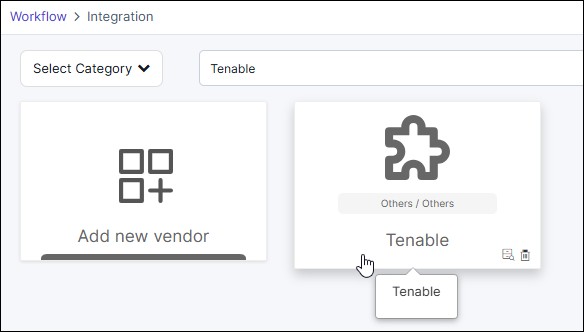 The Workflow > Integration > Vendor Configuration page is displayed.
 - On the Workflow > Integration > Vendor Configuration page, enter/select the required configuration details.
-
Under the Credentials section, ensure that you:
- From the Auth Type dropdown list, select Basic Auth.
- From the Credential Type dropdown list, select Manual Entry.
- In the Username field, enter your Tenable access key.
- In the Password field, enter your Tenable secret key.
Initiating and Running the Workflow
-
Go to (Menu) > Automation >
View/Run.
The Request :: View/Run page is displayed. This page is the complete Catalog of the custom and OOB workflows packaged in AppViewX.
- In the Search by Workflow, Category, Tags… field, enter the complete workflow name or a keyword to search the workflow.
-
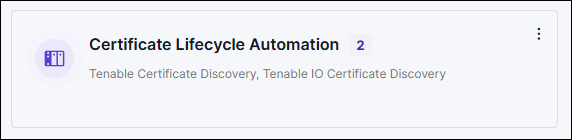
From the search results displayed, click the corresponding search result
card.
-
For the required workflow, click Run.
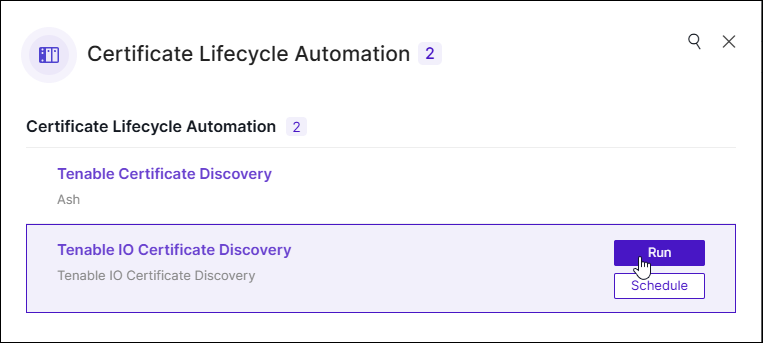 Note: The Tenable Certificate Discovery workflow is meant for on-prem deployments, while the Tenable IO Certificate Discovery is for SaaS deployments. Select a workflow based on your deployment.
 -
Enter/Select the User Inputs.
Table 1. Discovery run type options Field Description *Info Enter descriptive details related to the workflow execution, such as prerequisites, expected inputs and outcomes, and general hints related to the workflow. *Certificate Group From the dropdown list, select the certificate group that the discovered certificates will be assigned to. *Tenable Instance Name Enter the Tenable integration instance name that was specified at the time of integrating Tenable with AppViewX. *Plugin ID Enter the SSL certificate plugin ID, which is responsible for certificate discovery and storage in Tenable. *Certificate Status For the discovered certificates, select one from the following options: - Managed: The discovered certificates and their objects will be moved to the inventory with the status set to Managed. Managed certificates are a fully-managed asset; AppViewX managed the entire lifecycle of the discovered certificates.
- Monitored: The discovered certificates and their objects will be moved to the inventory with the status set to Monitored. Monitored certificates are only tracked and observed; AppViewX does not actively manage them.
*Include Expired Certificates To include expired certificates in the discovery results, select Yes. *: Mandatory fields - Click Submit.
-
In the Confirmation dialog box, click
Ok.
The workflow trigger request is submitted and AppViewX initiates API calls to Tenable to retrieve the discovered certificates from the Tenable database.
In the left pane, the operations performed by AppViewX as part of the discovery data retrieval process (such as component initialization for communication with Tenable, gather credentials, and so on) are listed as they are performed.
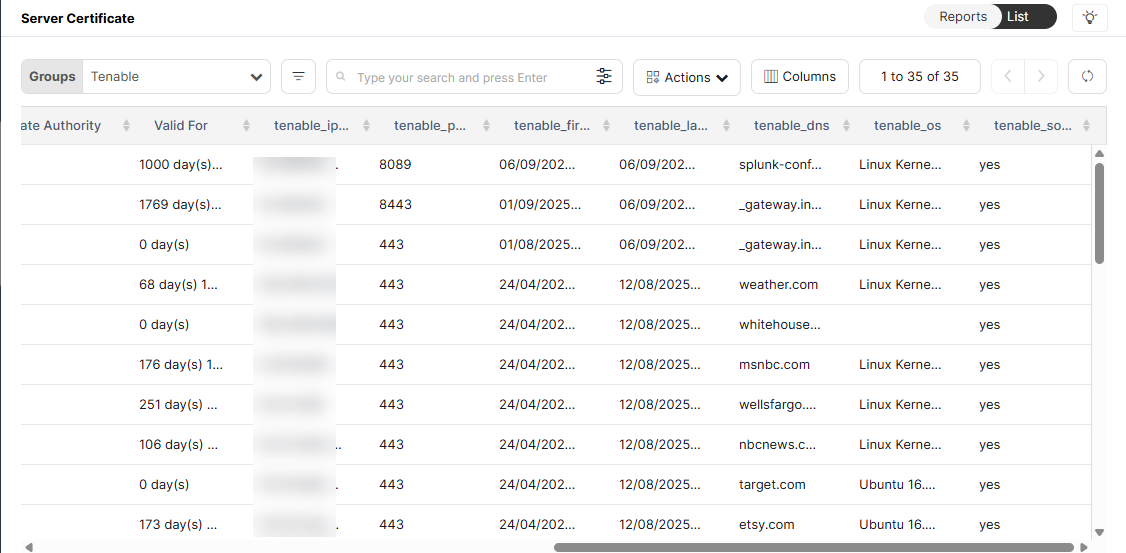
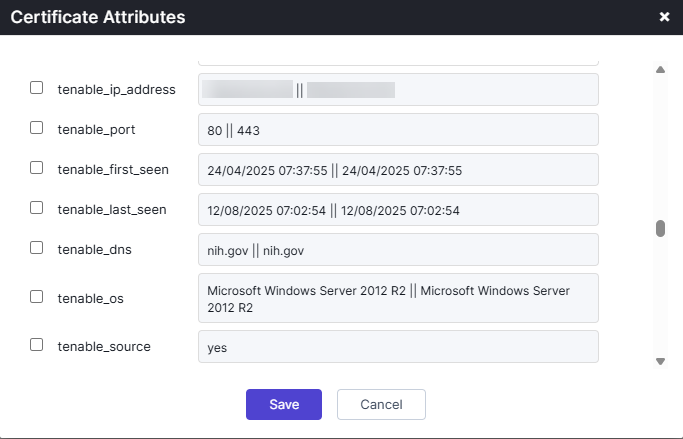
To uniquely identify certificates discovered from the Tenable source, for each imported certificate, the workflow updates the following metadata:For instructions on configuring certificate attributes, see Configuring Certificate Attributes.Table 2. Discovery run type options Attribute Name Attribute Key Description Tenable IP Address tenable_ip_address IP address where the certificate was discovered Port tenable_port Port associated with the certificate First Seen tenable_first_seen Date and time when the certificate was first discovered by Tenable Last Seen tenable_last_seen Date and time when the certificate was last rediscovered by Tenable DNS tenable_dns DNS name associated with the certificate OS tenable_os Operating system installed on the server on which the certificate was discovered Tenable Source tenable_source Unique identifier to indicate that the certificate was imported from a Tenable source Once AppViewX has all the information required to proceed, it initiates an API call to export the list of vulnerabilities.
The discovered certificates are added to the AppViewX CERT+ certificate inventory, along with the above explained metadata.
If a certificate is discovered at more than one IP address, the metadata certificate attribute values for each source are separated by a pipe, as shown in the image below:
 Note: For certificates listed in the Tenable scan results that have already been discovered by AppViewX, the Tenable attributes listed above are updated except the discovery source, which will retain its original value.
 -
To view the certificate inventory, go to (Menu)
> CERT+ > CERTIFICATE INVENTORY >
Server.
The Server Certificate invnetory is displayed.
Scheduling a Workflow
-
Go to (Menu) > Automation >
View/Run.
The Request :: View/Run page is displayed. This page is the complete Catalog of the custom and OOB workflows packaged in AppViewX.
- In the Search by Workflow, Category, Tags… field, enter the complete workflow name or a keyword to search the workflow.
-
From the search results displayed, click the corresponding search result
card.
-
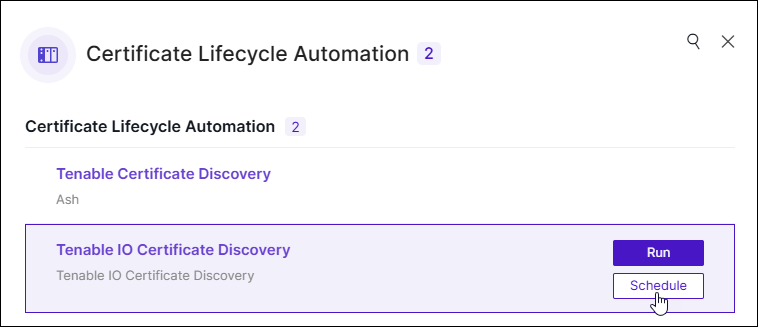
For the required workflow, click Schedule.
- In the Information section, enter a name for the workflow schedule and an optional description, if required.
- Click Save & Continue.
- Review the user inputs and modify them, if and as required.
- Click Save & Continue.
-
In the Schedule section:
-
To schedule the workflow for just one execution, under the Once
tab, use the
 (Calendar) widget in the Starts on field to set a
date and time for the workflow execution.
(Calendar) widget in the Starts on field to set a
date and time for the workflow execution.
- After setting the required date and time for the workflow execution, click Done in the Calendar widget.
OR-
To repeatedly trigger the workflow, under the Repeat tab,
use the
(Calendar) widget in the Starts on field to set a
date and time for the workflow execution.
-
To schedule the workflow for just one execution, under the Once
tab, use the
-
Click Schedule.
The workflow is now automatically executed according to the specified schedule and the discovery results are updated in the CERT+ certificate inventory.
