
Prerequisites
Adding the Git Repository to ArgoCD
-
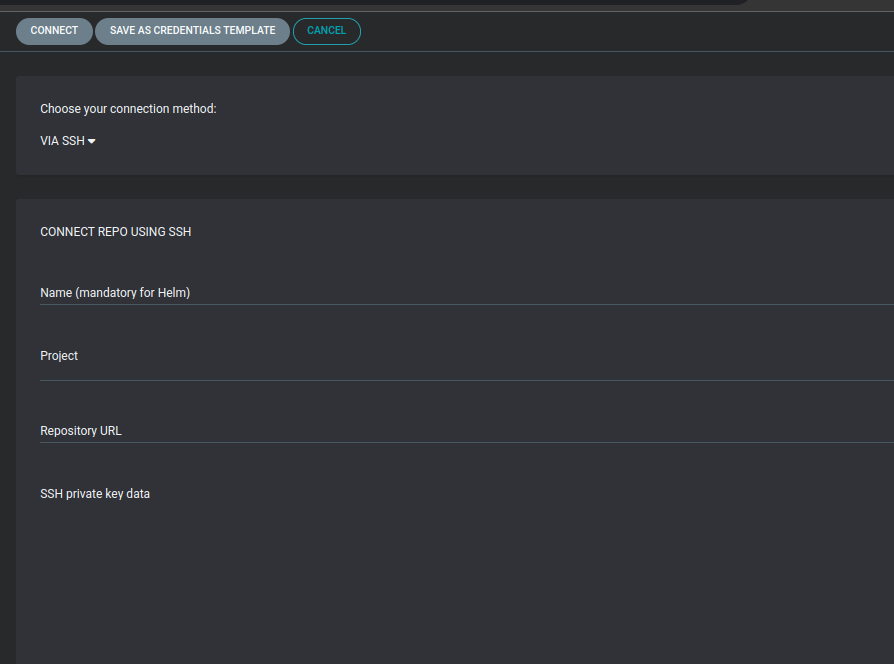
Log in to ArgoCD UI, go to Settings > Repositories, and then
click Connect Repo.

-
Fill in the required details; there are multiple ways to connect:
- Via SSH (Private Key needed)
- Via HTTPS
- Via Github App
Configuring Istio-Ingress Gateway (Prerequisite)
The following section of the document outlines the steps to install the OpenShift Service Mesh in an OCP cluster. It also provides an overview of concepts such as routes and the implementation of the Istio Ingress Gateway Proxy in OpenShift.
- Login into OCP cluster UI.
- Navigate to the Operator section.
- As a prerequisite install Jaeger and Kiali operators.
- Install OpenShift Service Mesh operator.
- Once the Red Hat Openshift Service Mesh operator is up and running, go to Operator Details.
-
The operator will have custom resource definitions (CRDs).
- ServiceMeshControlPlane
- Istio Service Mesh Member
- Istio Service Mesh Member Roll
-
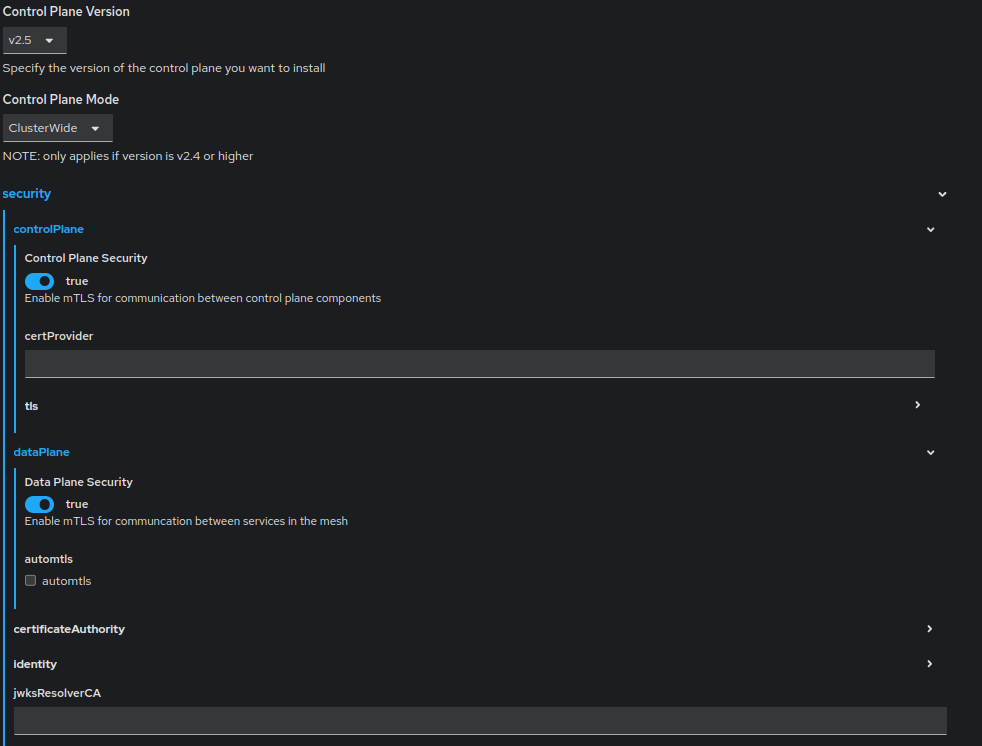
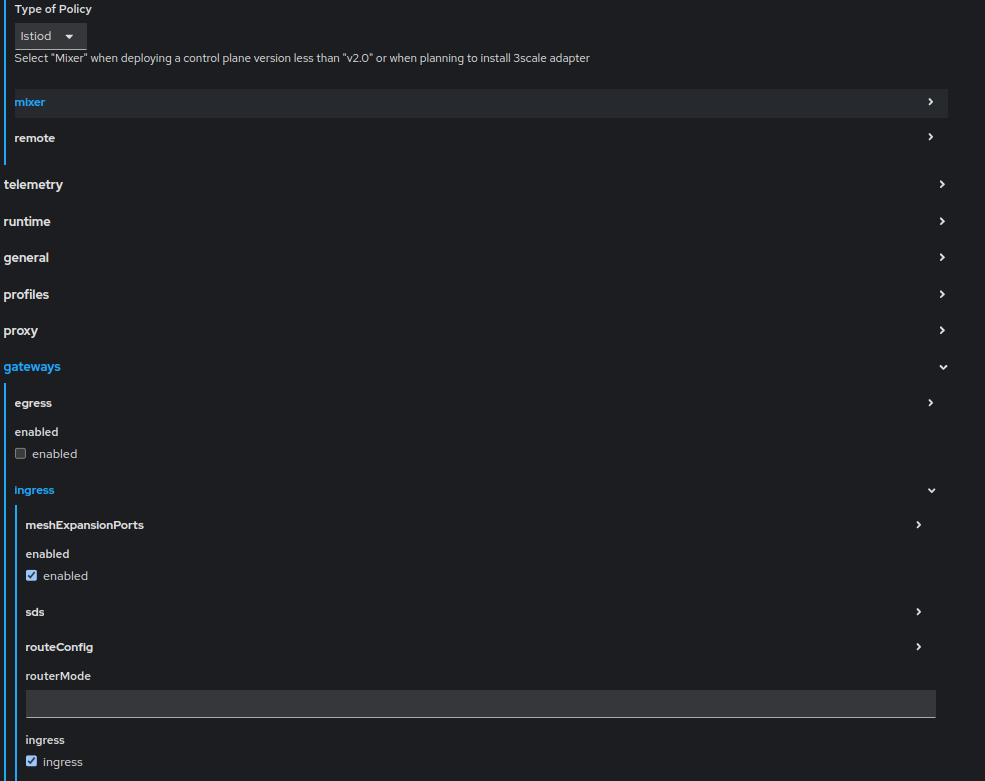
Create the instance of ServiceMeshControlPlane using the configuration
mentioned in the screenshot below.
-
This configuration creates an Istio control plane with the name
basic, and deploys istiod and istio-ingress-gateway
in the istio-system namespace.
Execute the below command to view the istio pod status:
kubectl get po -n istio-system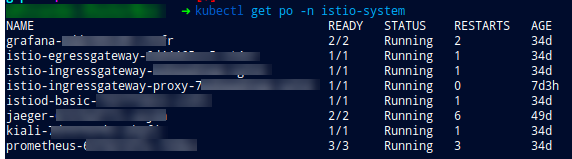
- To install the istio-ingressgateway-proxy, go to ServiceMeshControlPlane and edit the existing instance of ServiceMeshControlPlane.
-
In the spec.gateway section add the
istio-ingressgateway-proxy configuration.
Once the configuration is saved Operator will spin up istio-ingressgateway-proxy of type gateway.additionalIngress: istio-ingressgateway-proxy: enabled: true service: metadata: labels: app: istio-ingressgateway-proxy istio: istio-ingressgateway-proxy type: ClusterIP -
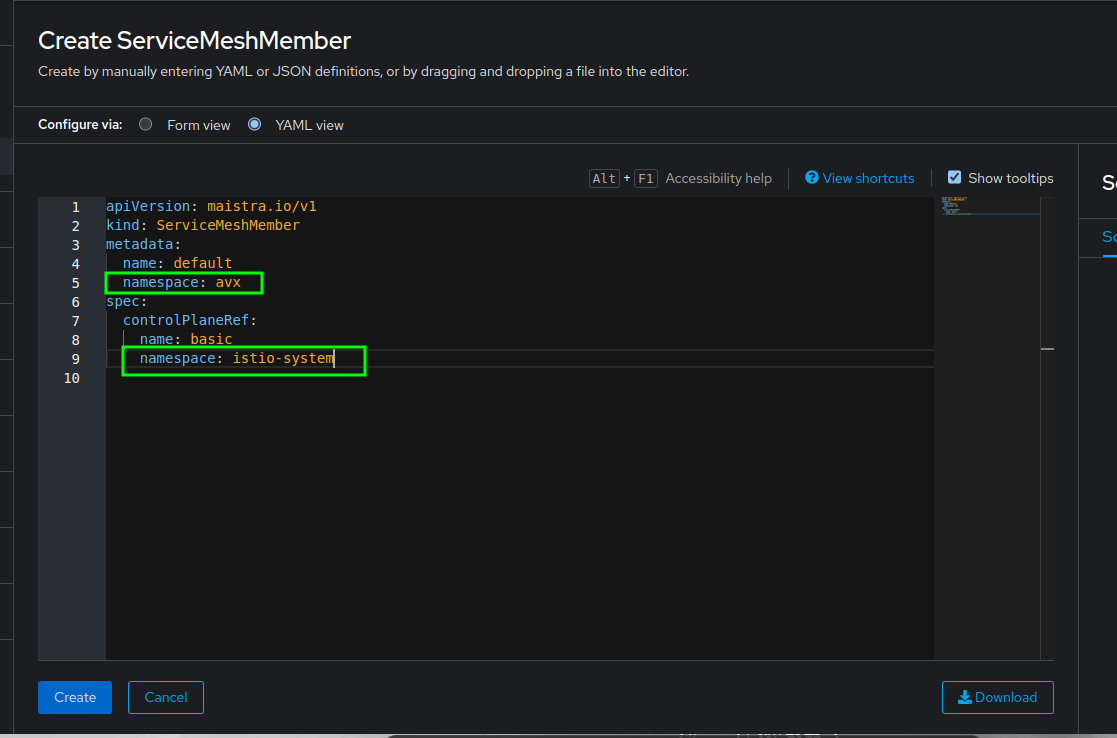
To enable the istio injection in avx namespace, create the Istio Service
Mesh Member and configuration mentioned in the screenshot
below.
-
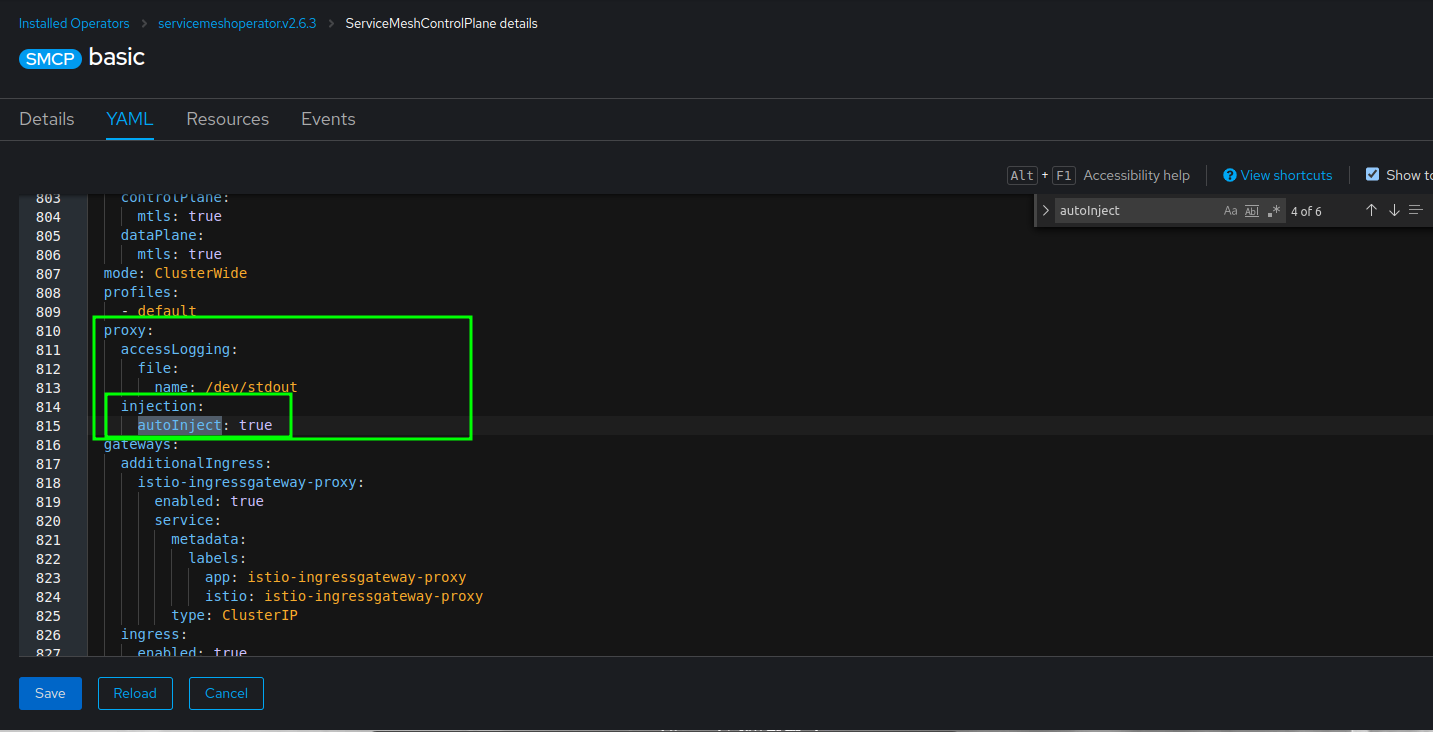
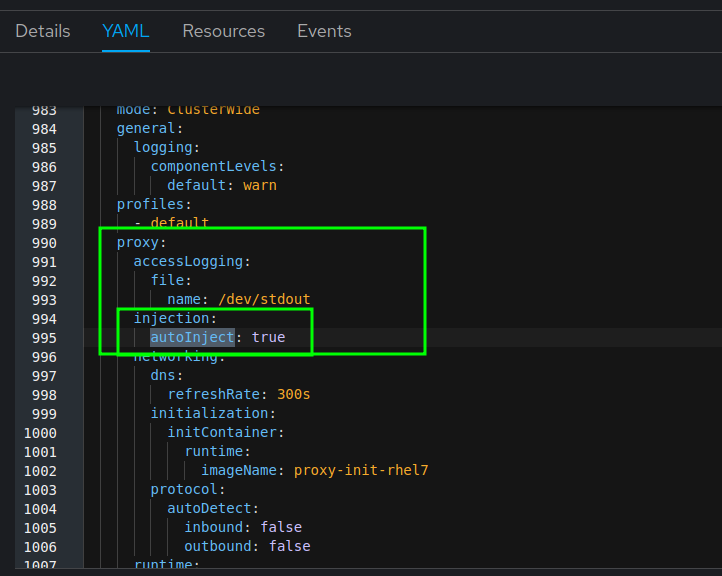
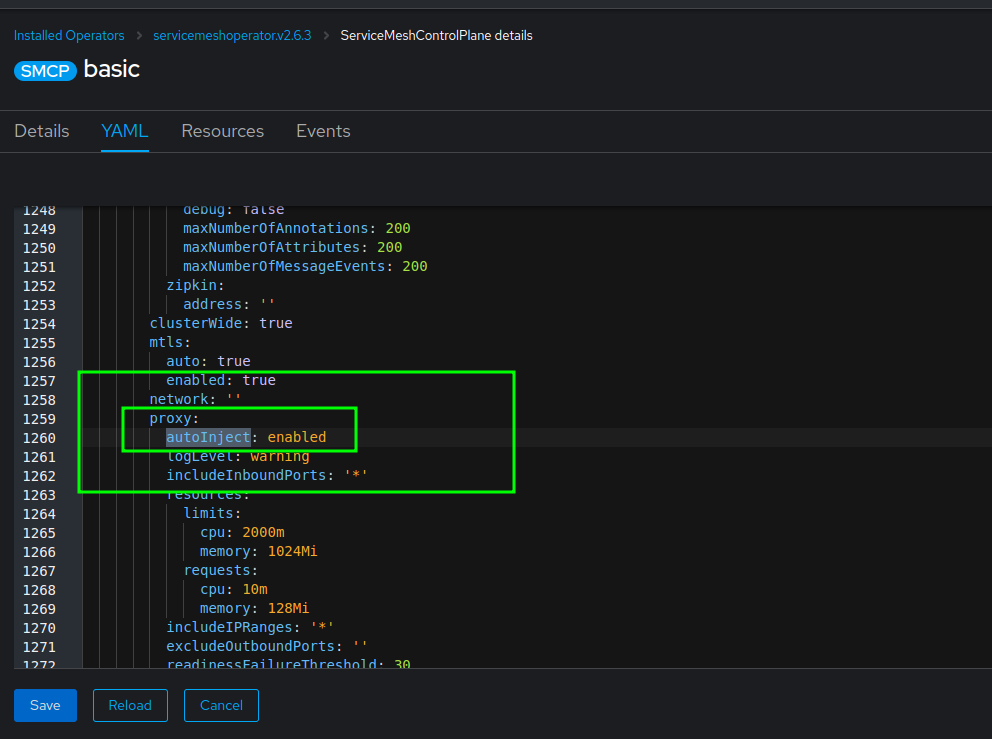
In the servicemesh controller yaml, ensure that autoinject is
enabled as configured in below screenshots.
To expose istio-ingressgateway and istio-ingressgateway-proxy routes have to be created. Route for istio-ingressgateway will be created automatically at the time of instance creation of ServiceMeshControlPlane.
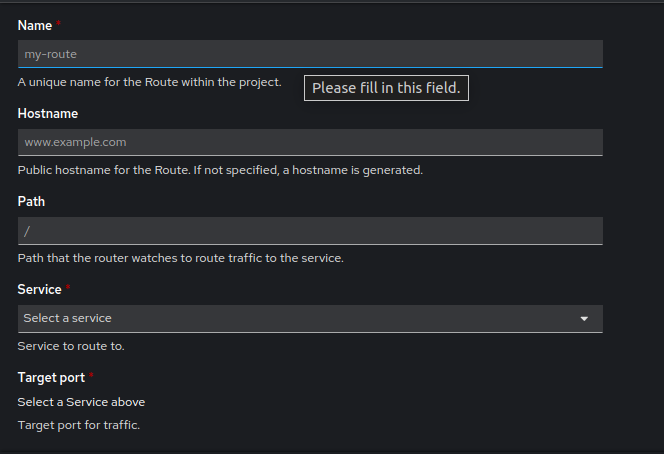
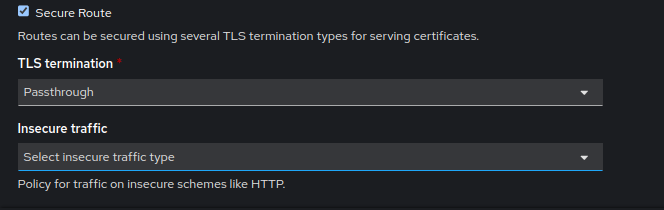
To create a route of istio-ingressgateway-proxy follow the steps below:
-
Click the Create Route button.
-
Click the Create Route button.
Creating the Ingress Gateway's Certificates
Create the ingress gateway's certificates and place it in the kubernetes
secret name tls-credential in istio-system
namespace.
Execute the
command:
kubectl create -n istio-system secret tls tls-credential --key=<absolute path of .key file> --cert=<absolute path of .crt file>