
Installing avx-app
Note: Perform the steps below only after installing the
avx-infra.
- Once you have logged in to the ArgoCD UI, and after registering the cluster, go to the Applications page, click + NEW APP button.
-
Enter the required details (set the server-side apply as true).
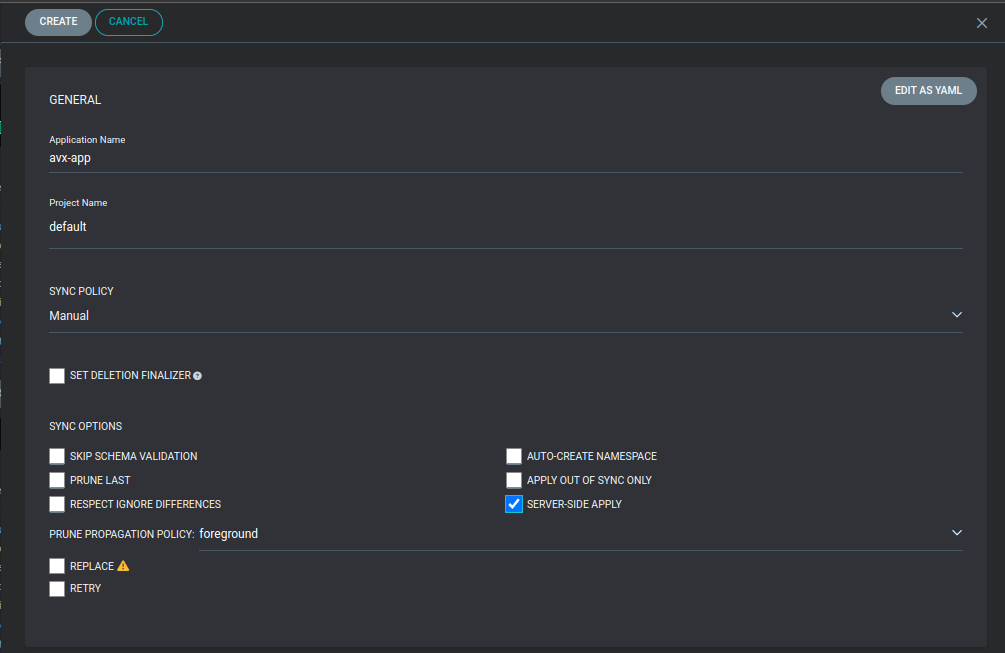
-
Enter the configurations in the ArgoCD that are necessary for avx-app, as
follows:
- Application Name: Can be any unique value
- Project Name (Default value: default)
- Sync Policy (Manual/Automatic - Set it to Manual)
- Server-side apply should be true.
SOURCE- Repository URL: Git repository in which helm charts are present. ArgoCD will track this repository and deploy the changes while applying sync.
- Revision: Branch name of the above git repository to be tracked
- Path: Path of the helm chart to be tracked. In case of composite helm charts (parent and child helm chart), provide the path to the parent helm chart. (In case of avx-app, select the values.yaml in the managed_k8s/helm charts/avx_app folder in the git repository.)
DESTINATION- Cluster URL: After successfully adding the cluster to ArgoCD during the setup process, the added cluster can be selected from the dropdown.
- Namespace: This is the release namespace. (avx in case of avx-app)
After entering all the required details, similar to avx-infra, all necessary values can be completed directly through the UI.
Compulsory values to be filled for avx-app
Updating Image Tags, Registry, Image pull secrets’ name in ArgoCD
- Code-based Updates (helm_charts/avx_app/values.yaml): When a new image tag
needs to be updated, the tag must be modified in a single location in the code. This
is possible because both the image tag and the registry are defined in a central
location within the repository and are referenced elsewhere in the codebase. This
approach ensures consistency and reduces the risk of errors when managing
updates.


- UI-based Updates: If updates are made directly through the ArgoCD UI, the tag and registry values must be updated individually for each plugin. This is because ArgoCD resolves and replaces referenced values during synchronization, making it necessary to edit the resolved values separately for every plugin.
Recommendations
- To reduce manual effort and ensure consistency, it is recommended to update image tags and registry details via the Git repository instead of using the ArgoCD UI.
- Enter in the required information for specific plugin details. For example, in
avx_vendors, if you prefer to use minio instead of aws, enter
the details as shown below.
avx-vendors:
 saas_enabled: *saas_enabled
 cloudConnectorEnabled: *cloudConnectorEnabled
 serviceName: avx-vendors.avx.svc.cluster.local:6701
 image:
   repository: appviewx/avx-cloud-managedservice-mks
   registry: *registry
   tag: *tag

 imagePullSecrets:
   name: *name

 externaljar:
   f5JarRequired: "true"
   icontroljar: "iControl-13.1.0.jar"
  minio:
   enabled: true
   server: "<minio server url"
   accessKey: "<access key of minio>"
   secretKey: "<secret key of minio>"
   bucketName: "<minio bucket name"
