
Managing Credential
The firewall inventory management within the AppViewX application streamlines the
process of managing and securing firewall credentials. It provides a secure and
efficient way to store, control access to, and monitor the use of firewall
credentials. It enhances the security and manageability of an organization's network
infrastructure.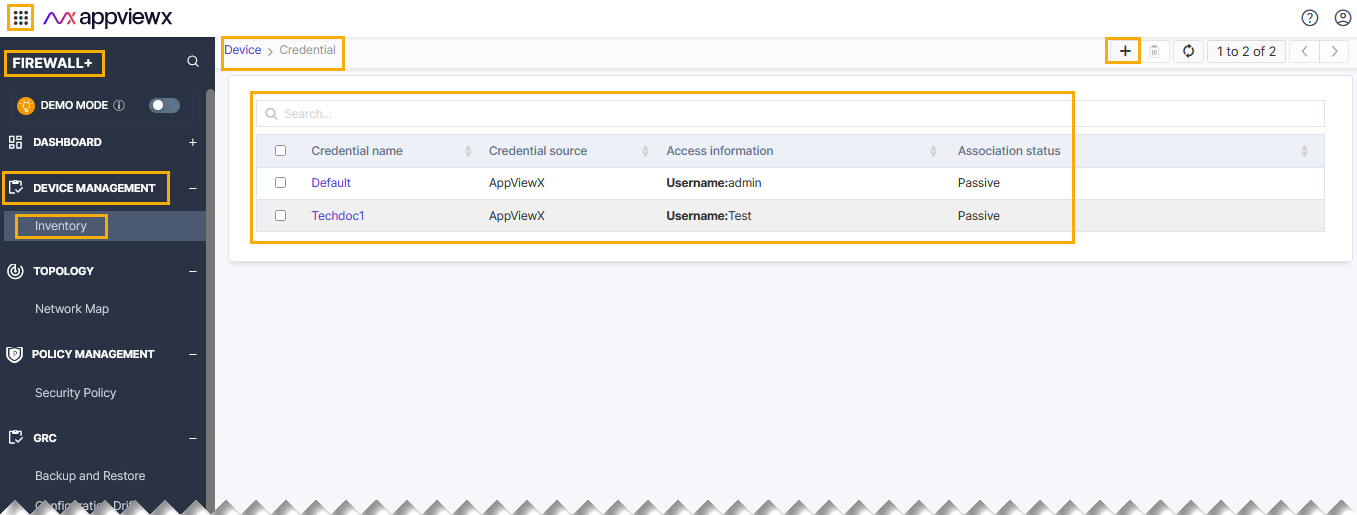
To add credential,
-
Go to Menu > FIREWALL+ > DEVICE MANAGEMENT
> Inventory> Firewall.
By default, the Firewall tab opens.
-
Click the
 (Credential) icon from the
right-top of the page.
The credential home page is displayed.
(Credential) icon from the
right-top of the page.
The credential home page is displayed. -
Click the
 (Add credential) icon from the right-top
of the page.
The Add credential page is displayed.
(Add credential) icon from the right-top
of the page.
The Add credential page is displayed.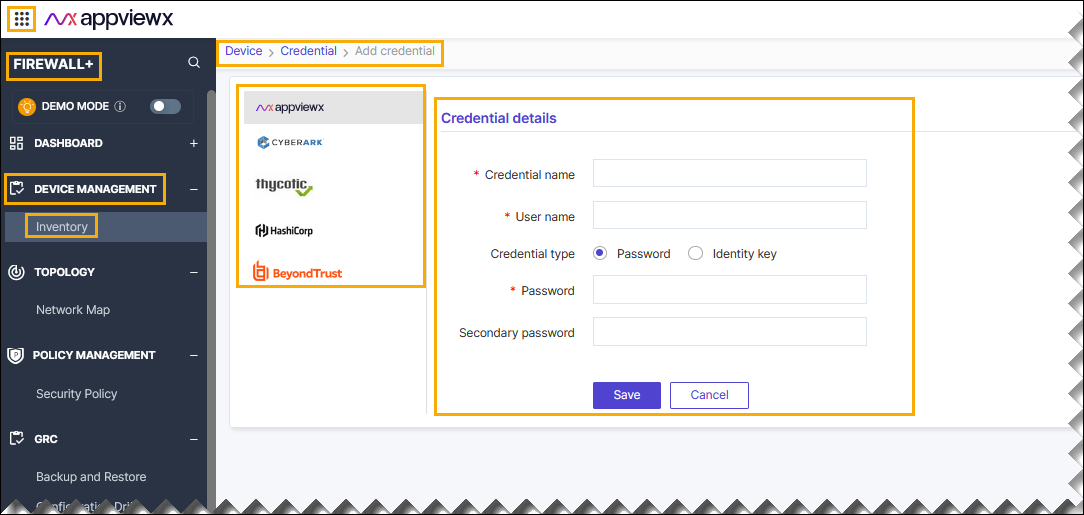
- Select the device from left bar.
-
Enter or select the field information in the Credential details section.
Table 1. Field and Description Table Field Description *Credential name Name of the credential. *User name Enter name of the user. Credential type Click radio button to select the desired type of credential. Available types are, - Password
- Identity key.
*Password If the credential type is selected as password, then enter the valid password in this field. Identity key If the credential type is selected as Identity key, then upload the private key that is used in SSH for granting access to device in the below foramt. - .prem
- .txt
- _rsa
- _dsa
- .ppk.
Passphrase If the credential type is selected as identity key, then enter the passphrase in this field. Password If the credential type is selected as password, then enter the valid password in this field. Secondary Password If the credential type is selected as password, then enter the valid password in this field. *: Mandatory fields
Validating the Credential Type
After adding the credential, you can validate the device by searching device in the device credential inventory.
-
Go to Menu > FIREWALL+ > DEVICE
MANAGEMENT > Inventory> Firewall.
By default, the Firewall tab opens.
-
Click the (Credential) icon from the
right-top of the page.
The credential home page is displayed.
- Search the device name and validate whether the device is added successfully.
