
Device Management Others
The purpose of inventory management for other vendors is to consolidate all devices into a unified platform. This consolidation does not involve parsing configurations. Instead, it focuses on verifying communication between AppViewX and other devices. This setup lays the foundation for potential automation. In the future, direct communication can occur based on the provided credentials, enabling streamlined and efficient automation processes.
-
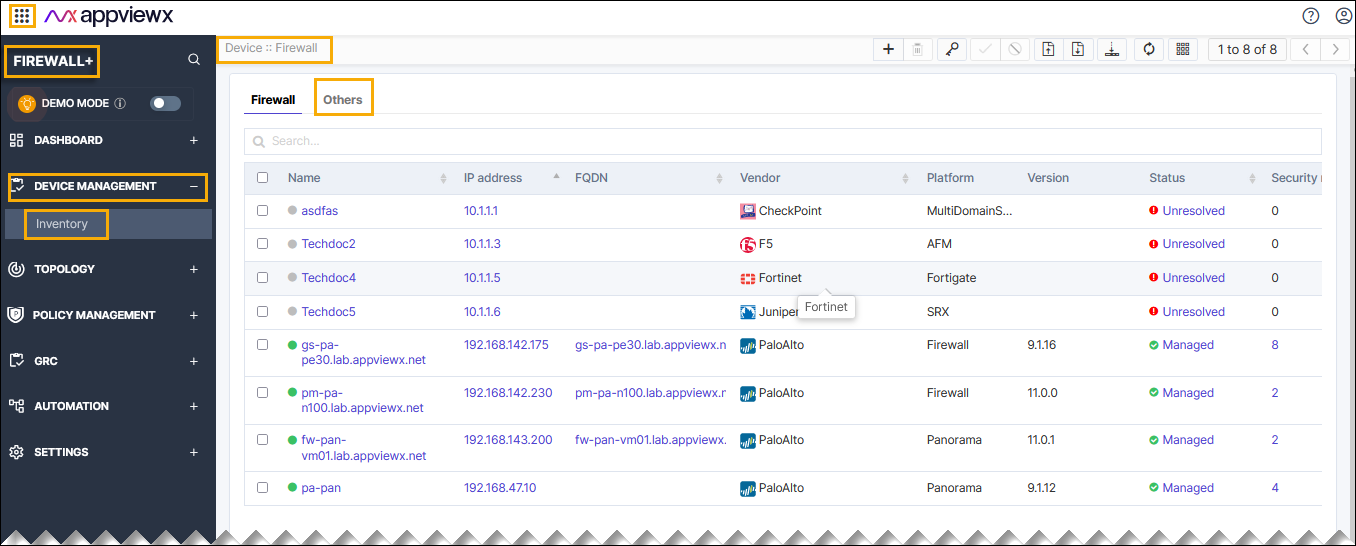
Go to Menu > FIREWALL+ > DEVICE MANAGEMENT
> Inventory> Firewall.
By default, the Firewall tab opens.
-
Click Others tab from the home page.
-
Enter or select the field information in the General Information
section.
Table 1. Field and Description Table Field Description Device name Name of the device. IP address Enter the IP address. Port Enter the valid port number. Model Enter the model number. Description Enter the details. Data center The data center on which the device has been hosted. Select a Datacenter from the drop-down list or enter a data center name. *IP address/FQDN Enter the IP address or FQDN based on the selected communication mode. Data center Select from an existing list or enter a new data center. *: Mandatory fields -
Enter or select the field information in the Credentials section:
Table 2. Field and Description Table Field Description *Credential type Credentials can be manually provided or stored as a one-time entry onto the credential library and referred at the time of device addition. Select one of the following credential types from the drop-down list: - Manual Entry - The user name and password of the device need to be entered with device details. By default, the Manual Entry option is selected.
-
AppViewX Credential List - The user name and password can be added to the List and that entry can be referred to during device addition. The credential lists are integrated within AppViewX application for the secured authentication.
To create a credential list, see Creating Credential List in the Platform User Guide.
*Username Username for the firewall device when you select the Manual Entry credential type. *Password Valid password for the firewall device when you select the Manual Entry credential type. Note: Use strong passwords for secure device communication. Your Passwords can be of any length with a combination of alpha-numerical, symbols, and special characters.Enable password Enter the enable password. *: Mandatory fields -
Click Save
Note:
- To discard the changes, click the Cancel button.
