
Importing a <.xls> or <.zip> file
-
On the Collection page, from the command bar on the top right of the
screen, click
 (Download) icon.
- On the Collection > Import page, click Browse.
-
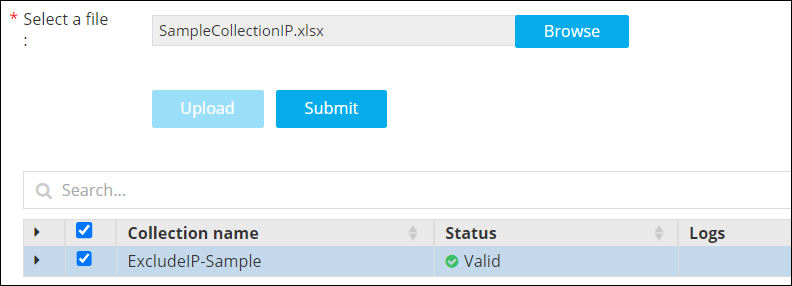
Select the file to be imported into AppViewX and click Upload.
-
Select the checkbox next to the Collection name, and then click
Submit.
The imported collection is added to the Collection page.
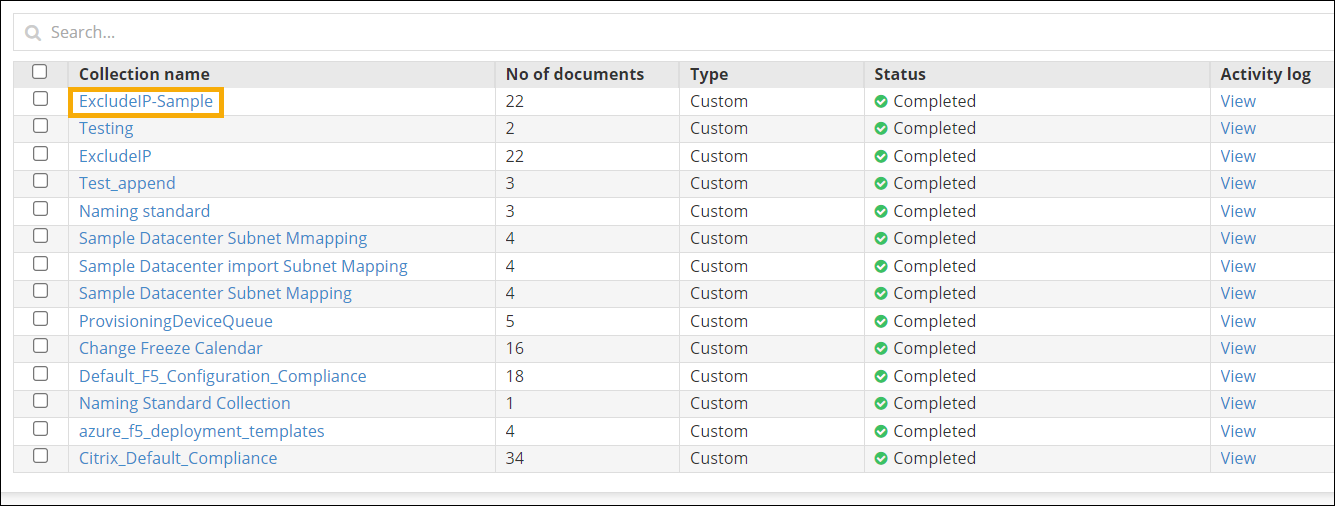
-
Click Collection name and hover over View meta details for
details about the collection.
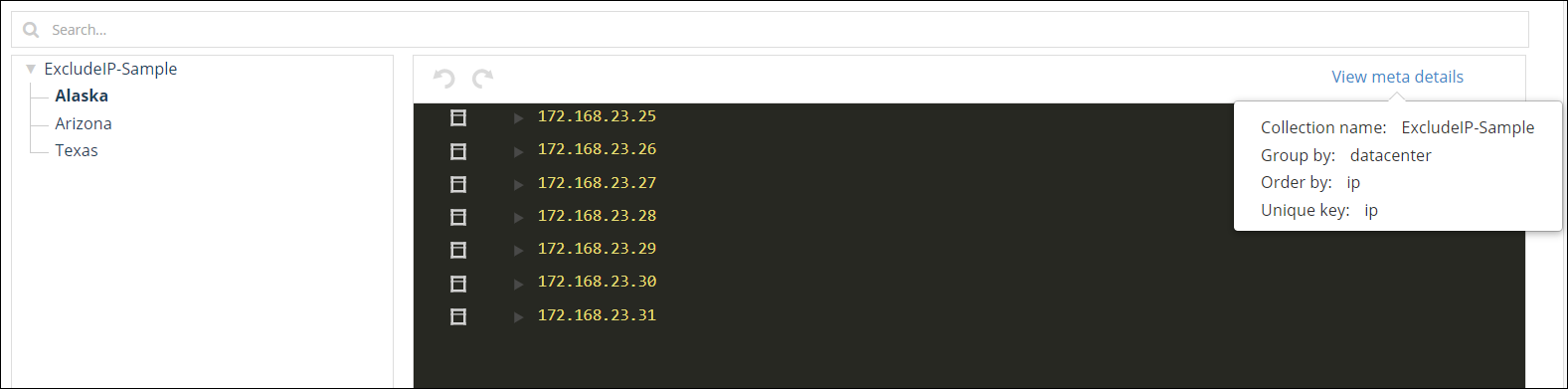
- Collection name: This is the name of the collection. For example: ExcludeIP-Sample.
- Group by: You can define the parameter for grouping the data in the collection. For example: All the IPs in this collection will be grouped by datacenter - Alaska, Arizona, Texas, and so on. For more information, click here.
- Order by: You can define how the data will be ordered in the collection For example: If you set the Order by field as ip, then all the IPs will be listed in order in the collection. For more information, click here.
- Unique key: This is the unique identifier for the data in the collection.
