
Setting up the AppViewX Cloud Connector using a Packaged Installer
If the host machine does not/cannot fulfill the installation prerequisites, you can set up the AppViewX Cloud Connector via the AppViewX SaaS OVA. To know more about the OVA and for instructions on setting up the AppViewX Cloud Connector using the AppViewX SaaS OVA, click here.
-
Configure the native OS for the cloud connector installation.
Note: Before executing the following instructions, ensure that you have root user permissions.
-
Access the AppViewX user interface.
In order to set up the AppViewX Cloud Connector instance, you will need to login to the connectivity service’s user interface. The following steps will outline the navigation and steps required to access the AppViewX Cloud Connector's setup interface.
As an additional layer of security, AppViewX issues client certificates to access the AppViewX GUI. The client certificate will be made available as part of the onboarding process. Upload this client certificate to the browser to start accessing the product.
-
Navigate to the cloud connector's setup interface.
There are three ways you can access the interface for setting up the AppViewX Cloud Connector:
- From the product landing page (that you will see as soon as you
have logged in)
- Expand the Connectivity section and click
 .
.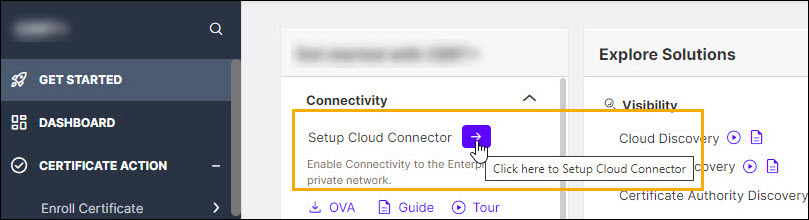 You will be redirected to the Settings :: Cloud
Connector page.
You will be redirected to the Settings :: Cloud
Connector page.
- Expand the Connectivity section and click
- From the new navigation menu (displayed by default starting
product version 2022.1.0 FP3 onwards):
- From the menu in the top-right corner of the page,
select Platform.
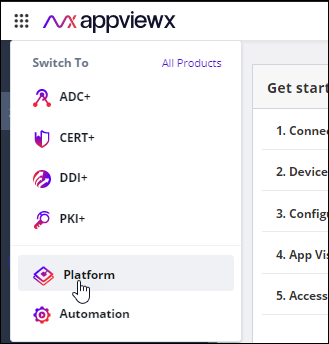
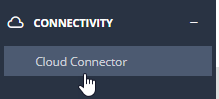
- From the Platform menu, under
Connectivity, click Cloud Connector.The Settings :: Cloud Connector page is displayed.
- From the menu in the top-right corner of the page,
select Platform.
- From the old navigation menu: Note: For instructions on switching between the new and the old navigation menus, click here.
- From the top right corner of the landing page, click the menu icon.
- From the menu displayed, navigate to Settings >
Cloud Connector.
The Settings :: Cloud Connector page is displayed.
- From the product landing page (that you will see as soon as you
have logged in)
-
Navigate to the cloud connector's setup interface.
-
On the Setting :: Cloud Connector page, click Add Cloud
Connector.
The Cloud Connector Setup screen is displayed.
The landing page gives you a quick introduction to the AppViewX Cloud Connector, with a graphical representation of how the infrastructure is deployed and works.
-
To start with the process of adding the cloud connector, from the bottom-right
corner of the screen, click Get Started.
 You will be redirected to the Basic Information page.
 -
On the Basic Information page, configure the basic cloud connector
settings.
-
[Optional] Execute a prerequisite check script.
To simplify compliance to the AppViewX Cloud Connector installation prerequisites, you can execute a script to identify and rule out any deviations from the prerequisites.Note: This is an optional step. The prerequisite check script is executed automatically at the time of installing the AppViewX Cloud Connector and the results are shown as a part of the installation logs.
-
On the Basic Information screen, under Setup Cloud
Connector, you will see a list of the installation
prerequisites.
From this list, for Executing the Prerequisites Check Script, to download the script, click
 . The pre-requisite-check.sh script file is downloaded.
 -
Execute the .sh prerequisite check script file:
./pre-requisite-check.shIf the node does not meet the prerequisites for the AppViewX Cloud Connector installation, the output of the command returns an error code and the corresponding error message, causes, and fixes, if any.For example, as seen in the sample output in the image below, the prerequisite check for the memory requirement has failed.
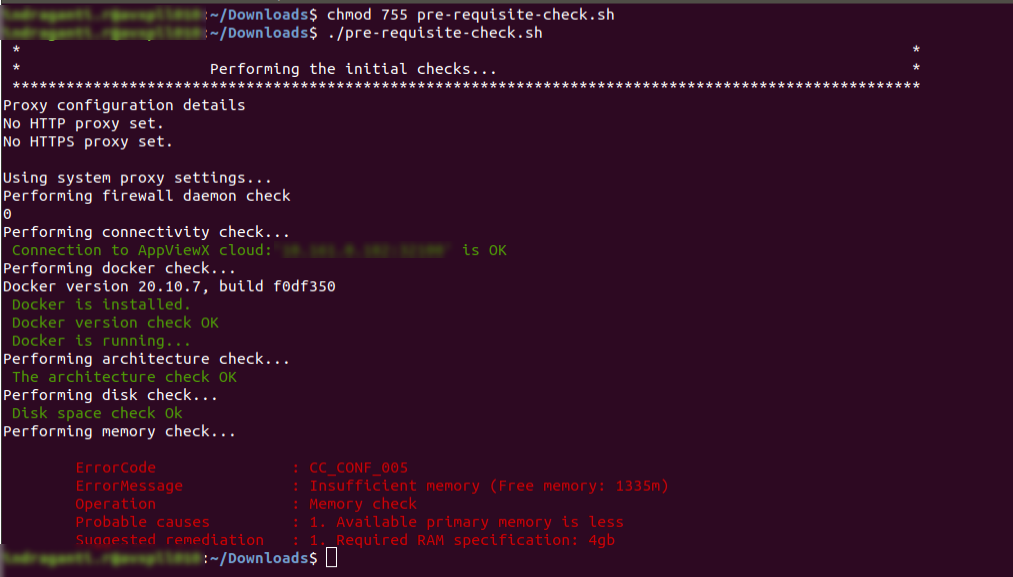 Note: For resolutions to the prerequisite check failure scenarios, click here.
-
On the Basic Information screen, under Setup Cloud
Connector, you will see a list of the installation
prerequisites.
-
Click Next.
You will be navigated to the AssignData Center screen, where, for deploying the AppViewX Cloud Connector, you can either select an existing data center or add a new one.
-
To use an existing data center, select one from the options displayed on the
Assign Data Center screen.
Tip: Alternatively, you can use the Search… field on this screen to search for an existing data center.To add a new data center:
-
Click Next.
The Advanced Configuration screen is displayed.
-
On the Advanced Configuration page, to configure the TLS authentication
and proxy server settings for your cloud connector:
-
Enter/Select the advanced configuration settings for the AppViewX Cloud
Connector.
Note: The Data center field is auto-populated based on your selection on the Assigning a Data Center screen.
Field Description TLS Authentication Tip: The section on the right of the screen gives you a brief context of what is TLS Authentication. To read more, click Learn More (next to the TLS Authentication heading).- To auto-generate a TLS certificate,
select Auto-generate
(default selection).
By default, the certificate is generated using the AppViewX CA.
Note: The created certificate is available in the certificate inventory. You can:- Assign this certificate to a certificate group
- Configure a certificate expiry alert for this certificate group from the Server Certificate dashboard, using the Certificate Summary Report widget settings
- To enter details of a custom TLS
certificate, select
Custom.
The TLS Certificate Password and Custom TLS Certificate fields are displayed. The instructions for filling these fields are given below.
TLS Certificate Password* Note: This field is displayed only if you have selected to enter details of a Custom TLS certificate in the TLS Authentication field.Password of the TLS certificate (that will be uploaded in the next step)Note: This is a mandatory field if a Custom TLS certificate is uploaded. AppViewX supports only password-protected Custom TLS certificates.TLS Certificate Note: This field is displayed only if you have selected to enter details of a Custom TLS certificate in the TLS Authentication field.To upload a custom TLS certificate:- To navigate to the location of the custom TLS certificate, click within the field.
- Select the certificate file.
- Click Open.
- To upload the custom TLS certificate selected, click Upload.
Note: AppViewX supports only password-protected Custom TLS Certificates.Use proxy Tip: The section on the right of the screen gives you a brief context of what is Proxy based routing. To read more, click Learn More (next to the Proxy based routing heading).A proxy server is required if the AppViewX Cloud Connector is unable to connect to your endpoints available in the internet.To use a proxy server for the deployment:
- Select the Use proxy checkbox.
- To select a preconfigured proxy (for the selected data center), from the Select Proxy dropdown list, select a proxy server.
OR
To create a new proxy server setting:
- Use the
 option shown below the
Select Proxy dropdown list.
option shown below the
Select Proxy dropdown list.
The Add Proxy pop-up screen is displayed.
- Enter/Select the details required to
add a proxy.
Table 1. Field descriptions for the Add Proxy details Field Description *Proxy Name Name of the proxy server *Server IP IP address/FQDN of the proxy server *Port Port number of the proxy server URL From the dropdown menu, select the URL. Authentication To enable authentication for accessing the proxy server, select this checkbox. *Username Note: This field is enabled only when Authentication is selected.Enter the username required for accessing the proxy server.*Password Note: This field is enabled only when Authentication is selected.Enter the password required for accessing the proxy server.
- To auto-generate a TLS certificate,
select Auto-generate
(default selection).
-
Click Finish.
A confirmation message is displayed. AppViewX begins preparing the installer that you can download and proceed with the installation of the AppViewX Cloud Connector.
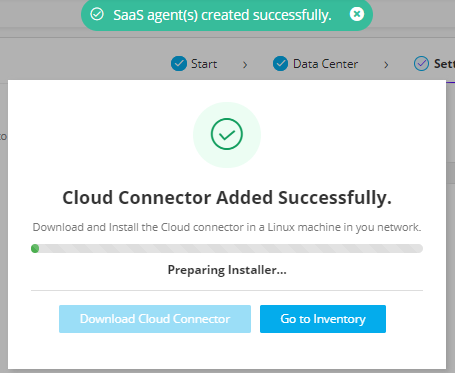
-
Enter/Select the advanced configuration settings for the AppViewX Cloud
Connector.
-
Download the cloud connector installer and license file.
-
On the Cloud Connector Added Successfully dialog box, when the
Installer and License is Ready for Download, click
Download Cloud Connector.
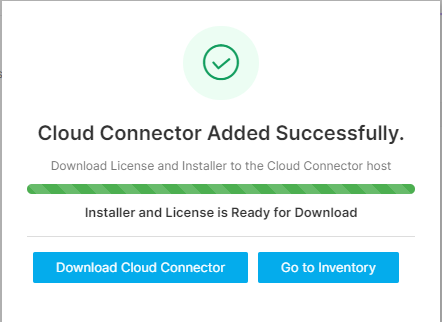 Tip: Alternatively, you can click Go to Inventory and download the installer from the AppViewX Cloud Connector inventory.Tip: You can also choose to download the license file and the installer package individually. To do this:
-
From the cloud connector inventory, click the Cloud Connector Name (for which you want to download the license file and the installer package).
The selected cloud connector’s details are shown in a pane to your right.
-
To download the AppViewX Cloud Connector installer package, click Download Cloud Connector. This is especially useful in the event that the installer has been deleted or is no longer usable.
To download the license file, click Download License.
-
-
On the Cloud Connector Added Successfully dialog box, when the
Installer and License is Ready for Download, click
Download Cloud Connector.
-
Install the AppViewX Cloud Connector Agent.
Note: The following steps assume that:
- All system prerequisites are fulfilled by the host machine.
- The AppViewX Cloud Connector installer and license file are securely copied via SCP/SFTP to the host machine where the cloud connector is to be installed.
- For installation on RHEL8+, the user must have sudo access
with read/write/execute permissions for the
following directories at the least:
- /var/lib
- /etc
- /run
- /usr/local/bin
- /tmp
-
On the node where the AppViewX Cloud Connector agent will be installed,
from the extracted installation package, run the ./install.sh
script.
The script will check if the installation prerequisites for the AppViewX Cloud Connector have been fulfilled.Note:On successful verification of the prerequisites, you will be prompted to specify if you want to manage f5 BIG-IP devices and if you need auto-enrollment of the certificates.
Ensure that the license file is placed in the same location as the install.sh script. If the license file is placed in another location, run the install.sh script using the following command:
./install.sh <complete path of the license file with the filename>
-
Enter the sudo password.
After the relevant details have been entered, the installation proceeds. Installation logs, according to the outcome of the installation, are displayed.
Given below are the sample installation logs:
For installation on RHEL8+:
Moving images and k3s binary as required for k3s installation...

Triggering k3s install.....

[INFO]  Skipping k3s download and verify
[INFO]  Skipping installation of SELinux RPM
[WARN]  Failed to find the k3s-selinux policy, please install:
    dnf install -y container-selinux
    dnf install -y https://rpm.rancher.io/k3s/stable/common/centos/8/noarch/k3s-selinux-0.4-1.el8.noarch.rpm

[INFO]  Creating /usr/local/bin/kubectl symlink to k3s
[INFO]  Creating /usr/local/bin/crictl symlink to k3s
[INFO]  Creating /usr/local/bin/ctr symlink to k3s
[INFO]  Creating killall script /usr/local/bin/k3s-killall.sh
[INFO]  Creating uninstall script /usr/local/bin/k3s-uninstall.sh
[INFO]  env: Creating environment file /etc/systemd/system/k3s.service.env
[INFO]  systemd: Creating service file /etc/systemd/system/k3s.service
[INFO]  systemd: Enabling k3s unit
Created symlink /etc/systemd/system/multi-user.target.wants/k3s.service → /etc/systemd/system/k3s.service.
[INFO]  systemd: Starting k3s


k3s install success. Backing up the kubeconfig...
Importing CC base image...
unpacking docker.io/library/avx-mid-server-base:22.1.0.0 (sha256:5e1948b797dd19382f50faf06f921645337d53a1736016db81cd680c0afd7317)...done
***********************************************
adding nameservers in coredns configmap

configmap/coredns configured
***********************************************
Deploying the Cloud Connector...
NAME: avx-mid-server-starter
LAST DEPLOYED: Wed May 10 11:02:29 2023
NAMESPACE: cc
STATUS: deployed
REVISION: 1
NOTES:
1. It may take a couple of minutes for the Cloud Connector to be up.
  kubectl get pod --namespace cc
********************************************************************
*    Congratulations!!! The installation completed successfully.   *
*    Please wait till the Cloud Connector is up and running.       *
********************************************************************
(1%) Cloud Connector status: Running
 Cloud Connector is up and running.
Note: If selinux is enabled on the node and is set to enforcing, the warning Failed to find the k3s-selinux policy... will show up in the logs. This warning can be ignored.For installation on an OS other than RHEL8+:
Loaded image: rancher/k3s:v1.23.3-k3s1 Loaded image: rancher/k3d-tools:5.2.2 Loaded image: rancher/mirrored-pause:3.6 [36mINFO[0m[0000] [SimpleConfig] Hostnetwork selected - disabling injection of docker host into the cluster, server load balancer and setting the api port to the k3s default [33mWARN[0m[0000] No node filter specified [33mWARN[0m[0000] No node filter specified [33mWARN[0m[0000] No node filter specified [36mINFO[0m[0000] Prep: Network [36mINFO[0m[0000] Re-using existing network 'host' (8bebb4ae61001f74487d0aa6b315396405d0127c938da1206614d113295ae139) [36mINFO[0m[0000] Created volume 'k3d-cc-images' [36mINFO[0m[0000] Starting new tools node... [36mINFO[0m[0000] Starting Node 'k3d-cc-tools' [36mINFO[0m[0001] Creating node 'k3d-cc-server-0' [36mINFO[0m[0001] Using the k3d-tools node to gather environment information [36mINFO[0m[0001] Starting cluster 'cc' [36mINFO[0m[0001] Starting servers... [36mINFO[0m[0001] Starting Node 'k3d-cc-server-0' [36mINFO[0m[0033] All agents already running. [36mINFO[0m[0033] All helpers already running. [36mINFO[0m[0033] Cluster 'cc' created successfully! [36mINFO[0m[0034] You can now use it like this: kubectl cluster-info Cluster setup is completed. Will start the deployment shortly... Importing the required images... [36mINFO[0m[0000] Importing image(s) into cluster 'cc' [36mINFO[0m[0000] Importing images from 1 tarball(s)... [36mINFO[0m[0000] Importing images '[/home/appviewx/CCTEST/deps/tools/mid-server-docker-image/avx-mid-server-base-22.1.0.0.tar]' into node 'k3d-cc-server-0'... [36mINFO[0m[0024] Successfully imported image(s) [36mINFO[0m[0024] Successfully imported 1 image(s) into 1 cluster(s) Import in progress... [36mINFO[0m[0000] Importing image(s) into cluster 'cc' [36mINFO[0m[0000] Importing images from 1 tarball(s)... [36mINFO[0m[0000] Importing images '[/home/appviewx/CCTEST/deps/tools/mid-server-docker-image/k3d-tools-5.2.2.tar]' into node 'k3d-cc-server-0'... [36mINFO[0m[0005] Successfully imported image(s) [36mINFO[0m[0005] Successfully imported 1 image(s) into 1 cluster(s) Import in progress... [36mINFO[0m[0000] Importing image(s) into cluster 'cc' [36mINFO[0m[0000] Importing images from 1 tarball(s)... [36mINFO[0m[0000] Importing images '[/home/appviewx/CCTEST/deps/tools/mid-server-docker-image/rancher-mirrored-coredns-coredns-1.8.6.tar]' into node 'k3d-cc-server-0'... [36mINFO[0m[0007] Successfully imported image(s) [36mINFO[0m[0007] Successfully imported 1 image(s) into 1 cluster(s) [36mINFO[0m[0000] Importing image(s) into cluster 'cc' [36mINFO[0m[0000] Importing images from 1 tarball(s)... [36mINFO[0m[0000] Importing images '[/home/appviewx/CCTEST/deps/tools/mid-server-docker-image/rancher-local-path-provisioner-v0.0.21.tar]' into node 'k3d-cc-server-0'... [36mINFO[0m[0004] Successfully imported image(s) [36mINFO[0m[0004] Successfully imported 1 image(s) into 1 cluster(s) [36mINFO[0m[0000] Importing image(s) into cluster 'cc' [36mINFO[0m[0000] Importing images from 1 tarball(s)... [36mINFO[0m[0000] Importing images '[/home/appviewx/CCTEST/deps/tools/mid-server-docker-image/rancher-mirrored-pause-3.6.tar]' into node 'k3d-cc-server-0'... [36mINFO[0m[0003] Successfully imported image(s) [36mINFO[0m[0003] Successfully imported 1 image(s) into 1 cluster(s) Deploying the Cloud Connector... NAME: avx-mid-server-starter LAST DEPLOYED: Mon May 30 15:51:13 2022 NAMESPACE: cc STATUS: deployed REVISION: 1 NOTES: 1. It may take a couple of minutes for the Cloud Connector to be up. kubectl get pod --namespace cc ******************************************************************** * Congratulations!!! The installation completed successfully. * * Please wait till the Cloud Connector is up and running. * ******************************************************************** (1%) Cloud Connector status: Running [32m Cloud Connector is up and running. (B[mThe AppViewX Cloud Connector consists of two important components—the starter plugin and the platform. The starter plugin component is installed along with the AppViewX Cloud Connector, in the same installation process.Troubleshooting: For installation errors, refer to the Troubleshooting section.When installed, the starter plugin is used to initiate the download of the platform component. The platform component is used to host business use cases related to the AppViewX Cloud Connector. When the platform component download is in progress, it is indicated by the
 symbol prefixed to the platform
component version number in the AppViewX Cloud Connector inventory
details
symbol prefixed to the platform
component version number in the AppViewX Cloud Connector inventory
details  . A completed download/upgrade is
indicated by the
. A completed download/upgrade is
indicated by the  symbol in the same location
  . Note: Based on the internet bandwidth and the number of cloud connectors being installed, the downloading of the cloud connector may vary between 5 to 15 minutes.
-
To approve the cloud connector installation:
-
Go to
 (Menu) > Platform >
Connectivity > Cloud Connector.
The Settings :: Cloud Connector inventory page is displayed.
(Menu) > Platform >
Connectivity > Cloud Connector.
The Settings :: Cloud Connector inventory page is displayed.
Troubleshooting: If the AppViewX Cloud Connector instance has been approved but is not moved to the Running state, you can check the pod status and/or restart the pod(s), as required. -
Go to
