
Understanding the AppViewX Cloud Connector Inventory
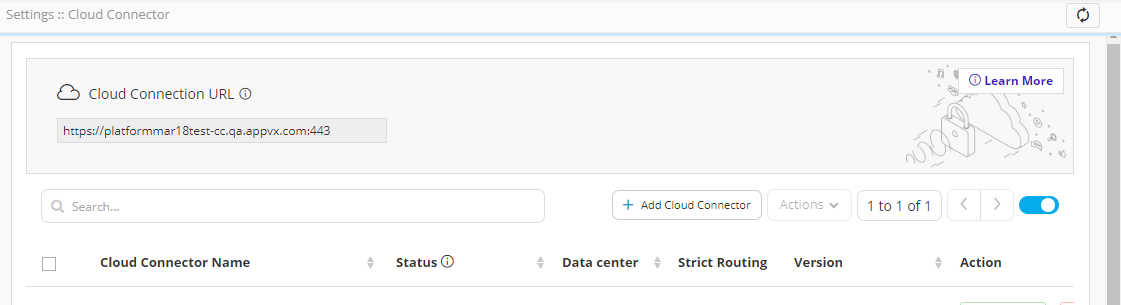
The AppViewX Cloud Connector inventory details page displays important information pertaining to the AppViewX Cloud Connector. The page provides easy access to functions that let you add a new AppViewX Cloud Connector and perform configuration actions like starting, pausing, and deleting the AppViewX Cloud Connector instance and so on.
| Element/Field | Description | ||||||||||
|---|---|---|---|---|---|---|---|---|---|---|---|
| Cloud Connection URL | AppViewX cloud URL of the server (internal) that hosts the AppViewX instance of the AppViewX Cloud Connector | ||||||||||
| Learn More (in the banner) | Displays a quick introduction to the AppViewX Cloud Connector using a graphical representation of how the infrastructure is deployed and works. The diagram is followed by a brief description of the key terms related to the cloud connector setup. | ||||||||||
| Search |

To search for a AppViewX Cloud Connector entry:
The Settings :: Cloud Connector page is updated to show details of only those records that match the search criteria. |
||||||||||
| Add Cloud Connector | To add a new AppViewX Cloud Connector, click  . .Note: Refer to steps on adding a cloud
connector. |
||||||||||
| Actions |
Note: This button is enabled only when one or
multiple AppViewX Cloud Connectors are selected.
AppViewX lets you perform the following actions on a AppViewX Cloud Connector:
To perform these actions, click Note: For detailed steps to perform each of the
above listed actions, refer to the AppViewX Cloud
Connector Actions .
|
||||||||||

|
For easier viewing of records, AppViewX lets you set the
record count preference, which is the number of records that will be
displayed on one page. To set the record count preference:
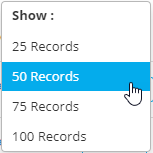 The Settings :: Cloud Connector page is updated according to the record count preference selected. The message, Record count preference saved successfully, is displayed. The UI control is also updated to display the current selection. |
||||||||||
 |
If the cloud connector entries span more than one page, use this control to navigate between the pages in the cloud connector inventory. | ||||||||||

|
If enabled, the Auto Refresh feature
automatically refreshes the AppViewX Cloud Connector inventory details
every 5 seconds. To enable this feature, use the Tip: Enabling Auto Refresh gives you a real-time status
update of the AppViewX Cloud Connector’s health, therefore
facilitating for timely troubleshooting in the event that it is
required. |
||||||||||
| Cloud Connector Name | This field displays the following two details:
|
||||||||||
| Status | This field has the following values:
|
||||||||||
| Data Center | Physical location where the AppViewX Cloud Connector system is hosted | ||||||||||
| Strict Routing | To enable strict data center-based routing, turn on the toggle under Strict Routing. | ||||||||||
| Version | Version of the AppViewX Cloud Connector platform
component Note: If a new version of the
AppViewX Cloud Connector platform component is available, the  button is displayed for that AppViewX
Cloud Connector. button is displayed for that AppViewX
Cloud Connector. |
||||||||||
| View Log | To view the activity log for a AppViewX Cloud Connector, click View for that AppViewX Cloud Connector. | ||||||||||
| Action | This field lets you perform the following actions for a
AppViewX Cloud Connector
This field displays an action that can be performed for the AppViewX Cloud Connector, depending on the current status of the AppViewX Cloud Connector. For example, if the
connector is running, this field shows the Remember: Only the
admin user, with the modify permission, can approve/reject a
AppViewX Cloud Connector. |
||||||||||
| TLS Certificate | If a custom TLS certificate has been uploaded at the time of adding the AppViewX Cloud Connector, this field displays the common name and other details (for example, validity) of the custom TLS certificate. | ||||||||||
| Proxy | Details of the proxy server, if it has been used for the deployment | ||||||||||
| Last Heartbeat | Timestamp of the latest health analysis of the AppViewX Cloud Connector | ||||||||||
| Registered On | Timestamp of the AppViewX Cloud Connector installation | ||||||||||
| SHA256 Checksum | Details of the SHA256 token It ensures that the downloaded AppViewX Cloud Connector package is the same as the checksum displayed in the AppViewX Cloud Connector inventory page. |
 .
. /
/ buttons from the
  button.