AppViewX Cloud Connector Health
Amber/red health indicator
- Check if the AppViewX Cloud Connector is up and running.
- If no, check if there is a connectivity issue due to:
- Firewall policies
- Network configuration changes at the tenant’s and/or AppViewX’s end
- If the AppViewX Cloud Connector is up and running, check the health
indicators to determine if the traffic to the AppViewX Cloud Connector
is configured correctly.
- If the health indicator is amber/red:
- Check if the AppViewX Cloud Connector is up and running.
- If yes, validate the connectivity from the AppViewX Cloud Connector node to the AppViewX SaaS.
- If the health indicator is amber/red:
- If no, check if there is a connectivity issue due to:
CC heath check using script
In cases where patching is frequently performed on the Linux machine or the customer
frequently reboots the system, AppViewX has developed a script to ensure that the CC
operates without issues. This script monitors the CC health status as needed,
ensuring that patch updates run without interruption. The script performs the
following checks:
- Resources – Primarily monitors memory and CPU, including docker
storage, disk space, docker status, and memory usage. Use the following
command:
The list of check include:./avxctl status resources- docker storage Driver check
- disk checks
- /home/appviewx/cloud-connector disk space check
- docker root directory disk space check
- memory check
- Services – Since the CC runs in a Kubernetes cluster, certain Linux
system services, such as Firewall, nftables, pupppet, etc. may interfere
with communication between the CC and the mother-ship. The script verifies
these services to ensure seamless connectivity. Use the following
command:
./avxctl status services- firewall daemon check
- nftables check
- pupppet services check
- docker check
- IPv6 check
- IP forwarding check
- SELinux check
- Firewall status check
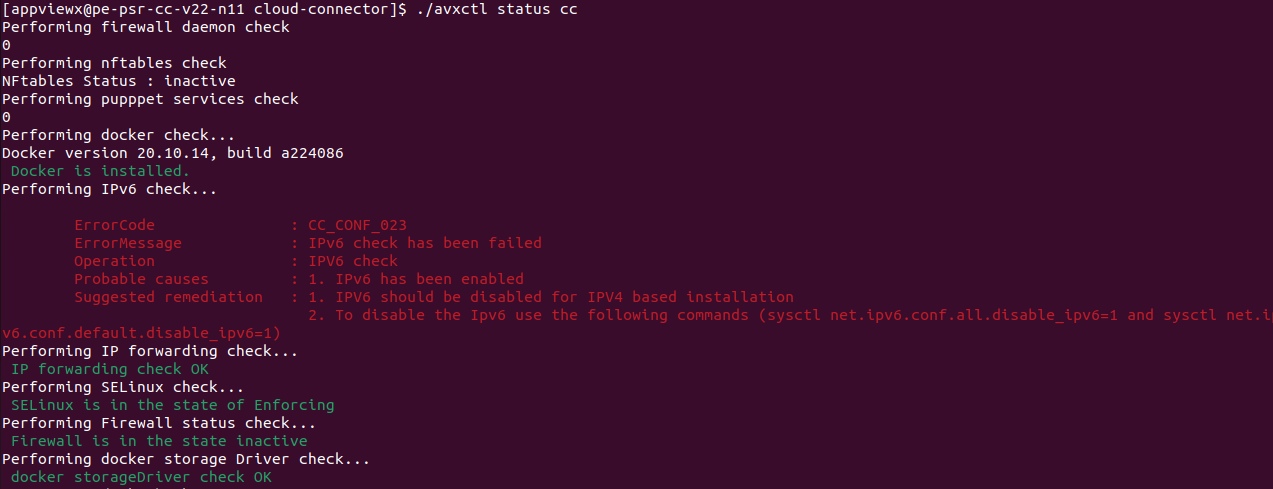
- CC Communication - The utility exposes a service in the CC, this
service call checks if any successful communication has happened in the last
5 minutes. A successful communication indicates that CC is healthy. Use the
following
command:
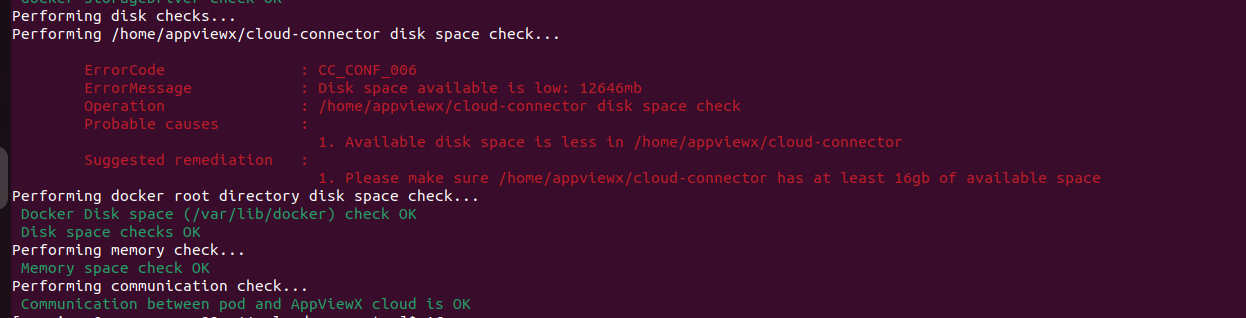
./avxctl status ccNote: The above command performs the resources and services checks along with the CC communication.- firewall daemon check
- nftables check
- pupppet services check
- docker check
- IPv6 check
- IP forwarding check
- SELinux check
- Firewall status check
- docker storage Driver check
- disk checks
- /home/appviewx/cloud-connector disk space check
- docker root directory disk space check
- memory check
- communication check