Note: The installation occurs with the privileges of the user who
begins the installation.
Note: The steps for installing the AppViewX Cloud Connector via
the native OS assume that you have gone through the
system requirements across
the following categories:
hardware,
operating system,
Docker, and
server and network.
If the host
machine does not/cannot fulfill the installation prerequisites, you can set up
the AppViewX Cloud Connector via the AppViewX SaaS OVA. To know more about the
OVA and for instructions on setting up the AppViewX Cloud Connector using the
AppViewX SaaS OVA, click here.
Note: If this AppViewX Cloud Connector installation requires
configuring a proxy server, click
here for
instructions.
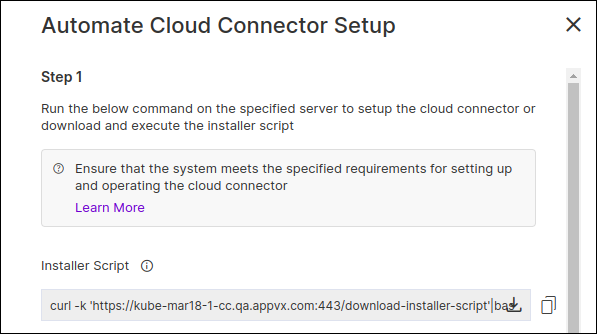
To install the AppViewX Cloud Connector using the automated installation script,
from the cloud connector details banner, you can either download the installer script or
copy the curl command.
-
Configure the native OS for the cloud connector installation.
Note: Before executing the following instructions, ensure
that you have root user permissions.
-
Create the appviewx user and directory.
useradd appviewx && mkdir /home/appviewx/ && chown appviewx:appviewx /home/appviewx && chmod 700 /home/appviewx
-
Uninstall the previous version of Docker.
- For RHEL, CentOS, and Amazon Linux
2:
sudo yum remove docker \
  docker-client \
  docker-client-latest \
  docker-common \
  docker-latest \
  docker-latest-logrotate \
  docker-logrotate \
  Docker-engine
- For
Ubuntu
for pkg in docker.io docker-doc docker-compose podman-docker containerd runc; do sudo apt-get remove $pkg; done
-
Configure the hostname and the nameserver.
- Configure the hostname:
sudo hostnamectl set-hostname
                                        "hostname"
- Add the host IP address at the end of the hosts
file.
sudo vi /etc/hosts
<ip> <hostname>
- Replace the default nameserver IP
address.
sudo systemctl stop systemd-resolved.service
sudo systemctl disable systemd-resolved.service
sudo rm /etc/resolv.conf
sudo vi /etc/hosts/
<ip> <hostname>
- To configure nameserver, add the IP address of the nameserver to
beginning of the
resolv.conf
sudo vi /etc/resolv.conf
nameserver <nameserver ip>
-
Add Docker repo and install Docker.
- For RHEL and
CentOS
sudo yum install -y yum-utils && sudo yum-config-manager --add-repo https://download.docker.com/linux/centos/docker-ce.repo sudo yum install -y docker-ce docker-ce-cli containerd.io
sudo systemctl start docker
sudo systemctl enable docker
sudo systemctl status docker
- For Amazon Linux
2
sudo yum install -y docker containerd
sudo systemctl start docker
sudo systemctl enable docker
sudo systemctl status docker
- For
Ubuntu
sudo apt-get update
sudo apt-get install ca-certificates curl gnupg
#Add Docker’s official GPG key for Ubuntu:
sudo install -m 0755 -d /etc/apt/keyrings
curl -fsSL https://download.docker.com/linux/debian/gpg | sudo gpg --dearmor -o /etc/apt/keyrings/docker.gpg
sudo chmod a+r /etc/apt/keyrings/docker.gpg
#Use the following command to set up the repository:
echo \
 "deb [arch="$(dpkg --print-architecture)" signed-by=/etc/apt/keyrings/docker.gpg] https://download.docker.com/linux/ubuntu \  "$(. /etc/os-release && echo "$VERSION_CODENAME")" stable" | \
 sudo tee /etc/apt/sources.list.d/docker.list > /dev/null
sudo apt-get update
To install Docker for
Ubuntusudo apt-get update && sudo apt-get install docker-ce docker-ce-cli containerd.io docker-buildx-plugin docker-compose-plugin sudo systemctl start docker
sudo systemctl enable docker
sudo systemctl status docker
-
Add the appviewx user in the Docker group.
sudo groupadd docker
sudo usermod -aG docker appviewx
-
Install NTP.
- For RHEL and
CentOS
sudo yum update -y
sudo yum install ntp -y
sudo systemctl restart ntpd
sudo systemctl enable ntpd
ntpq -np
- For Amazon Linux
2
sudo yum install -y chrony
sudo systemctl enable chronyd
sudo systemctl start chronyd
sudo systemctl status chronyd
- For
Ubuntu
sudo apt update -y
sudo apt install ntp -y
sudo systemctl restart ntp
sudo systemctl enable ntp
ntpq -np
-
Install the additional packages required for the AppViewX Cloud
Connector to run.
-
Limit the maximum number of processes that the appviewx user can
create.
sudo vi /etc/security/limit.conf
appviewx soft nproc 65536
appviewx hard nproc 65536
appviewx soft nofile 65536
appviewx hard nofile 65536
-
Allow the appviewx user to run sudo root.
sudo vi /etc/sudoers
appviewx ALL=(ALL) ALL
-
To download the required packages, enable the AppViewX
repository.
Important: This step is not applicable
for Amazon Linux 2.
-
If access to the internet is restricted, whitelist the AppViewX
repository to perform OS patching.
-
Create a new directory at the location /home/appviewx and name
it cc-installer.
-
Ensure that the AppViewX Cloud Connector can establish connectivity
with the AppViewX SaaS server endpoints over HTTPS (port 443).
-
To verify connectivity with the AppViewX SaaS servers, use the cURL
utility.
curl -k --max-time 20 --connect-timeout 20 -s -o /dev/null -w "%{http_code}" "<<https://AppViewX SaaS server
 URL>>/socket.io/?EIO=3&transport=polling&t=O11wka_"
If connectivity has been established successfully, the command
will return the HTTP code 200. If the command returns any other code, it
indicates that connectivity is not established.
-
Access the AppViewX user interface.
In order to set up the AppViewX Cloud Connector instance, you will need to
login to the connectivity service’s user interface. The following steps will
outline the navigation and steps required to access the AppViewX Cloud
Connector's setup interface.
As an additional layer of security, AppViewX
issues client certificates to access the AppViewX GUI. The client
certificate will be made available as part of the onboarding process. Upload
this client certificate to the browser to start accessing the
product.
-
Enter your account URL (for example,
https://tenant-name.appvx.com/appviewx/login) in the address bar of your
browser.
The AppViewX login page is displayed.
-
Login to AppViewX.
-
Navigate to the cloud connector's setup interface.
There are three ways you can access the interface for setting up the
AppViewX Cloud Connector:
-
Install the AppViewX Cloud Connector using the automated script.
To install the AppViewX Cloud Connector using the automated installation
script, from the cloud connector details banner, you can either download the
installer script or copy the curl command.
-
From the cloud connector details banner, click Download Installer
Script.
ORCopy the curl command to run the
installer script.
-
On the host machine:
If you have downloaded the installer script, execute the following
commands:
chmod +x installer.sh
./installer.sh
ORIf you have copied the curl
command, to execute the command, paste the command on the
command line terminal and press Enter.
Internet connectivity on the host machine is validated. The
installation proceeds only if the host machine has internet access.
Note: For instructions on proceeding with the
installation despite not having internet access, click
here.
-
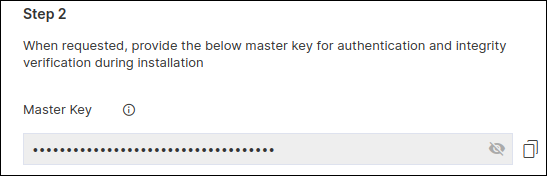
When prompted to Please provide the master key, enter the
required details.
To retrieve the master key:
- Go to
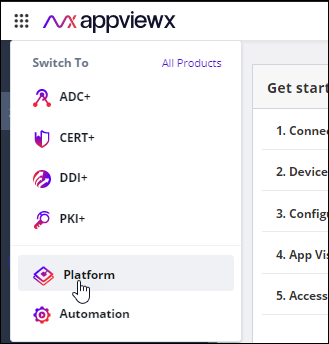
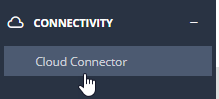
 (Menu) > Platform > Connectivity >
Cloud Connector.
(Menu) > Platform > Connectivity >
Cloud Connector.The Settings :: Cloud
Connector inventory page is displayed.
- From the cloud connector details banner, under Automate Cloud
Connector Setup, click Steps to Automate
Setup.
- From the Automated Cloud Connector Setup window, under
Step 2, copy the Master Key.
- Paste the master key in the terminal window and press
Enter.
The cloud connector installation script will
check for the prerequisites and trigger the cloud connector
installation.
When the cloud connector instance is
successfully installed, a corresponding entry will be listed
in the cloud connector inventory.
-
When prompted, Please enter Datacenter, enter the name of the
data center on which this cloud connector will be deployed.
-
Note: Enabling auto-enrollment protocols is
recommended only if the cloud connector is being installed in a
demilitarized zone (DMZ) or devices in a restricted environment (that
disables them from connecting to the <tenant>-aep directly.
When prompted to enable auto-enrollment protocols, enter y and
enter the protocol name(s) you want to enable. For instructions on
enabling auto-enrollment protocols, click here.
Note: By default, only the AppViewX certificate is
enabled for auto-enrollment. To enable custom certificate for
auto-enrollment:
- Execute the command
 ./avxctl upgrade
                                            gateway-cert
.
- When prompted, enter the location of the custom
certificate.
On successful completion of the setup, a corresponding instance
of this cloud connector is displayed in the inventory.
Note: The cloud connector installation on a
OVA-based host machine will not prompt you to select if you want to
manage F5 Big-IP devices. However, after the cloud connector has
been installed you can copy the
iControl jar in the deps/external_libs folder (click
here for instructions) and restart the starter and platform pods
(click
here for
instructions), to enable this feature.
Note: Optional, required only for password
authentication) In order to successfully execute the installation,
AppViewX needs to run a script for which authentication via the
.pem file needs to be bypassed. To do this, execute the
following
commands:
sudo sed -i 's/.*PasswordAuthentication.*/PasswordAuthentication yes/g' /etc/ssh/sshd_config
sudo systemctl restart sshd
-
To approve the cloud connector installation:
-
Go to (Menu) > Platform >
Connectivity > Cloud Connector.
The Settings :: Cloud Connector inventory page is
displayed.
-
For the cloud connector instance installed, from the Actions
column, click Approve.

 .
.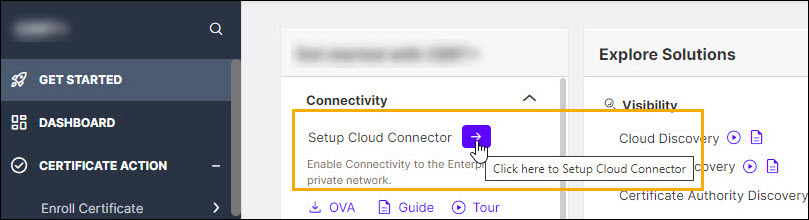 You will be redirected to the Settings :: Cloud
Connector page.
You will be redirected to the Settings :: Cloud
Connector page.