
Functional Specification
Basic information specifications
-
Users should be able to provide basic information such as Account name, Device description, and Account number.
-
The account name should be maintained as a unique factor; the user should not be allowed to add the same account name more than once.
-
When the user tries to submit the same Account name, a pop-up error message displays as Account name already available in the inventory.
Account name
-
The account name is a mandatory field. Users should provide a valid name in this column.
- The account name field should be an alphanumeric field. Users should be able to provide alphabets and numbers.
- Users should not be able to provide any special characters in this field, except period (.)
- Users should not be able to provide [space] in this field.
- The account name field should support only 25 characters. Block users to enter more than 25 characters.
- Add an information icon next to the account name text box and displays a message as Account name should be unique. The account name already in the cloud inventory cannot be added again. Only alphanumeric and period (.) can be entered in this field.
Description
- Users can provide the description in this paragraph box.
- Allow a maximum of 250 characters in the description field.
- Allow numbers, alphabets, all the special characters, and [space] in the description field.
Account number
- The account number is an optional field. Users should provide a valid account number in this column.
- Users should be able to enter only numbers in the account number.
- Users should not be able to provide any special characters or empty spaces in this field.
- Users should be able to provide a maximum of 25 numbers. Users should not be able to provide more than 25 entries.
Proxy required
- Proxy required is an optional field, when the user selects this checkbox, AppViewX will try to communicate via Proxy in case of network failure/absence.
- If the user does not select this checkbox, then AppViewX will connect/communicate only via the internet/network, if there is network failure/absence, AppViewX will not try to communicate via provided Proxy.
Credentials Specifications
- Only when the master credential is selected in the above section, the Credential section will be displayed in this form. When the user lands on this page to add a new cloud device, by default, the master credential will be selected, hence the Credential section will be displayed as well.
- Users should be able to provide the credentials in this section; if the master credential is selected against the credential type. It should be used to access all the services that are selected in the services section.
Credential input type
-
The credential input type is a mandatory field. It is a single select dropdown. By default, Manual Entry will be displayed.
- Credential input type should list three options, they are
- Manual entry
- Credential list – CyberArk
- Credential list – AppViewX
- When Manual Entry is selected, Access Key and Secret key fields
should bedisplayed below Credential input type fields.
- The access key and secret key are mandatory fields and Password encrypted fields.
- Users should provide both access key and secret key corresponding to the account added.
- These keys will be used to access all the services that are selected in the services section.
- When Credential List – CyberArk is selected, the Credential list
dropdown should be displayed below the Credential type field.
- Users should be able to select a credential that is saved in CyberArk. This credential will be used to access all the services that are selected in the services section.
- When the Credential list – AppViewX is selected, the Credential list
dropdown should be displayed below the Credential type field.
- Users should be able to select a credential that is saved in AppViewX vault. This credential will be used to access all the services that are selected in the services section.
Access key
- When the user lands on this page to add a new cloud device, by default, Manual Entry will be displayed under the Credential input type. Hence, the Access Key field will be displayed as well.
- The access key is a mandatory, password-encrypted, and alphanumeric field. Users should be able to provide alphabets as well as numbers in this field.
- All the special characters should be supported in this field.
- Users should not be able to enter empty spaces in this field.
- The minimum and maximum length of the access key is 16 and 128 characters respectively.
Secret key
- When the user lands on this page to add a new cloud device, the manual entry will be displayed under the credential input type. Hence, the secret key field will be displayed as well.
- The secret key is a mandatory, password-encrypted, and alphanumeric field. Users should be able to provide alphabets as well as numbers in this field.
- All the special characters should be supported in this field.
- Users should not be able to enter empty spaces in this field.
- The maximum length of the secret key is 256 characters.
Key information specifications
- Users should be able to provide the key information such as the datacenter, region, credential type, and account number.
- Users have to provide a data center, region, and service. If any of these fields are empty, while submitting the form, the X mark will be displayed against the field that is not filled. A message will be displayed when the user mouse over the X mark, “Value is missing in <fieldName> field”.
Data Center
-
Data center is a mandatory field, the Select a data center message must be displayed as a play holder when the user lands on this page to add a new cloud device.

-
Users can select a data center for the dropdown (single select dropdown).
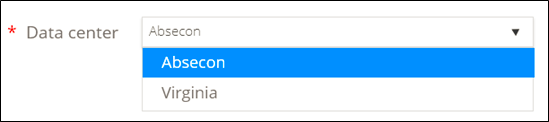
- Based on the data center selected, the region corresponding to the selected data center will be listed below the field region field.
- Users should be restricted to submit this form, without filling a data center. If the user does not select a data center, while submitting the form, X mark will be displayed against the data center field. A message will be displayed when the user mouse over X mark, “Value is missing in datacenter field”.
Region
- Region is a mandatory field.
- Fetch region(s) button will be enabled only when the credentials are given. The user should provide the credentials to enable the fetch region(s)
- Once credentials are provided, the fetch region(s) will be enabled. Users should be able to click the fetch region(s) button.
- Once the user click fetch region(s) by providing valid credentials, a list of all the regions corresponding to the credential provided will be displayed in the drop-down,
-
If provided credentials do not have any region (or) if the provided credential is invalid, then None will be displayed in the dropdown.
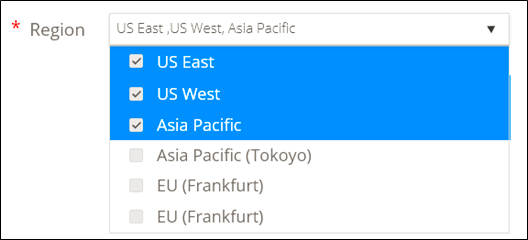
- The Select the region(s) message must be displayed as a play holder when the user lands on this page to add a new cloud device.
- Users can select single or multiple regions from this dropdown (multi-select dropdown).
- Users should be able to select all / unselect all the regions from this field.
- Users should be able to free-text search the region in the dropdown.
- Users should be restricted to submit this form, without selecting at least one region. If the user does not select a region, while submitting the form, the X mark will be displayed against the region field. A message will be displayed when the user mouse over X mark, Value is missing in region field.
Service
-
Service is a mandatory field. It is a multi-select text box. By default, ACM and IAM will be selected.

- Users can select single or multiple service(s) from this dropdown (multi-select text box).
- ACM, IAM, ELB, and EC2 are the services that should be listed in the dropdown.
- AppViewX should support four Amazon AWS services, they are, ACM, IAM, ELB, and EC2 instances. Users should be able to select any one of these services from this field.
- Based on the selected service, the user should provide additional details in the below section.
- Users should be able to select all / unselect all the services from this field.
- Users should be able to free-text search the service from this field.
- Users should be restricted to submit this form, without selecting at least one service. If the user does not select a service, while submitting the form, X mark will be displayed against the service field. A message will be displayed when the user mouse over X mark, Value is missing in-service field.
Additional Attributes Specifications
- The services that are selected in the services section will be displayed as a tab in this section.
- Each tab will have a different set of fields that are required for accessing each service.
- There are a few mandatory fields corresponding to each service.
- When the user lands on this page to add a new cloud device, by default, ACM and IAM tabs will be displayed.
- Once mandatory fields are filled, each tab will be indicated with
 a GREEN tick mark. Only when all the selected
services are marked with a
GREEN tick, the user will be able to submit the form.
a GREEN tick mark. Only when all the selected
services are marked with a
GREEN tick, the user will be able to submit the form. - If the user tries to save without filling in the required detail, an X mark should be displayed against each tab that is not completed.
- When the user mouse over Xmark below message should be displayed, “Mandatory fields are not filled in this tab”
- Cert sync is a mandatory field. When the user lands on this page to add a new cloud device, by default, Managed will be selected.
- Cert sync should be available in all the tab.
- Cert sync have three options,
- Managed: Certificates within the cloud (corresponding to the service selected), & its objects will be discovered and moved to inventory with managed status. Users can perform different AppViewX actions on the certificates that are in managed status. For example, cert sync in the ACM tab is selected as Managed, then all the certificates in ACM will be discovered and moved to the inventory with managed status.
- Monitored: Certificates within the cloud (corresponding to the service selected), and their objects will be discovered and moved to inventory with monitored status. Users can only monitor the certificates that are in monitored status, user cannot perform any AppViewX actions on these certificates. For example, cert sync in the ACM tab is selected as Monitored, then all the certificates in ACM will be discovered and moved to the inventory with monitored status.
- Ignored: The cloud account will be added and managed in AppViewX. Certificates within the cloud (corresponding to the service selected), & its objects will not be discovered; only the profiles will be created.
- The collection type field will be displayed only when the EC2 option is selected under the service section.
- Collection type is an optional field.
- All the regions selected by the user should be listed in the collection type section.
- Users should be able to select a single S3 bucket for all the regions, also users should be able to select an individual S3 bucket for each region.
- Data stored in S3 must be removed instantly.
