
Creating Certificate Authority
You can configure AVX Native CA or Standard CA from this page.
- Standard CA: This option is visible to all PKI users. This is a private CA with a cloud CA backend to issue digital certificates with only traditional algorithms.
- AVX Native CA: This CA is a PQC-ready PKI owned by AppViewX for issuing
digital certificates with both traditional and PQC algorithms. These
certificates are used to verify the authenticity and identity of parties in
secure communications, such as SSL/TLS for websites, email encryption and
others.Note: The AVX Native CA option is available only if you have created a CA account by going to
 .
.
Configure AVX Native CA
To configure AVX Native CA:
Prerequisite: Go to
to create a CA account.
to create a CA account. - Go to
.
- From Certificate Authority Type, select
AVX Native CA (default).
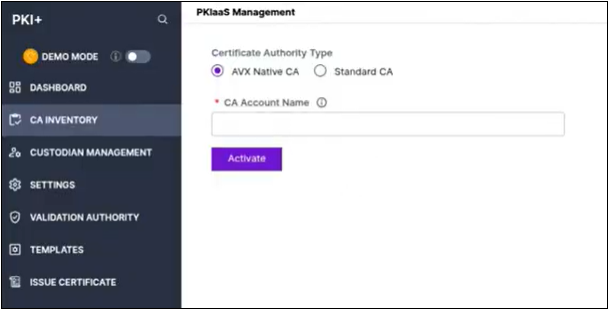
- Enter a unique name in the CA Account Name field. This name will be used to enroll certificates and to create policies.
- Click Activate.
A message, AVX Native CA once activated cannot be reversed/changed. Do you want to proceed?, appears.
- Click Yes to proceed.
A message, AVX Native CA initialization success, appears.
- Click Configure to proceed with custodian addition. See Onboarding Custodians.
Note:
- On configuring AVX Native CA, you can access Settings, Templates,
Issue Certificates, and Logs modules if you have enabled
ACF permissions by going to
tab > PKI+.
- The End Certificates Count by AppViewX Native CA tab along with the CA Insight tab will be available for AVX Native CA. For more information on the reports, see For AVX Native Initialization. Ensure to enable ACF permission explained above.
Configure Standard CA
To configure Standard CA:
Prerequisites:
- Initialize PKI by reaching out to [email protected].
- Go to
to create a CA account.
- Go to
.
- From Certificate Authority Type, select Standard CA.
- Enter a unique name in the CA Account Name field and
click Activate.
This name will be used to enroll certificates and to create policies.
- Click Configure to proceed with custodian addition. See Onboarding Custodians.Note:
- On configuring Standard CA, you can access Settings and Logs modules
if you have enabled ACF permissions by going to
tab > PKI+.
- The CA Insight tab will be available for Standard CA. For more information on the reports, see For Standard Initialization. Ensure to enable ACF permission explained above.
- On configuring Standard CA, you can access Settings and Logs modules
if you have enabled ACF permissions by going to
What to do Next:
- Create a root CA. See Creating Root CA.
- Create a subordinate CA from AppViewX PKIaaS root CA. See Creating Subordinate CA from PKIaaS Root
CA.
-OR-
- Create a subordinate CA from an external root CA. See Creating Subordinate CA from External Root CA.
