Upgrading the AppViewX Cloud Connector Version
AppViewX provides a seamless CI/CD pipeline to capture the AppViewX Cloud Connector
versioning and upgrades on the release portal. If a new version of the AppViewX
Cloud Connector component is available, you will receive a notification with the
name of the cloud connector that is ready for upgrade and the  button will be displayed for that AppViewX Cloud Connector.
- Navigate to the AppViewX Cloud Connector inventory.
- Select the checkbox for the AppViewX Cloud Connector you want to upgrade.
-
Click
 .
.
-
From the menu displayed, select Upgrade.
The Confirmation message dialog box is displayed. It shows the current version as well as the upgraded version number, and the checksum of the binaries that will be uploaded.
- (Optional) To view the checksum of the binaries that will be uploaded as part of the cloud connector’s version upgrade, click Checksum of the binaries uploaded.
- (Optional) Validate the binaries.
-
ClickUpgrade.
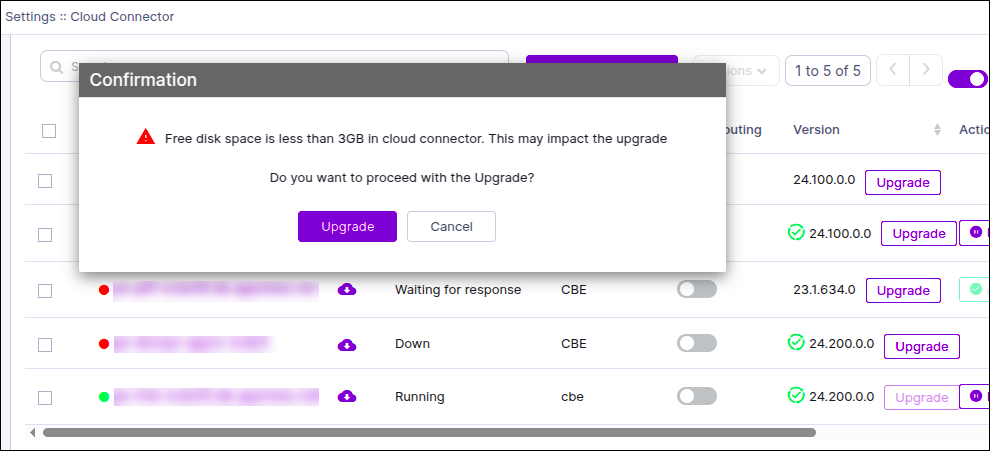
- At the start of the upgrade, a prerequisite check will be triggered. For issues detected as a result of these checks, refer to the section Appendix: Internal Prerequisite Checks for CC Upgrade for further details.
- After the prerequiste checks run successfully, the Upgrade in progress status is displayed and a notification informing that the upgrade is in progress is received.
- If the AppViewX Cloud Connector version is upgraded successfully, the
 symbol is prefixed to the version number.
You will receive an upgrade successful notification.
symbol is prefixed to the version number.
You will receive an upgrade successful notification. - If the upgrade fails, you will receive an upgrade failure notification.
The Upgrade button is displayed again.
- When an upgrade fails, internally, AppViewX attempts to rollback
to the previous successful version of the AppViewX Cloud
Connector. When the rollback is successful, the Upgrade
button is displayed again so that you can retry the version
upgrade.
OR
- The status is updated to Upgrade failed. The upgrade is marked as failed if the rollback is unsuccessful. In this case, please reach out to [email protected] for further assistance.
- When an upgrade fails, internally, AppViewX attempts to rollback
to the previous successful version of the AppViewX Cloud
Connector. When the rollback is successful, the Upgrade
button is displayed again so that you can retry the version
upgrade.
Note: Based on the internet bandwidth and the number of cloud connectors being installed, the downloading of the cloud connector may vary between 5 to 15 minutes.
Appendix: Internal Prerequisite Checks for CC Upgrade
- Kubernetes certificate expiry check
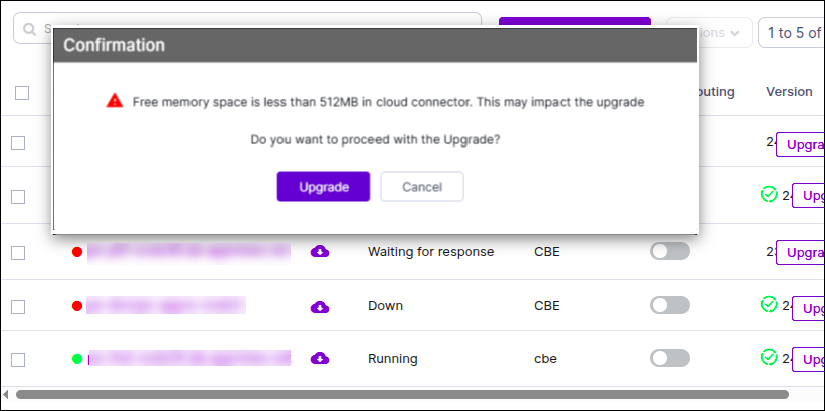
- Free memory check
- Disk space check
Kubernetes Certificate Expiry Check and Renewal
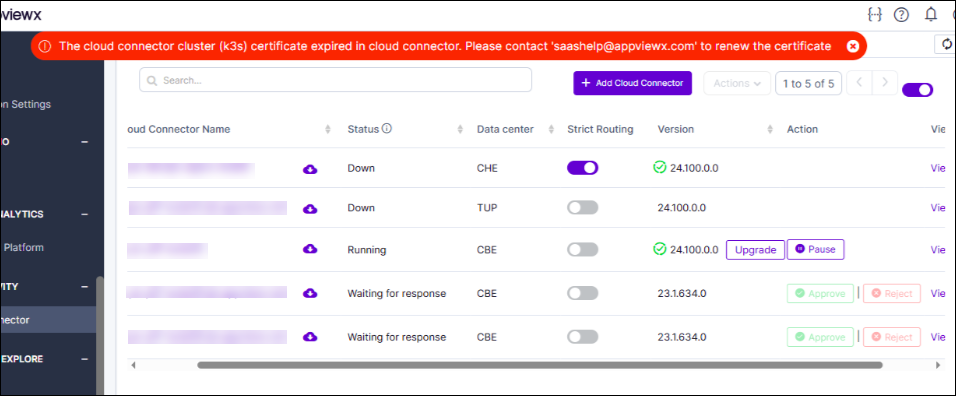
If the K3s certificate is found to be expired during the pre-check, the system will:
- Display a clear error message
- Provide a reference to the SRE Destro, where customers can reach out for support to renew the certificate manually
Beginning with v2024.3.0.0, customers
can automatically renew an expired K3s Kubernetes certificate using the
avxctl utility. The command is as follows:
./avxctl rotate k3s-cert- This command must be executed on the Cloud Connector (CC) machine within the CC installation folder.
- The avxctl utility is available starting from v2024.3.0.0. Hence,
based on the upgrade scenario:
- Upgrading to a version lower than v2024.3.0.0: If the K3s certificate is already expired, it must be renewed manually before the upgrade.
- Upgrading from v2024.3.0.0 or above: The avxctl utility will already be available, allowing customers to use it directly for certificate renewal if required.
Free Memory Check
Disk Space Check