
Object Settings Configuration
Setting Up Object Configuration
On the Actions tab, you can customize the actions execution as needed
To customize the actions:
-
Go to Menu > ADC+ > SETTINGS > Module
Settings > ADC > Objects.
By default, the Actions tab appears.

-
Enable the Make Comments Mandatory toggle button to set the comments
option mandatory while executing an action from the Control Center or dashboard.
This ensures end users are mandated to mention the reason for their actions.
- Enter comments in the Comments Placeholder, such as SNOW ID, Enter Application impacted, etc. to impose a standard to be followed upon action execution.
-
Select Active, All Peer, or Specific Device radio
buttons for Execute Action on Device.
By default, AppViewX actions are triggered on current Active devices. This can be modified as needed.
- Ensure peers are associated in AppViewX for seamless execution.
-
Click Save.
Note: To discard the changes, click Reset.
Configuring Object Naming Format
On the Naming Format tab, you can customize the display name format of your objects that needs to be followed throughout the application.
To customize the naming format:
- Go to Menu > ADC+ > SETTINGS > Module Settings > ADC > Objects.
-
Click the Naming Format tab.
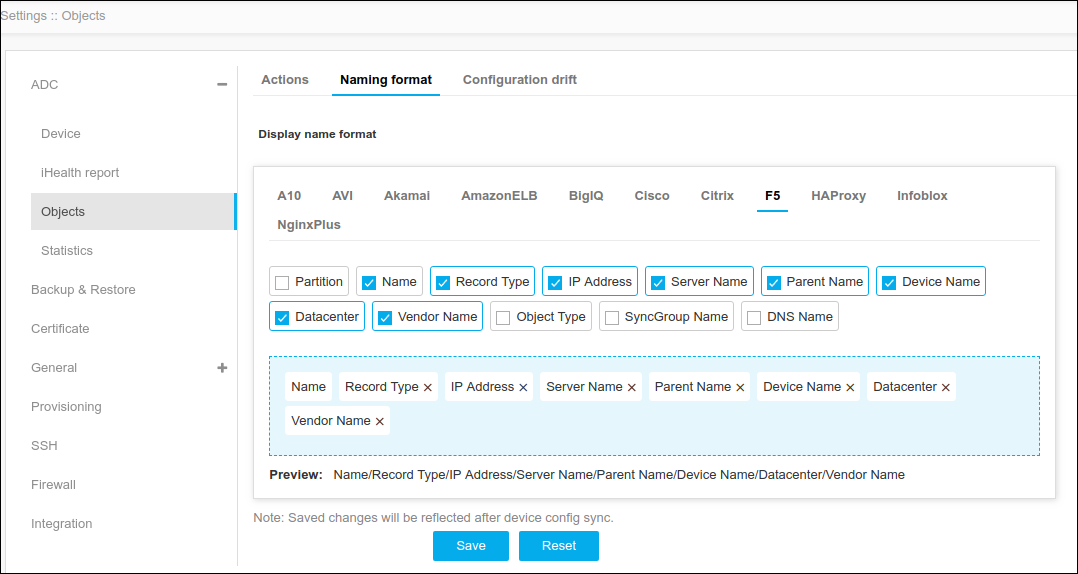
- On the Display Name Format page, choose the vendor to be modified and select the respective Property, reorder the fields as needed.
-
Click Save.
Note: To discard the changes, click Reset.
Configuration of the Drift Storage Limit
AppViewX identifies the object configuration changes (as part of config fetch, Syslog notification, etc.,) and stores the drift to generate reports, governance, and rollbacks. You can customize the number of days the drift must be persisted.
To customize the number of days for the configuration drift:
- Go to Menu > ADC+ > SETTINGS > Module Settings > ADC > Objects.
-
Click the Configuration Drift tab.
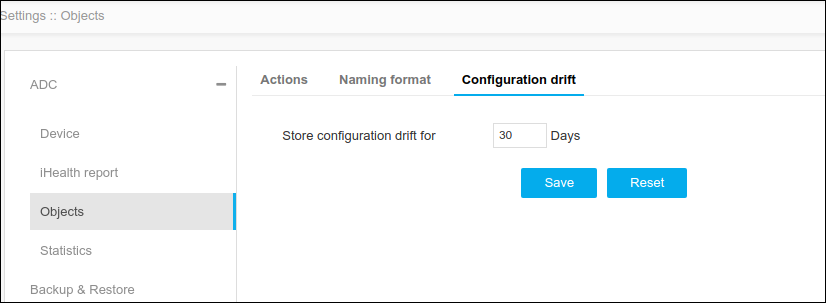
- Enter the store configuration drift value up till 90 days in the Store Configuration Drift for the field.
-
Click Save.
Note: To discard the changes, click Reset.
