
Updating Discovered Certificates Status
To set the discovered certificate status to Monitor/Manage/Ignore/Exclude:
-
Go to
 (Menu) > CERT+ > CERTIFICATE
DISCOVERY > Discovery Status > On Demand.
The Discovery Status : On-demand page is displayed. Results of all previous discovery instances triggered are listed here.
(Menu) > CERT+ > CERTIFICATE
DISCOVERY > Discovery Status > On Demand.
The Discovery Status : On-demand page is displayed. Results of all previous discovery instances triggered are listed here. -
To view the details of a discovery operation, click the Name.
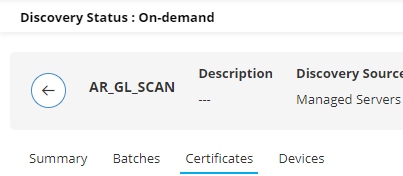
The Discovery Status : On-demand page is updated to show the details of the discovery instance.
-
To view the certificates discovered by this discovery instance, click
Certificates.
- From Name, select the checkbox for the certificate that you want to filter.
-
From the Actions menu, select the new certificate status
from the following options:
- Monitor
- Manage
- Ignore
- Exclude
- Click Yes.
Bulk Updating Discovered Certificates Status
-
Go to (Menu) > CERT+ > CERTIFICATE
DISCOVERY > Discovery Status > On Demand.
The Discovery Status : On-demand page is displayed. Results of all previous discovery instances triggered are listed here.
-
Select the checkbox against the column name Common name.
The option to Select All () Certificates present in Discovery Inventory.
-
Click Select All () Certificates present in Discovery
Inventory.
All discovered certificates in the inventory are selected.
-
From the Actions menu, select the new certificate
status from the following options:
- Monitor
- Manage
- Ignore
- Exclude
-
To view details of the bulk certificate status update operation, go to
(Menu) > CERT+ > ALERTS &
LOGS > Certificate Logs.
Note:
- Root and intermediate certificates can be moved only to the managed status.
- Inventoried certificates cannot be moved to the monitored/managed status.
The tooltip text for the corresponding entry of this operation in the certificate log includes the complete details of the operation.
