Adding F5 Firewall Device
Configuring F5 Firewall Device
- For the Onboarding Group field to appear in the General Information section, you must first enable by going to CERT+ > Certificate Discovery > Discovery Configuration > Network Discovery and selecting the Manual option in Onboarding Group.
-
Go to
 (Menu) > CERT+ >
ADMINISTRATION > Device Management.
The Device :: ADC page is displayed.
(Menu) > CERT+ >
ADMINISTRATION > Device Management.
The Device :: ADC page is displayed. - From the Device :: ADC page, select Firewall.
-
On the Device :: Firewall page, click
 (Add).
The Device :: Firewall > Add page is displayed.
(Add).
The Device :: Firewall > Add page is displayed. -
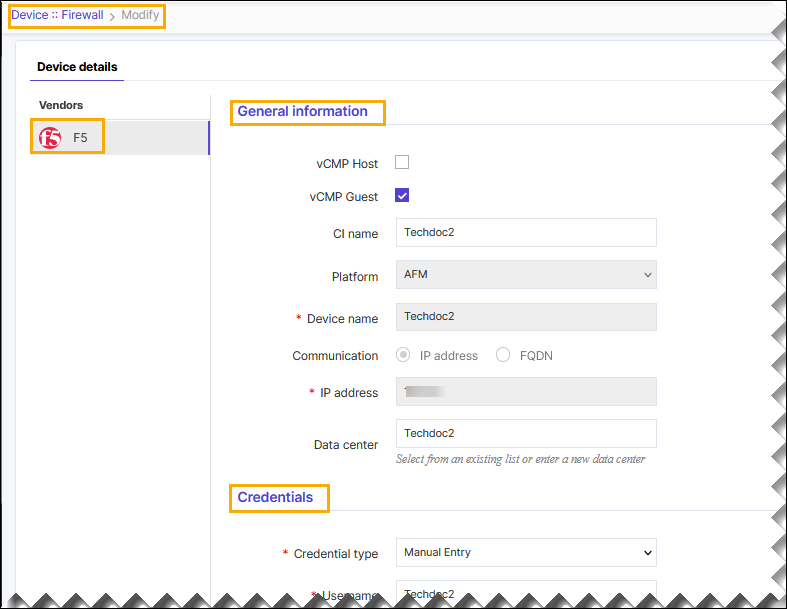
Select the F5 vendor from the left side bar.
-
Enter or select the field information in the General Information section.
Table 1. Field and Description Table Field Description vCMP Host Select the check box to add host based device if required. vCMP Guest Select the check box to add device as guest if required.. CI name Name of the CI. Platform Select the platform from the dropdown list. The available option is AFM. *Device name Unique custom identifier of your device. *Onboarding Group Select the onboarding group to assign the device. Note: Devices without an assigned group are automatically mapped to the Default group during migration, onboarding, and when edited without existing group mappings.Data center The data center on which the device has been hosted. Select a Datacenter from the drop-down list or enter a data center name. Communication The communication mode that firewall devices can be added to AppViewX. The possible communication modes are: - IP Address - The IP Address can be IPV4 and it can be either management IP or Self IP of the Firewall device. By default, the IP address has been selected.
- FQDN - On adding the device with FQDN, it will be resolved to an IP address and communication to the device will be made through it. If the FQDN is resolved to more than one device IP, AppViewX will choose a random IP for communication.
*IP address/FQDN Enter the IP address or FQDN based on the selected communication mode. Data center Select from an existing list or enter a new data center. Cert sync Provision to discover and manage the SSL certificates from the firewall devices. The possible Cert syncs are: - Managed - All SSL certificates will be discovered and added to AppViewX certificate inventory and used for certificate lifecycle management like renew, revoke, etc.
- Monitored - All SSL certificates will be discovered and will not have any CA-related communication.
- Ignored - No SSL certificates will be discovered from the firewall device.
Note: The certification sync is based on the license applied.*: Mandatory fields -
Enter or select the field information in the Credentials section:
Table 2. Field and Description Table Field Description *Credential type Credentials can be manually provided or stored as a one-time entry onto the credential library and referred at the time of device addition. Select one of the following credential types from the drop-down list: - Manual Entry - The user name and password of the device need to be entered with device details. By default, the Manual Entry option is selected.
- AppViewX Credential List - The user name and password can be
added to the List and that entry can be referred to during device
addition. The credential lists are integrated within AppViewX application
for the secured authentication.
To create a credential list, see Creating Credential List in the Platform User Guide.
*Username Username for the firewall device when you select the Manual Entry credential type. *Password Valid password for the firewall device when you select the Manual Entry credential type. Note: Use strong passwords for secure device communication. Your Passwords can be of any length with a combination of alpha-numerical, symbols, and special characters.Expert password Enter the privilege password. *: Mandatory fields -
Note: This step is applicable only if you have selected vCMP Host check box in the General Information section.Enter or select the field information in the Secondary device information section as follows:
- Auto-Detect - This option will automatically detect the corresponding secondary devices and add it as a new entry into AppViewX inventory using the Primary device’s credential.
- Manual Entry - This selection will enable you to manually add Secondary devices with a Sync-group name entered for reference. This name will be used to identify the pairs in the inventory. Follow similar steps.
- Ignore - This option can be enabled if you need to ignore the detection of the secondary device associated with the current device.
Note:- By clicking the Add button, multiple devices can be added as secondary devices and all the devices will be available in the grid.
- By managing the Primary and Secondary devices in AppViewX during the device flips, traffic routing and management can be seamlessly handled in AppViewX.
-
Click the Save button to add an Firewall device.
Note:
- To discard the changes, click the Cancel button.
A pop-up message is displayed as Device added successfully.
Validating F5 Firewall Device Addition
After adding the device, you can validate the device by searching device in the device inventory.
-
Go to (Menu) > CERT+ >
ADMINISTRATION > Device Management.
The Device :: ADC page is displayed.
-
From the Device :: ADC page, select Firewall.
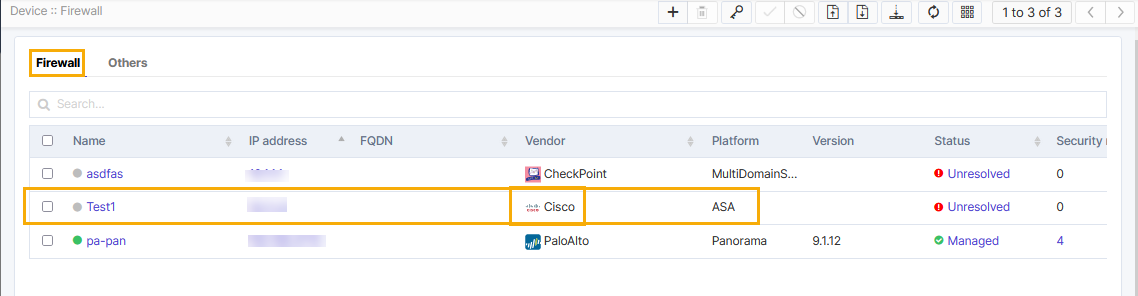
The Device :: Firewall page is displayed. This page is an inventory of all the existing firewall devices.
-
Search the device name and validate whether the device is added
successfully.