Configuring Certificate Settings
Configuring Password Vault
Before you Begin
The prerequisites for
configuring the Password Vault in AppViewX as are follows:
- A valid certificate password for password-protected certificates to decrypt.
-
Go to
 (Menu) > CERT+ >
ADMINISTRATION and click Password
Vault.
(Menu) > CERT+ >
ADMINISTRATION and click Password
Vault.
- On the screen that is displayed, enter an Identity Name of the password you want to add in the vault.
- From the Device Name dropdown list, select the ADC device whose password-protected certificate details you want to store.
- In the File Name field, enter a certificate file name to help users identify it.
- In the Password field, enter the password that is associated with the certificate.
- Click Save.
-
To import a file (in XLS or CSV format) with a list of all certificate
passwords, on the top-right corner, click Import.
This option is used to store the certificate passwords directly in the vault
instead of adding them manually.
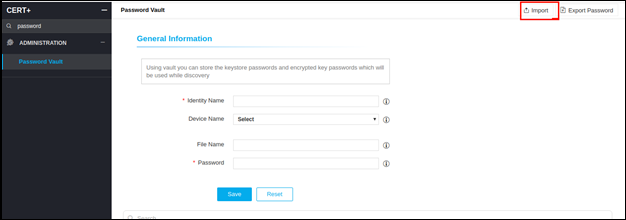

- Click Export Password on the top-right to export all stored certificate passwords from the vault as a zip file to your computer.
- To modify the existing details, Click Edit.
- To update the password, click Update.
-
To delete the password details, click Delete.
Note: The WindowsCertificateStore identity name will be used to parse certificates discovered from the Windows certificate store. Edit and delete actions are not allowed.
Password Protected Certificates
-
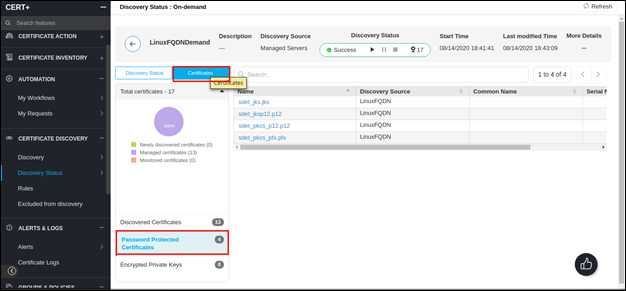
Go to (Menu) >
CERT+ > CERTIFICATE
DISCOVERY > Discovery Status >
OnDemand.
- Click on the discovery name under discovery inventory.
- Click Certificates under the tab.
-
To view all password-protected certificates, click Password
Protected Certificates.