
Integrating Qualys with AppViewX
-
Go to .
The Workflow > Integration page is displayed.
-
On the Workflow > Integration page, click Add new vendor.
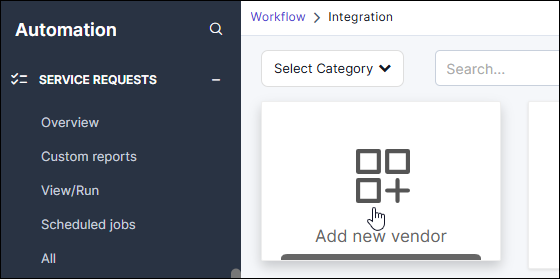
The Select vendor dialog box is displayed.
-
From the Select category dropdown list, select ASM and click Apply.
-
From the search results displayed, select Qualys.
The Workflow > Integration > Vendor configuration page is displayed.
-
For the Qualys integration, in the Information section, enter the following details:
-
[Mandatory] Enter a Name for the integration.
-
[Optional] Enter an additional Description for the integration.
-
Enter Tags for the integration.
The tags entered are used to identify the purpose of the integration.
Important: To enable PQC evaluation for this integration, it is mandatory to add the QTH tag in this field. Without the QTH tag, this integration will not be evaluated for post quantum readiness. In this case, the PQC Evaluation Status of the corresponding discovery instance is set to Not Evaluated.
-
-
In the Credentials section:
-
From the Auth Type dropdown list, select Basic Auth.
-
In the URL field, enter your Qualys Gateway URL (for example, https://www.qualys.com/platform-identification
-
In the Username and Password fields, enter your Qualys user credentials.
-
-
Edit the JSON for your customized Configurations.
The Configurations editor is prepopulated with a JSON template with placeholder values to let you define custom configuration parameters and query logic.
-
In this JSON:
-
apiServerUrl: Enter your Qualys API Server URL (for example, https://qualysapi.qg3.apps.qualys.com).
-
deltaSync: Set to true to enable Delta Sync or false to disable it. When enabled, AppViewX fetches only asset data modified or updated since the previous discovery run.
-
assetTags: Define rules to scope discovery targets by asset tags (such as Linux or Windows).
-
assetGroups: Define rules to scope discovery targets by asset groups (such as Production or Staging).
Note: The API Server URL (apiServerUrl) is specifically required for QTH discovery APIs. Identify your corresponding API Server URL based on your Gateway URL by referring to the Qualys Platform Identification documentation. -
-
Click Add.
The integration is added and is displayed on the Workflow > Integration page, identified by the name assigned to the integration.
JSON Template
Sample JSON Template
The following example shows a complete configuration:
{
  "apiServerUrl": "https://qualysapi.qualys.com",
  "deltaSync": true,
  "assetTags": {
    "tagSetBy": "id",
    "includeTags": ["11002345", "11002678"],
    "includeSelector": "any",
    "excludeTags": ["11009911"],
    "excludeSelector": "any"
  },
  "assetGroups": {
    "includeAgIds": ["4521", "4522"],
    "includeAgTitles": [],
    "excludeAgIds": [],
    "excludeAgTitles": []
  }
}
Configuration
Define the PQC discovery scope by manually updating the Qualys integration JSON payload in AppViewX using the configuration parameters listed below.
| Setting | Required? | Description |
|---|---|---|
| apiServerUrl | Required | The Qualys API Server URL for your subscription platform. Find this value on the Qualys Platform Identification page. |
| deltaSync | Optional | Set to true (the default) to fetch only data that changed since the last successful scan. Set to false to perform a full data refresh every time the scan runs. |
| assetTags | Optional | Limits discovery to hosts that carry specific Qualys Asset Tags. If not set, all hosts that Qualys has scanned are included. See Asset Filtering. |
| assetGroups | Optional | Limits discovery to hosts that belong to specific Qualys Asset Groups. If not set, all scanned hosts are included. See Asset Filtering. |
Configure Asset Filtering
Configure asset filtering to limit PQC discovery to a specific part of your environment.
By default, AppViewX processes every host that Qualys has scanned. Asset filtering lets you narrow discovery to a specific part of your environment, for example, production servers only, or a specific business unit. Two filtering options are available and can be used together.
Filter by Qualys Asset Tag
A Qualys Asset Tag is a label you assign to hosts in Qualys to organize them — for example, "Production", "Linux", or "PCI-Scope". If you configure asset tags in AppViewX, only hosts carrying matching tags are included in PQC discovery.
| Option | Accepted values | Description |
|---|---|---|
| tagSetBy | id or name | Whether the tag values in includeTags and excludeTags are Qualys tag IDs or tag names. Defaults to id. |
| includeTags | List of tag IDs or names | Only hosts that match these tags are included in discovery. |
| includeSelector | any or all | any includes a host if it carries at least one of the listed tags (OR logic). all includes a host only if it carries every listed tag (AND logic). |
| excludeTags | List of tag IDs or names | Hosts carrying these tags are excluded from discovery. |
| excludeSelector | any or all | Applies the same OR / AND logic to the exclusion list. |
Filter by Qualys Asset Group
A Qualys Asset Group is a named collection of hosts you define in Qualys, for example, "Production-Servers" or "DMZ". You can include specific groups in PQC discovery.
| Option | Description |
|---|---|
| includeAgIds | List of Qualys Asset Group IDs to include. Using IDs is recommended because they stay the same even if a group is renamed. |
| includeAgTitles | List of Qualys Asset Group names to include. Use only when IDs are not available. |
| excludeAgIds | List of Qualys Asset Group IDs to exclude from discovery. |
| excludeAgTitles | List of Qualys Asset Group names/titles to exclude from discovery. |
