
Importing Workflows 
To import a
workflow:
| New Menu | Old Menu |
|---|---|
| In the Automationmodule, from the navigation pane on the
left, under WORKFLOW, select Import. The Workflow > Import page is displayed. |
The Workflow > Import page is displayed. |
|
Note: For more information on how to
switch between menus, click here.
|
|
-
On the Workflow > Import page, to select the file to be imported,
click Browse.
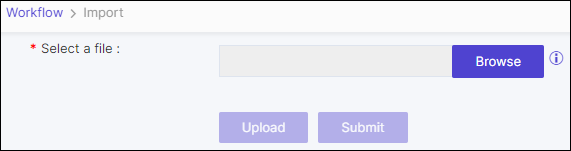
- Select the file from the file explorer on your computer.
- To upload the selected .zip file, click Upload.
-
Select the workflow, and then click Submit.

When the selected workflow includes dependent entities such as hooks, helper scripts, or master variables, those dependencies are imported along with the workflow so the workflow package remains complete after submission.
The import result reports validation messages for the selected workflow and its dependencies, so users can confirm which entities were imported successfully and resolve any warnings before proceeding.
Warning: If you are importing a workflow that already exists, the workflow status will show a Warning. You need to either edit the workflow name or the version to be able to import this workflow or you can choose the overwrite option to replace its existing content and the RBAC permission for the specific task will remain same with the existing workflow.
