
Delinea
Prerequisites for Integrating Delinea with AppViewX
For links to the Delinea secret server documentation, see the References section.
Configuring Delinea Secret Integration Settings
-
Go to Platform > VAULT & SECURITY > PAM.
The PAM page is displayed.
- Click the + (Add credential) button.
- On the Add credential page, select Delinea from the left menu.
-
From the top right corner of the page, click Delinea API
Settings.
The Delinea API Settings pop-up window is displayed.
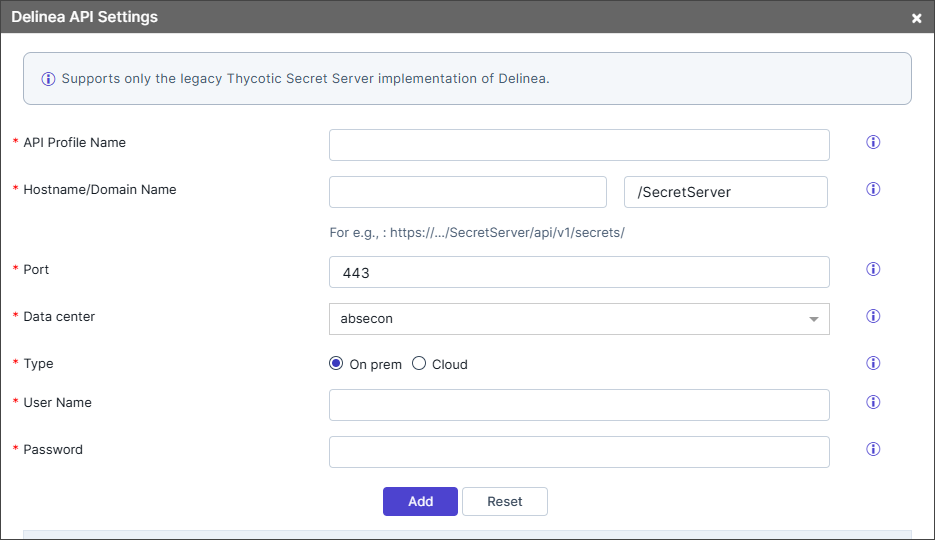
Table 1. Field descriptions for Delinea API Settings Field Description *API Profile Name Enter a unique name to identify the API profile in AppViewX. *Hostname/Domain Name Enter the Hostname of the Delinea Secret Server if it is hosted in an on-prem environment or the Domain name can be include or exclude in the user name during synchronization of the Delinea Secret Server if it is the cloud version. https://<Hostname>:<Port><PathURI>/api/v1/secrets
The default value for <pathURI>, /SecretServer, is displayed in the text field next to the hostname field. Edit this value as needed. If the <pathURI> parameter is not provided, the default value /SecretServer will be used automatically.
*Port Enter the port number used to connect to the API. *Type Choose the deployment type of the instance: On-prem or Cloud environment. *Data center Select the appropriate data center where the Delinea components are located or managed. It will be used to perform the communication. *Username Enter the username required to access the API. *Password Enter the password that pairs with the user name for API authentication. *: Mandatory fields Note: You can add multiple Delinea Secret Servers as different Profiles. Each Delinea Secret Sever will be added to the Delinea API settings page. - Once the details are entered, click Add.
- To modify the details of any profiles, click name of profile, modify the details and click Modify.
-
To delete any profile, click
 (Delete) icon in Action column of profiles.
-
Close the Delinea API Settings pop-up window.
The Delinea Credential Details page is displayed.
Adding Delinea Secret Credential Details
-
On the Credential Details page for Delinea, enter the
required field information.
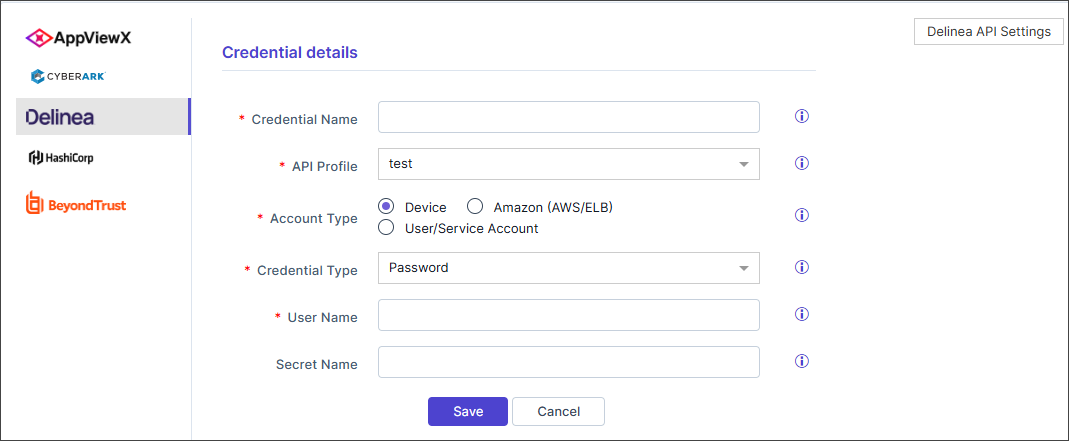
Table 2. Field descriptions for Credential details Field Description *Credential name Enter a unique name to identify the credential in AppViewX. *API Profile Select the appropriate Delinea Server profile. You can configure multiple profiles in the API settings for managing secrets across environments, regions, or specific use cases. *Account Type The "Secret Type - Device" works if the Delinea secret contains both the username and device name. The Machine field in the Delinea secret must match the device IP/FQDN in AppViewX. This option is beneficial if you have multiple secrets in your Delinea vault that share a username but have different device names associated with them. You can add a single secret to AppViewX with the username, and when fetching the credential from the vault, AppViewX will automatically send the corresponding device name or IP along with the username to retrieve the correct credentials. For this option to work, the device name or IP in the secret must match the device name or IP used in AppViewX. If the secret in the Delinea vault does not have a device name associated with it, this option will not work, and you will need to use the "User/Service Account" service type instead. For example, you can use Delinea secret templates such as "Windows Account" or "Unix Account (SSH)" that require a device name.
The "Secret Type - Amazon (AWS/ELB)" is useful for adding Amazon credentials to AppViewX. You can use the Delinea secret template "Amazon IAM Key" with this option.
The "Secret Type - User/Service Account" is beneficial if you have a common secret in your Delinea vault that works across multiple devices. This type of Delinea secret template does not have a device name associated with it because it works across multiple devices. Therefore, when fetching the credential, AppViewX will only send the username of the credential to the Delinea vault.
For example, you can use Delinea secret templates such as "Active Directory Account," "Azure AD Account," or "CISCO Account (SSH)," which do not require a device name in the secret template.
Credential Type Select the credential type: - Password: to authenticate using the account password.
- Private Key: to authenticate using the private key and passphrase.
User Name Enter the username associated with the secret in Delinea, if you selected the Account Type as Device or User/Service Account AWS IAM Username Enter the AWS IAM username as added in Delinea, if you selected the Secret Type as Amazon. Secret Name Enter a secret name. It is used to identify credentials when multiple accounts share the same User Name. *: Mandatory fields -
Click Test Connection.
When you click the Test Connection button, the system sends a request to Delinea and verifies whether it receives a valid API response. If the response is received successfully, the system marks the vendor connection as successful with the message Credential validated successfully. If the connection fails, the message Error in validating credentials is displayed. Additionally, a pop-up is displayed with the vendor error code, short description of the error along with the Remediation Recommendations.
- Click Save.
