
HashiCorp
Prerequisites for Integrating HashiCorp Vault with AppViewX
For links to the corresponding HashiCorp Vault documentation, see to the References section.
Configuring HashiCorp Integration Settings
-
Go to Platform > VAULT & SECURITY > PAM.
The PAM page is displayed.
- Click the + (Add credential) button.
-
On the Add credential page, from the top-right
corner of the page, click HashiCorp API
Settings.
The HashiCorp API Settings window is displayed.
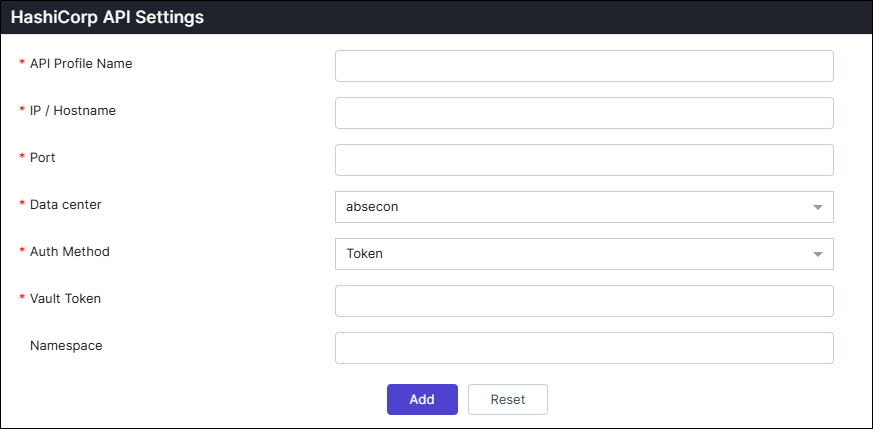
Table 1. Field descriptions for HashiCorp API Settings Field Description *API Profile Name Enter a unique name to identify the API profile *IP/Hostname Enter the hostname or IP address of the API server. *Port Enter the port number used to connect to the API. Data center Choose the data center that will be used to perform the communication. *Auth Method Choose the authentication method to access Vault (Token or AppRole). Vault Token This field is displayed if Auth Method = Token. Enter the Vault token used for direct authentication.
Role ID This field is displayed if Auth Method = AppRole. Enter the Role ID associated with your AppRole authentication.
Secret ID This field is displayed if Auth Method = AppRole. Enter the Secret ID that pairs with the Role ID for AppRole authentication.
Namespace Enter the vault namespace where the authentication and secrets are defined. *: Mandatory fields -
Once the details are entered, click Add.
Note: Multiple vaults can be added by configuring multiple profiles.
-
Close the HashiCorp Settings pop-up window.
The HashiCorp Credential Details page is displayed.
Adding HashiCorp Credential Details
-
On the Credential Details page for HashiCorp enter the
required field information.
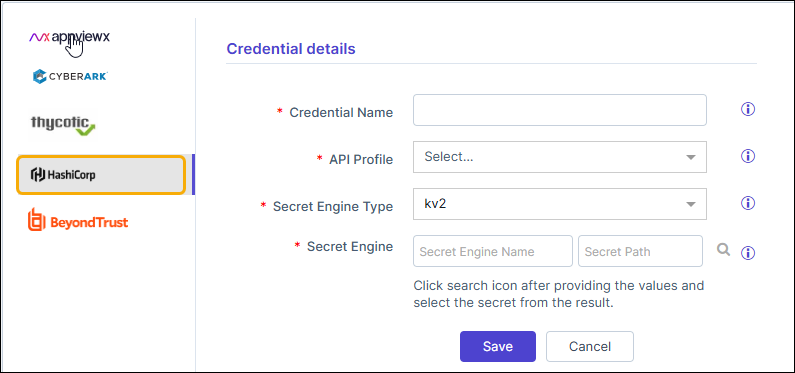
Table 2. Field descriptions for Credential details Field Description *Credential name Enter a unique name to identify the credential in AppViewX. *API Profile Select the appropriate Hashicorp API profile. Multiple profiles can be configured in the API settings for managing credentials across environments, regions, or specific use cases. *Secret Engine Type Select the secret engine type (Kv2/Open LDAP) where the secrets are stored. *Secret Engine Secret Engine Name: Enter the secret engine name and path to search for the secrets. Choose the desired secret from the results. Secret Path: The specific location (or path) within the Hashicorp where secrets are stored.
*: Mandatory fields -
Click Test Connection.
When you click the Test Connection button, the system sends a request to HashiCorp and verifies whether it receives a valid API response. If the response is received successfully, the system marks the vendor connection as successful with the message Credential validated successfully. If the connection fails, the message Error in validating credentials is displayed. Additionally, a pop-up is displayed with the vendor error code, short description of the error along with the Remediation Recommendations.
- Click Save.
