Creating a CA-specific Reenrollment Policy

Note: For details on re-enrollment outcomes based on policy and source, click here.

Accessing the Policy Configuration Page

To configure a CA-specific certificate reenrollment policy:
  1. Go to (Menu) > Policy Engine > POLICY MANAGEMENT > Policies.
    The Policy Inventory page is displayed with all policies displayed for Kube, Certificate, and Device.
  2. Click (+ Create Policy).
    The Create Policy pop-up is displayed.
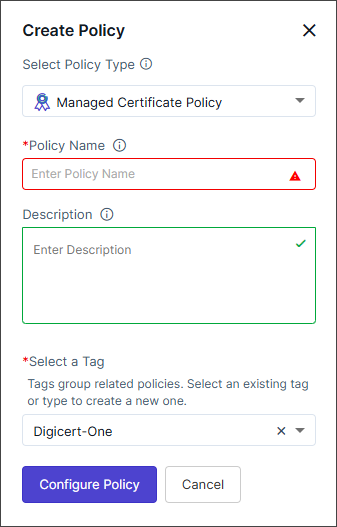
  3. In the Create Policy pop-up, from the Select the Policy Type dropdown, select Managed Certificate Policy.
    The fields for creating the device policy are displayed.
  4. Enter/Select values for configuring the policy as described in the table below.
    Field Description
    *Policy Name Enter a policy name that can include alphabets, numbers, and the special characters - (dash), _ (underscore).
    Description Enter a description for the policy.
    *Select a Tag Select an existing tag or type to create a new one. Tags group the related policies.
    Note: Selecting the appropriate policy type allows you to group policies logically, simplifying organization and management based on specific criteria.
    *: Mandatory field
  5. Click Configure Policy.
    The Create a Certificate Re-enrollment Policy in 7 Simple Steps information box is displayed with a short description of each step.
  6. Click Close.
    The first of the seven steps, Action is enabled.

Selecting Action
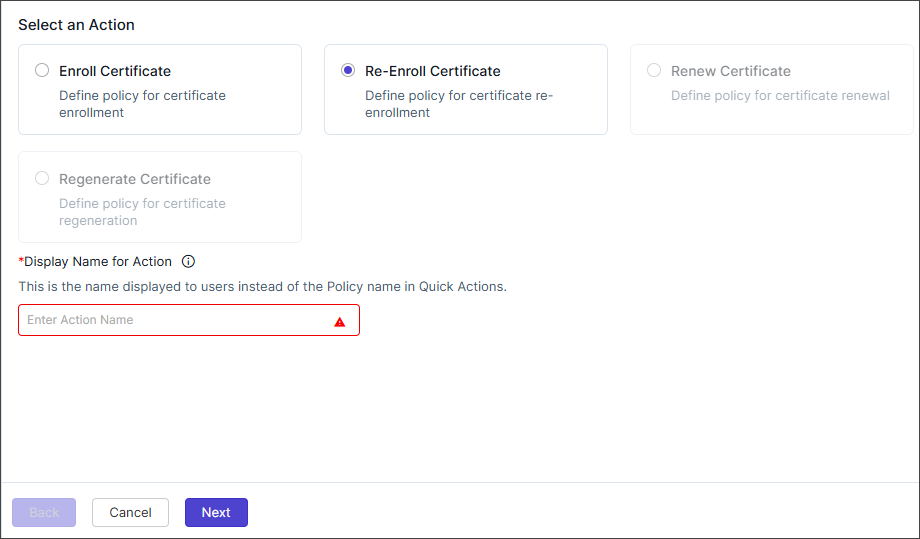
The Action step lets you select a specific action to trigger the policy.
  1. Enter/select the values as described in the table below.
    Field Description
    Select an Action Defines the policy for certificate enrollment.

    Select Re-Enroll Certificate.

    *Display Name for Action Enter the action name that is to be displayed to users instead of the Policy name in Quick Actions. This field accepts alphanumeric values and special characters - (dash), _ (underscore), and space.

    Click the info icon to preview the Quick Actions.

    *: Mandatory field
  2. Click Next.
    The second step, the Issuance Template page is displayed.

Configuring the Issuance Template

An issuance template is a customizable form that defines how certificate request fields are created and processed. It enables administrators to control the information collected during the certificate request process and how it is validated.

You can create/configure two types of issuance templates for certificate re-enrollment: the default re-enrollment template and a CA-specific issuance template for certificate re-enrollment.

This section focuses on instructions for creating a CA-specific certificate re-enrollment template. For instructions to configure the default template, see Configuring the Default Re-enrollment Policy.

To create a CA-specific issuance template:

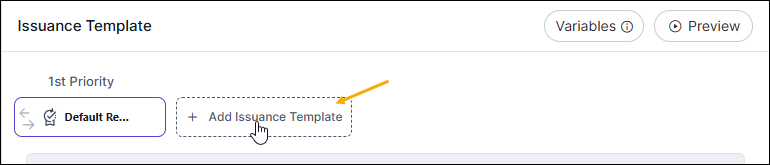
  1. Click Add Issuance Template..
  2. From the right navigation pane, select the CA you want to issue the certificate from.
    Note: Currently, CA-specific reenrollment policies can be created only for the following Certificate Authorities:
    • DigiCert
    • GlobalSign
    • Microsoft Enterprise
    • Sectigo
    . Support for the remaining CAs will be included in the subsequent releases.
    The master issuance template for the selected CA is displayed.
  3. Select the master template to load the form fields for configuring the issuance template.
  4. In the master template:
    1. Enter/Select the CA Details.
      Field Description
      *Certificate Category From the dropdown list, select the certificate category (server, client, or code signing) for the re-enrollment policy.
      *Re-enrollment Action Specify how a certificate should be handled during re-enrollment. The dropdown list is populated with the following options, depending on the Certificate Authority selected:
      • Regenerate: A new certificate will be issued, with a new key, replacing the existing certificate.
      • Renew: The certificate is reissued with the existing key.
      *CA Account From the dropdown list, select the Certificate Authority account (already integrated with AppViewX) that will be mapped to this re-enrollment policy.
      Cert Expiry Specify the action to be taken when a certificate issued by the selected Certificate Authority is reaching its expiration.
      Depending on the Certificate Authority, this dropdown list is populated with the following options:
      • Regenerate Automatically: On expiry of the existing certificate, automatically generate a new certificate with a new key to replace the existing certificate.
      • Renew Automatically: On expiry of the existing certificate, automatically renew it with the existing key, extending its validity without generating new keys.
      • Re-enroll Automatically: On expiry of the existing certificate, initiate the re-enrollment process in accordance with the re-enrollment action selected.
      • No Action: No automatic actions are required on certificate expiry.
      *Start Regenerating in Days Before Expiry This field is displayed when Cert Expiry = Regenerate Automatically.

      Specify how many days prior to a certificate's expiry the regeneration process should start.

      Valid range for number of days: 1 to 120
      Note: This value can exceed the certificate's validity in case of short-lived certificates.
      Subscribe Email Alerts for Auto-Regenerate This field is displayed when Cert Expiry = Regenerate Automatically.

      To get an email notification every time a certificate is automatically regenerated, turn on this toggle key.

      *Start Re-enrolling in Days Before Expiry This field is displayed when Cert Expiry = Re-enroll Automatically.

      Specify how many days prior to a certificate's expiry the re-enrollment process should start.

      Valid range for number of days: 1 to 120
      Note: This value can exceed the certificate's validity in case of short-lived certificates.
      *Start Renewing in Days Before Expiry This field is displayed when Cert Expiry = Re-enroll Automatically.

      Specify how many days prior to a certificate's expiry the renewal process should start.

      Valid range for number of days: 1 to 120
      Note: This value can exceed the certificate's validity in case of short-lived certificates.
      *CSR Generation From the following options, select the source for generating the Certificate Signing Request (CSR) and certificate private key:
      • AppViewX: Private key and CSR will be created in AppViewX based on the CSR parameters given.
        Note: If auto regeneration has been enabled for this cerificate, AppViewX can be enforced as the default CSR generation source (irrespective of any selections made here) every time the certificate is regenerated. To do this, execute the following db script:
        db.cert_metadata.insertOne({"_id":"CERT_AUTO_REGENERATE_DEFAULT_APPVIEWX_CSR", "flag":true})
      • Upload CSR: You can upload a file that contains the CSR details. This source file will be used to populate the CSR parameters, which will then be submitted to the CA.
        1. Under CSR Generation, select Upload CSR.

          The Please paste your CSR field is displayed.

        2. From the Please paste your CSR field, select Browse.
        3. Navigate to the location of your CSR file, and click Open.
        4. Click Upload.

          On successful upload of this file, the CSR fields are populated with the corresponding details.

      • HSM: To generate the private key and the CSR, based on the CSR parameters given in an HSM device:
        1. Under CSR Generation, select HSM.
        2. To enter the configuration details for CSR generation, refer the field descriptions given here .
      • Endpoint: To generate the private key and the CSR, based on the CSR parameters given in an endpoint device:
        1. Under CSR Generation, select End Point.
        2. To enter the configuration details for CSR generation, refer the field descriptions given here.
      • Use Existing CSR: Reuse a previously-generated CSR.
      • Use Existing Private Key: Generate a new CSR using an already existing private key instead of creating a new key.
      *: Mandatory field
      Table 1. Field descriptions for using HSM as the CSR generation source
      Field Description
      *Device Type From the dropdown list, from the following options, select the type of device on which the private key and the CSR will be generated:
      • HSM Devices (AppViewX will directly communicate with the HSM device for the CSR generation.)
      • ADC Devices (The selected ADC device will interact with the HSM to generate the CSR and subsequently transmit the relevant details to AppViewX.)
      *Vendors This field is displayed only when Device Type = ADC Devices.

      From the dropdown list, select the required ADC device vendor.

      Module Number This field is displayed when Device Type = ADC Devices and Vendors = Thales.

      In the event that multiple HSMs are configured on a system, module number is a unique identifier assigned to each HSM.

      In this field, enter the module number assigned to the selected Thales device.
      *Devices From the dropdown list, select the required HSM/ADC device.

      This field is populated based on the Device Type and Vendors selected.

      • For Device Type = HSM Devices

        The dropdown list is populated with HSM devices that were enabled for CSR generation at the time of onboarding and have been successfully onboarded. To read more on onboarding HSM devices in AppViewX, click here.

      • For Device Type = ADC Devices

        The dropdown list is populated with F5 devices that are in the Managed state.

        Currently, AppViewX enables HSM key generation only through F5 devices for the following HSM vendors and their respective supported versions:
        • Fortanix (v14 and onwards)
        • Thales (v12 and onwards)
        • Safenet (v12 and onwards)
      *Key Handler Name This field is displayed when Device Type = HSM Devices.

      Key handler name refers to an identifier used to reference a cryptographic key managed by an HSM device.

      Enter the desired handler name in the field.
      *Key Reference Name This field is displayed when Device Type = ADC Devices.

      Key reference name refers to an identifier used to reference a private key that is stored locally on an ADC device or is securely accessible to the device via an external HSM.

      In this field, enter the reference name assigned to the private key stored in/accessible to the selected ADC device.
      Table 2. Field descriptions for using an endpoint device as the CSR generation source
      Field Description
      Category From the following options, select the Server device category:
      • ADC
      • Cloud
      • Server
      • WAF
      • Firewall
      Note:
      • Run the following script to enable endpoint CSR generation support for GlobalSignAtlas:
        db.getCollection('cert_metadata').insertOne({
            "_id": "CSR_GENERATION_ENDPOINT_SUPPORTED_VENDOR_GLOBALSIGNATLAS",
            "objectMap": {
                "Server": [
                    "ABAP",
                    "Web Dispatcher"
                ]
            }
        });  
      • On selecting GlobalSignAtlas CA, Category is automatically populated as Server.
      Vendor The dropdown list for this field is populated based on the Category selected. From the dropdown list, select the vendor for the end point device.
      Note:
      • On selecting GlobalSignAtlas CA, Vendor is populated with ABAP and Web Dispatcher.
      *Devices This field lists the end point devices present in your environment that belong to the above selected Category and Vendor.
      From the dropdown list, select the end point device on which you want to generate the private key and the CSR.
      Note:
      • On selecting Vendor = Fortinet, both Fortigate and FortiManager devices are populated. Auto-regeneration of certificates with FortiManager as endpoint is not supported.
      *Profile This field is applicable only when Category = Server/WAF. Select a profile from the dropdown list.
      Note: On selection of Vendor = Imperva, CSR generation at the endpoint is supported only for SaaS platforms. Profiles will not be displayed for AWS/on-prem deployments.
      *Tenant This field is applicable only when Category = AD. Enter the tenant ID.
      *Service name From the dropdown list, select the cloud service running on the selected cloud Devices.
      CSR Location This field is applicable only when Category = Server.
      *Template Name This field is applicable only when Category = Firewall.

      Select the required template from the dropdown list.

      Note:
      • This field will be enabled when the Platform = Panorama while onboading PaloAlto device at Menu > CLM > Device Management > Inventory> Firewall > Add.
      • Templates and partitions are used to enroll certificates at the template level. To enroll a certificate at the Panorama level, set the template to None.
      Partition This field is applicable only when Category = Firewall.
      *CSR File Name Enter the name of the file that contains the CSR parameters.
      Note:
      • As the extension is already included in the field, ensure that you enter the file name without the file extension.
      • Starting v2023.1.0 FP2, for enrolling Apache server certificates, this field is labeled as CSR File Location.
      *Key File Name Enter the name of the file that contains the private key details.
      Note:
      • As the extension is already included in the field, ensure that you enter the file name without the file extension.
      • Starting v2023.1.0 FP2, for enrolling Apache server certificates, this field is labeled as Key File Location.
      *Certificate File Name This field is displayed only when Category = Cloud. Enter the certificate file name.
      *Key vault This field is displayed only when Category = Cloud, Vendor = Azure, and Service name = Key Vault (Azure).

      From the dropdown list, select the key vault endpoint for the certificate enrollment.

      *Service
      Note: This field is displayed when Category = Server and Vendor = Microsoft Server.
      This dropdown list is populated based on the Device selected.

      From the options in the dropdown list, select the service.

      *Exchange Server
      Note: This field is displayed when Category = Server and Vendor = Microsoft Server.
      From the dropdown list, select the name of the MS Exchange server for which the certificate is being enrolled.
      *Allow private key export This field is:
      • displayed when Category = Cloud, Vendor = Azure, and Service name = Key Vault (Azure).
      • enabled when the key vault selected here is a standard (non-premium) key vault.

        To allow the private key in the Azure Key Vault to be marked as exportable, select Yes. This allows for the private key to be securely retrieved (subject to Azure permissions and policies) for lifecycle operations such as certificate deployment, backup, migration, or automated push to supported endpoints.

        If you select No, the private key is marked non-exportable. This ensures that the private key cannot be extracted from the key vault and can only be used within the vault for cryptographic operations.

      • disabled if the selected key vault is a premimum key vault.

        For premium key vaults, by default, Allow private key export is set to No and is disabled for editing. This is because in a premium key vault, the private key is stored securely within a HSM and cannot be exported. Therefore, while the field is still displayed, it is preconfigured and disabled for editing.

      To read on the difference between premium and standard key vaults, see the References section.
    2. Enter/Select the Certificate Parameters for the certificate to be reenrolled.
      For descriptions of the fields in the Certificate Parameters section, see the certificate enrollment documentation here:The following fields, although mandatory at the time of certificate enrollment, are optional when you are creating a certificate re-enrollment policy in the Policy Engine:
      • Key Type
      • Bit Length (displayed only after a key type is selected)
      • Hash Function
      • Validity Unit
      • Validity in Days/Months/Years (displayed only after a validity unit is selected)

      For these non-mandatory fields, selecting a value for the primary field while leaving its dependent fields empty may lead to issues during enrichment. To avoid such mismatches, it is recommended to provide values for the dependent fields as well whenever the corresponding primary field is populated. For example, if you have specified a key type, it is recommended that you specify the bit length.

      In the certificate re-enrollment policy form, the fields support the following enforcement modes:
      • Empty: Use the value from the existing certificate.
      • Single value: Enforce the value specified in the field.
      • Multi value: Enforce the value that is common with the existing certificate, or use the default value.
    3. Enter/Select the required values for the custom Certificate Attributes.
      Field Description
      Expiry Alert Set this field to true to get expiry notifications for the certificate being reenrolled.

      Alerts are triggered as the certificate approaches its expiration date.

      ACME Account Email Address Enter the email address associated with the ACME account used for certificate reenrollment.
      *: Mandatory field
    4. To define conditional rules that dynamically control how a field behaves based on its input value,click Configure Rules.
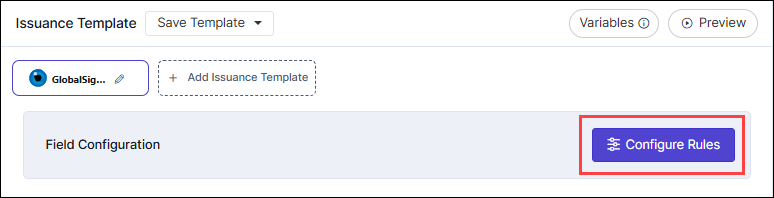
      The Field Rules Configuration dialog box is displayed.

      For instructions on configuring conditional rules, see Configuring Rules for Policy Fields.

  5. Click Next.
    The third step, the Approval page is displayed.

Configuring Conditional Rules for Policy Fields

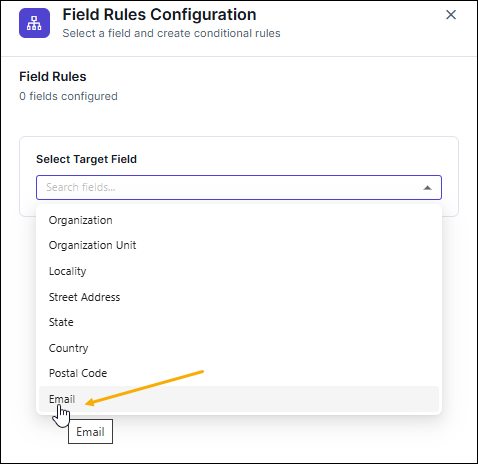
  1. From the Select Target Field dropdown list, select the field you want to apply the rule to.
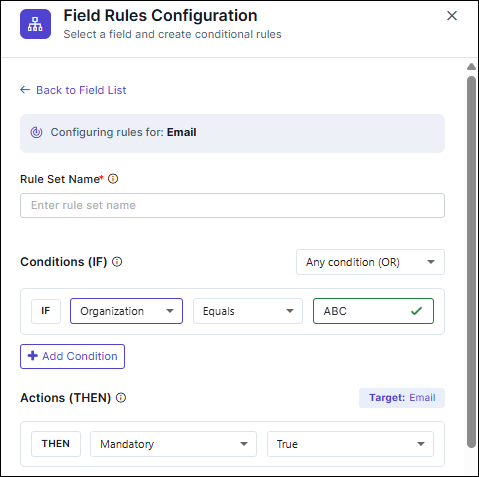
  2. [Mandatory] In the Rule Set Name field, enter a name for the complete rule set (of one or more rules) that will be configured for the selected field.
  3. From the Conditions (IF) section:
    1. From the condition type dropdown list, select a condition logic from the following values:
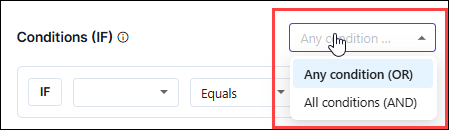
      • Any condition (OR): At least one of the specified conditions must be true
      • All conditions (AND): All of the specified conditions must be true
    2. Enter details in the condition builder fields.
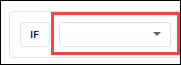
      • IF: From the dropdown list, select the field whose value will be evaluated.
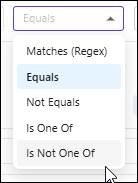
      • Operator: From the dropdown list, select an operator for the comparison logic. The operator defines how the selected field value is compared with the value you define in the rule condition.
      • Value: Enter the value for the condition to be fulfilled.
      • : To add a new condition to the rule set, click .
  4. In the Actions (THEN) section:
    1. To define how the target field behaves when the IF conditions are met, from the dropdown list, select the required behavior option.
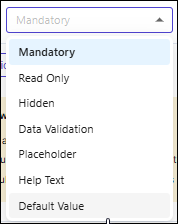
    2. From the dropdown list, select the value to enforce the selected behavior (True/False).
    3. To add another action response to the specified condition, click .
    Consider this Example Scenario: You want to make the Email field mandatory when the certificate being reenrolled belongs to a specific organization (say, ABC). The configuration for your rule will look as shown in the images below:
  5. Click Add Rule Set.

Setting Approval

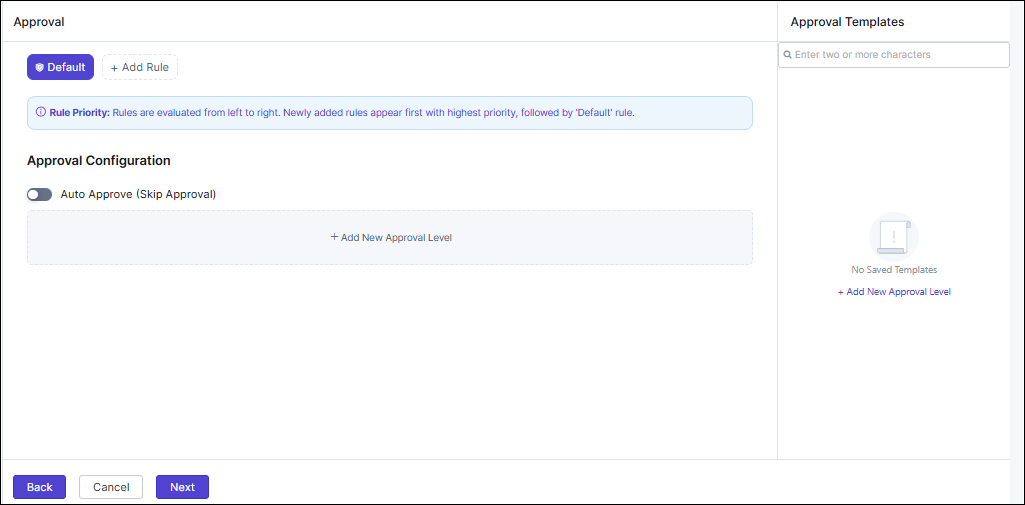
The Approval step allows you to manage the approval workflow before onboarding execution. You can choose to enable auto-approval or define approval levels, which can be configured as explained below.

Auto-Approval

  1. Enable the Auto Approve (Skip Approval) toggle button.
  2. Click Next.
    The fourth step, Pre Issuance Task page is displayed.

Adding New Approval Level

  1. Click + Add New Approval Level
    The Configure Approvaldialog box is displayed with the Approval Settings tab (selected by default) and the Email Template tab.
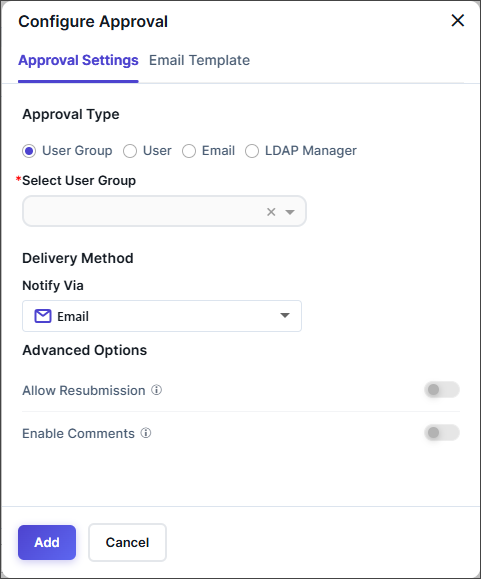
  2. From the Approval Settings tab, configure the Approval Settings based on the Approval Type radio button selection as described below.
    1. If the Approval Type = User Group, enter/select the fields in the table below.
      Field Description
      *Select User Group Select the User group(s) from the multi-select dropdown.
      *: Mandatory field
    2. If the Approval Type = User, enter/select the fields in the table below.
      Field Description
      *Select User Select the User(s) from the multi-select dropdown.
      *: Mandatory field
    3. If the Approval Type = Email, enter/select the fields in the table below.
      Field Description
      *Select Email Enter a valid email address. Use either comma-separated email IDs, or a single variable like ${template_email}.
      *: Mandatory field
    4. If the Approval Type = LDAP Manager, enter/select the fields in the table below. This option enables approval based on the manager information retrieved from the LDAP directory.
      Field Description
      *Select LDAP Server Specifies which LDAP server to connect to for fetching user and manager details.

      Choose an existing LDAP server from the dropdown list or enter the connection URL manually.

      *Customize LDAP Query - Allows you to define or modify the LDAP query parameters used to identify the user and their manager. When enabled, additional fields appear to customize how LDAP attributes are queried.
      User Filter Attribute Defines the LDAP attribute used to locate the requesting user
      User Return Attribute Specifies which LDAP attribute should be retrieved from the user’s record to identify their manager.
      Manager Filter Attribute Defines the LDAP attribute used to locate the manager’s record in LDAP.
      Manager Return Attribute Specifies which attribute value from the manager’s record should be returned and used as the approver’s identifier (For example: email address).
      *: Mandatory field
    5. Enter/Select the Advanced Options for the approval process.
      Field Description
      Allow Resubmission Enable the toggle button to allow resubmission of the policy request. The button is disabled by default.
      Enable Comments Enable the toggle button to allow approvers to add comments to the policy request. The button is disabled by default.
      *: Mandatory field
  3. From the Email Template tab, enter/select the information as follows:
    Field Description
    Template Name Choose an email template to customize approval notifications
    Email Templates From the following options, turn on the toggle button(s) corresponding to the email template(s) you want to use:
    • Approval Request Template
    • Approval Confirmation Template
    • Approval Rejection Template

    To customize the email templates:

    1. Turn on the toggle button of the required email template.
    2. Click the arrow icon next to the toggle button to expand/display the email contents.
    3. Edit the Email Subject, CC (Carbon Copy), and Email Content.
      Note: Users can copy predefined variables (For example: ${user.firstName}, ${user.lastName}) from the option on the top-right of the pop-up. Variables can be inserted into text content and at runtime, they are replaced with actual values.
    *: Mandatory field
  4. Click Add.
    The Approval template is displayed with the Edit and Delete icons and the option to further Add New Approval levels.
  5. Click the Save Template dropdown next to the Approval header, then select Save as New to create a new template and save this configuration as a reusable template for future use.
    The Save as Template pop-up is displayed.
  6. Enter the Template Name and enter a template Description. (Template names can include alphanumeric and the - (dash), _ (underscore), and space special characters.)
  7. Click Save on the pop-up.
    The Approval level template is saved successfully.
  8. Click Next.
    The fourth step, the Pre Issuance Taskpage is displayed.

Configuring Pre Issuance Tasks
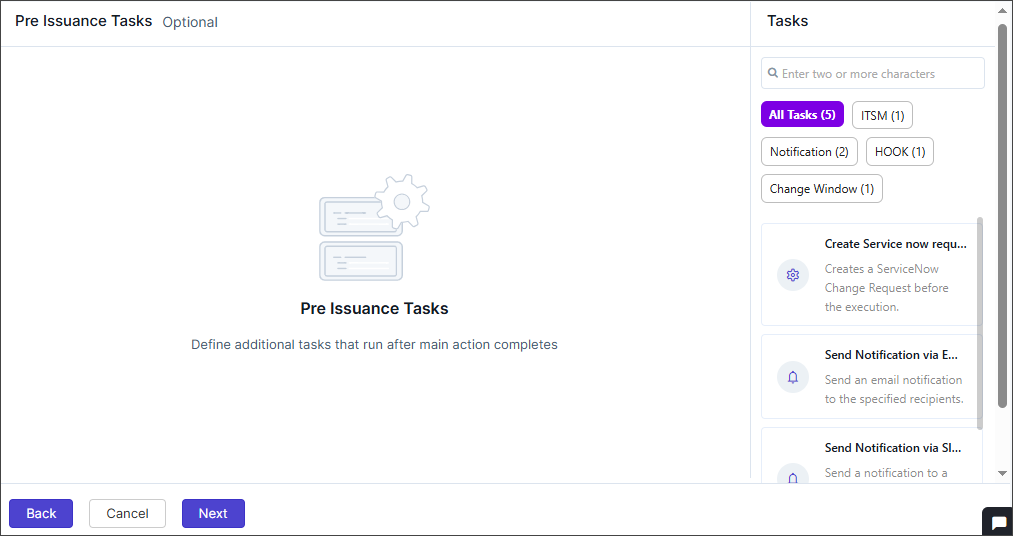
This is an optional fourth step that lets you configure tasks to execute before certificate issuance. A Task panel is available on the right with five tasks as follows:
  1. ITSM - Create a ServiceNow Change Request before the execution.
  2. Notifications
    1. Send Notification via Email - Send an email notification to the specified recipients.
    2. Send Notification via Slack - Send a notification to a Slack channel using the configured webhook URL.
  3. Hook Execution - Initiates the execution of the selected hook.
  4. Configure Change Window - Allows users to configure a change window during which the policy tasks should be executed.

ITSM - Create a ServiceNow Change Request

Enter the following fields to configure the ServiceNow Change Request.
Field Description
Configuration tab
Configuration tab - ServiceNow Instance
Configure ServiceNow Instance Select or configure the type of ServiceNow instance.
Configuration tab - Change Request Fields
Type Defines the type of ServiceNow request to be created (For example: Normal, Emergency, Standard). Select the value from the dropdown.
Priority Specifies the urgency level or importance of the change request. Select the value from the dropdown (1-Critical, 2-High, 3-Moderate, 4-Low).
Short Description A brief summary or title describing the purpose of the change request.
Description A detailed explanation of the change request, including context or justification.
Category Classifies the change under a specific functional or operational category.
Risk Select the potential risk level associated with implementing the change. Select the value from the dropdown (VeryHigh, High, Moderate, Low, None).
Impact Specifies the extent to which the change might affect users, services, or infrastructure. Select the value from the dropdown (1-High, 2-Medium, 3-Low).
Urgency Reflects how quickly the change needs to be addressed or implemented. Select the value from the dropdown (1-High, 2-Medium, 3-Low).
Assignment Group The ServiceNow group responsible for reviewing and implementing the change.
CAB Required Specifies whether the change requires approval from the Change Advisory Board (CAB). Select value True or False.
Wait for State Change Determines whether AppViewX should pause workflow execution until the ServiceNow change request reaches a specific state. Select value True or False.
General Settings tab (Configure general execution settings for this task)
Continue On Failure Determines whether the policy execution should complete even after the task fails. The toggle button is disabled by default.
*: Mandatory field
Note: Users can copy predefined variables (e.g., ${user.firstName}, ${user.lastName}) from the option on the top-right of the pop-up. Variables can be inserted into text content and at runtime, they are replaced with actual values.

Notifications - Send Notification via Email

Enter the following fields to set up notifications for Email or Slack.
Field Description
Configuration tab
*Recipient Type Select either or all of the following:
  • User Group
  • User
  • Email
*User Group This field is enabled when Recipient Type = User Group.

Select single or multiple user groups.

*User This field is enabled when Recipient Type = User

Select single or multiple users.

*Email This field is enabled when Recipient Type = Email.

Enter a valid email address. Use either comma-separated email IDs, or a single variable like ${template_email}.

*Template Name Select the email template name.
*Email Subject This field is enabled when Notify Via = Email.

Enter the subject for the email. Use the Variables option to add database values as variables.

*Message Content Enter the message content for the email or slack. Use the Variables option to add database values as variables.
General Settings tab (Configure general execution settings for this task)
Continue On Failure Determines whether the policy execution should complete even after the task fails. The toggle button is disabled by default.
*: Mandatory field
Note: Users can copy predefined variables (e.g., ${user.firstName}, ${user.lastName}) from the option on the top-right of the pop-up. Variables can be inserted into text content and at runtime, they are replaced with actual values.

Notifications - Send Notification via Slack

Enter the following fields to set up notifications for Email or Slack.
Field Description
Configuration tab
*Slack Channel This field is enabled when Notify Via = Slack.

Select the slack channel.

*Message Content Enter the message content for the email or slack. Use the Variables option to add database values as variables.
General Settings tab (Configure general execution settings for this task)
Continue On Failure Determines whether the policy execution should complete even after the task fails. The toggle button is disabled by default.
*: Mandatory field
Note: Users can copy predefined variables (e.g., ${user.firstName}, ${user.lastName}) from the option on the top-right of the pop-up. Variables can be inserted into text content and at runtime, they are replaced with actual values.

Hook Execution

Enter the following fields to configure the hooks.
Field Description
Configuration tab
Configuration tab - Hook (Select a hook from the available inventory that you want to execute.)
Task Name Displays the default name of the task (Hook Execution). You can rename it if needed for clarity in the workflow.
Select Hook Choose the specific hook (script or API integration) to be executed within the workflow.
Configuration tab - Expose Variables
Do you want to expose hook response as variables for following tasks? Toggle this option to expose the hook’s response as variables for use in subsequent workflow tasks.

Enables or disables the ability to pass hook output values as input variables to later tasks in the workflow.

Output Variable Mapping Map output variables from the hook response to custom keys for easier reference in subsequent tasks. Paste the expected JSON response from the hook to view and select available variables.

Fields:

  • Variable Key: Enter a custom key name for the variable.
  • Output Variable: Select the output variable path from the JSON response (options include $.output, $.path, $.type).
To add variables, click button.
Expected Response Format Paste a sample JSON response from the hook in the output {} section. This helps AppViewX identify available response parameters for variable mapping and validation.
General Settings tab (Configure general execution settings for this task)
Continue On Failure Determines whether the policy execution should complete even after the task fails. The toggle button is disabled by default.
*: Mandatory field
Note: Users can copy predefined variables (e.g., ${user.firstName}, ${user.lastName}) from the option on the top-right of the pop-up. Variables can be inserted into text content and at runtime, they are replaced with actual values.

Configuring Change Window

This page allows users to define a specific change window a scheduled timeframe during which policy-related tasks can be executed.

Field Description
Configuration tab
Change Window Configuration Configure when policy changes are allowed to run. Use the Preview Windows option to visualize the scheduled change windows based on the selected configuration.
*Mode Selection Choose the frequency or recurrence pattern for the change window. The options available are as follows:
  • Daily: Executes policy tasks during the defined window each day.
  • Weekly: Executes tasks on specific days of the week.
  • Monthly: Executes tasks on specified dates or weeks within a month.
  • User Defined: Allows users to define a custom schedule or window duration.
Daily Schedule Settings This section is enabled when Mode Selection = Daily.
Enter the values in the following fields:
  • *Start Time (HH:MM)
  • *End Time (HH:MM)
Weekly Schedule Settings This section is enabled when Mode Selection = Weekly.
Enter the values in the following fields:
  • *Day of the Week - (select Monday, Tuesday etc.)
  • End Day of Week (Optional) (select Monday, Tuesday etc.)
  • *Start Time (HH:MM)
  • *End Time (HH:MM)
Monthly Schedule Settings This section is enabled when Mode Selection = Monthly.
Enter the values in the following fields:
  • *Day of the Month - (select date between 1-31)
  • End Day of Month (Optional) (select date between 1-31)
  • *Start Time (HH:MM)
  • *End Time (HH:MM)
Custom Date & Time This section is enabled when Mode Selection = User Defined.
Enter the values in the following fields:
  • *Explicit Start Time (YYYY-MM-DDTHH:MM:SSZ)
  • *Explicit End Time (YYYY-MM-DDTHH:MM:SSZ)
*Missed Window Policy Determines the system behavior if a task misses its scheduled change window. Options include:
  • Run Next Window: The task will automatically run during the next available window.
  • Skip: The missed task will be skipped without execution.
  • Fail Immediately: The task will fail immediately if it cannot execute within the defined window.
Allow Override Enables authorized users or groups to allow execution outside the defined change window.
Override Type This field is enabled when Allow Override toggle is enabled.

Select from User Group or User.

User Group This field is enabled when Allow Override toggle is enabled and Override Type = User Group

Select User Group from the dropdown.

User This field is enabled when Allow Override toggle is enabled and Override Type = User

Select User from the dropdown.

General Settings tab (Configure general execution settings for this task)
Continue On Failure Determines whether the policy execution should complete even after the task fails. The toggle button is disabled by default.
*: Mandatory field
Note: Users can copy predefined variables (e.g., ${user.firstName}, ${user.lastName}) from the option on the top-right of the pop-up. Variables can be inserted into text content and at runtime, they are replaced with actual values.

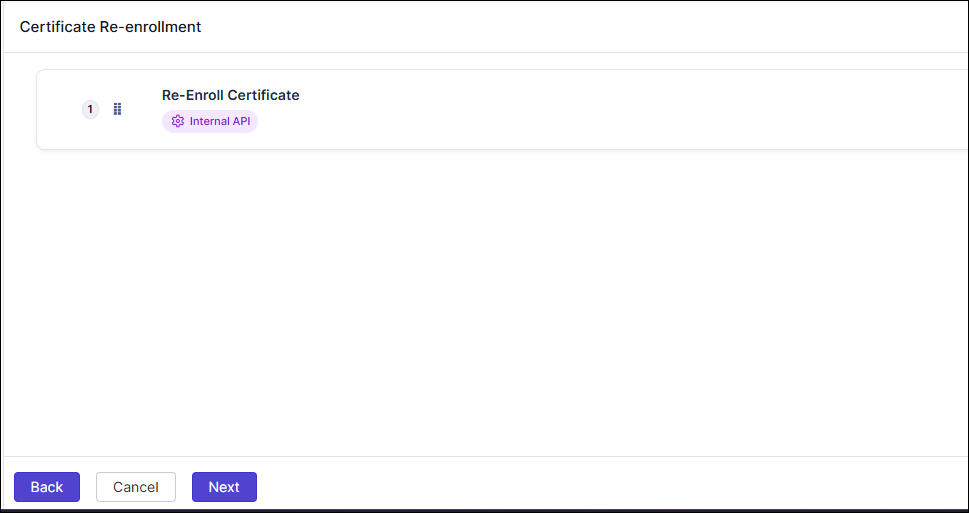
Certificate Re-enrollment

This is an optional fifth step where the certificate reenrollment is handled automatically by the Internal API. You may proceed to the next step. There are no actions required on this page.
  • Click Next to move to the next step, Post-Onboarding.

Configuring Post Issuance Settings
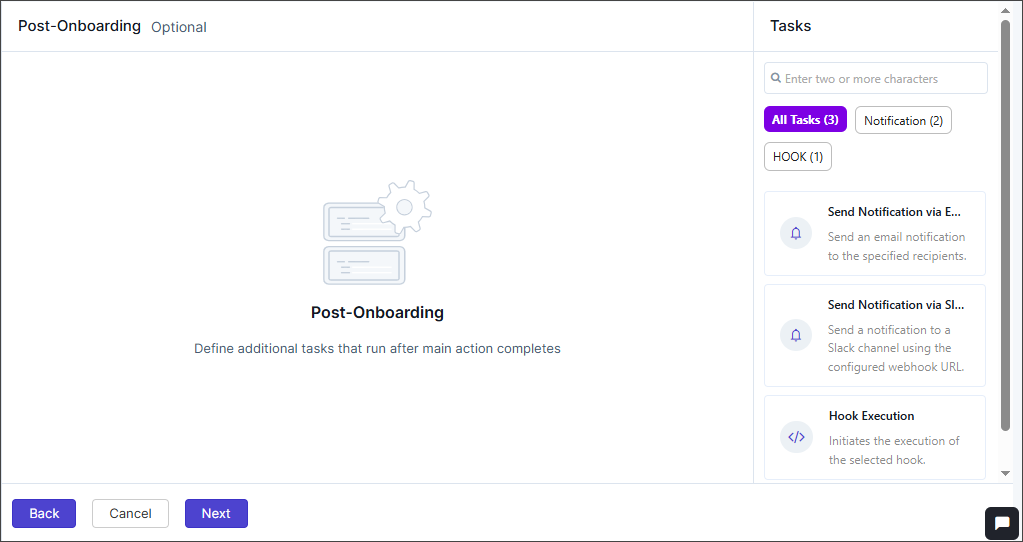
The sixth step in the enroll certificate process is to configure tasks to execute after certificate issuance. These are additional tasks that run after the main action completes. The Task panel on the right has the following tasks to be configured:
  1. Send Notifications via Email (For details, click here)
  2. Send Notifications via Slack (For details, click here)
  3. Email certificates in zip format (see section below)
  4. Hook Execution (For details, click here)

Email Certificates in Zip Format

This task is used to configure an email containing the certificates packaged in a ZIP file to be sent to the requester.
Field Description
Configuration tab
*Certificate Type Select any of the following certificate types:
  • PEM (*.crt)
  • PEM (*.cer)
  • DER (*.crt)
  • DER (*.cer)
  • PKCS#7 Binary (*.p7b)
  • PKCS#7 PEM (*.p7b)
  • PKCS#12 (*.p12)
  • PKCS#12 (*.pfx)
  • JKS (*.jks)
Include Root and Intermediate This checkbox is enabled only for the following certificate types.
  • PEM (*.crt)
  • PEM (*.cer)
  • DER (*.der)
If the checkbox is selected, the certificate chain will be included and sent via email.
General Settings tab (Configure general execution settings for this task)
Continue On Failure Determines whether the policy execution should complete even after the task fails. The toggle button is disabled by default.
*: Mandatory field
Note: Users can copy predefined variables (e.g., ${user.firstName}, ${user.lastName}) from the option on the top-right of the pop-up. Variables can be inserted into text content and at runtime, they are replaced with actual values.

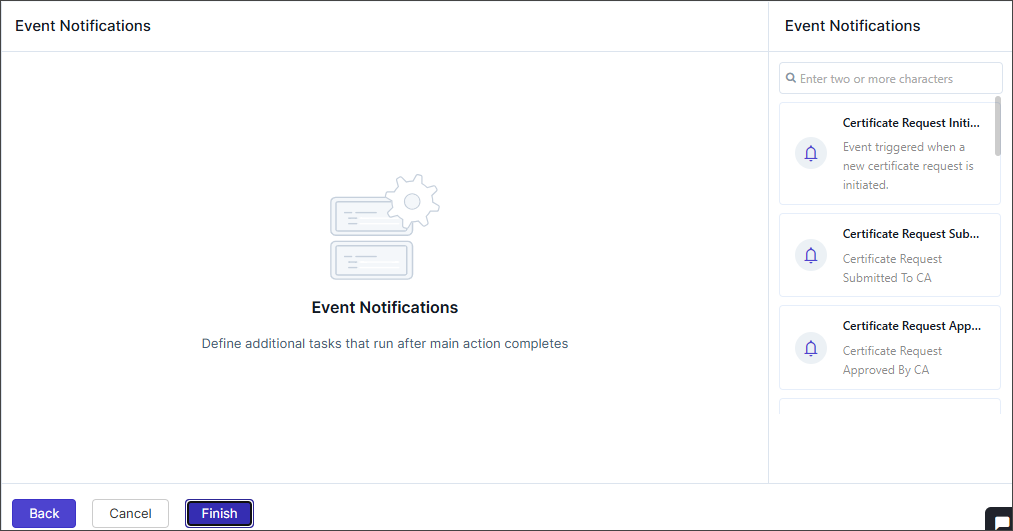
Configuring Event Notifications

The final step in the enroll certificate process is to send email notifications to users, groups, or external recipients on certificate enrollment lifecycle events.
  1. Certificate Request Initiated (Event triggered when a new certificate request is initiated.)
  2. Certificate Request Submitted To CA (
  3. Certificate Request Approved By CA

To configure any of the above emails,

  1. From the notification panel on the right, click any of the specific emails to be configured. The <email_name> pop-up is displayed.
    The <email_name> pop-up is displayed.
    Note: All the email templates have the same fields, see to the table below to configure any of the emails.
  2. Enter the following details in the email configuration pop-up.
    Field Description
    *Notify Via Select from the following:
    • Email
    • Slack
    *Recipient Type This field is enabled when Notify Via = Email.

    Select either or all of the following:

    • User Group
    • User
    • Email
    *Slack Channel This field is enabled when Notify Via = Slack.

    Select the slack channel.

    *User Group This field is enabled when Notify Via = Email and Recipient Type = User Group.

    Select single or multiple user groups.

    *User This field is enabled when Notify Via = Email and Recipient Type = User

    Select single or multiple users.

    *Email This field is enabled when Notify Via = Email and Recipient Type = User Email.

    Enter a valid email address. Use either comma-separated email IDs, or a single variable like ${template_email}.

    *Template Name This field is enabled when Notify Via = Email.

    Select the email template name.

    *Email Subject This field is enabled when Notify Via = Email.

    Enter the subject for the email. Use the Variables option to add database values as variables.

    *Message Content Enter the message content for the email or slack. Use the Variables option to add database values as variables.
    *: Mandatory field
    Note: Users can copy predefined variables (e.g., ${user.firstName}, ${user.lastName}) from the option on the top-right of the pop-up. Variables can be inserted into text content and at runtime, they are replaced with actual values.
  3. Click Add.
    The email templates are created successfully.
  4. Click Finish at the bottom of the screen to complete the enroll certificate policy creation.

Mapping the Certificate Reenrollment Policy to a Certificate Group

To map this policy to a certificate group, see the instructions here.