
Self-Servicing a Certificate Renewal Workflow Request
-
On the AppViewX Catalog page, click Renew
Certificate.
The Renew Certificate input form page is displayed.
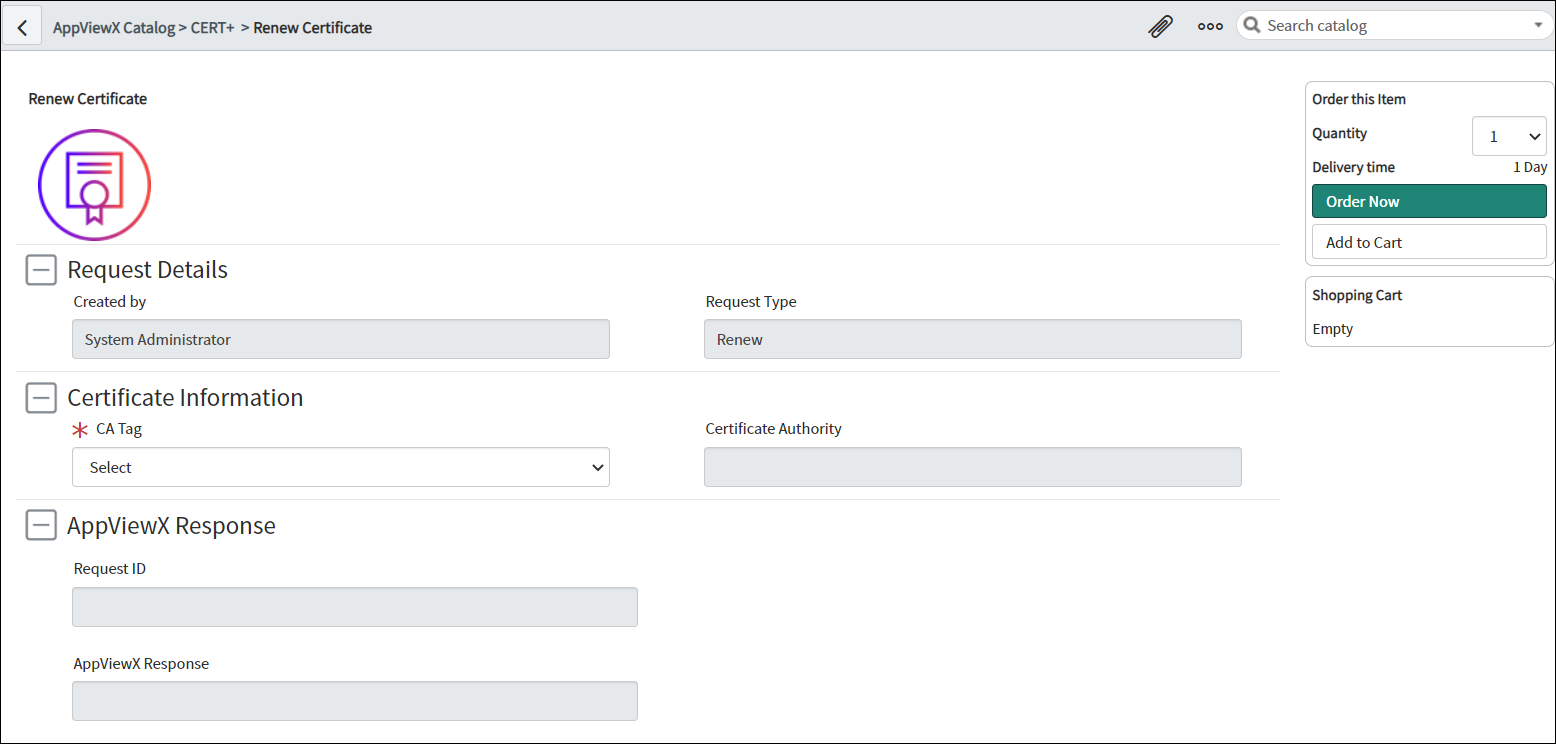
The following table describes the field information requested on this page:
Table 1. Renew Certificate - Field and Description Table Category Field Description Request Details Created By Displays details of the request creator. Note: This is a read only field and is auto-populated based on the login information.Certificate Request Type Displays the type of certificate request. Note: This is a read-only field and is auto-populated based on the certificate request.Certificate Information *CA Tag Select the CA Tag from the options available in the dropdown. Note: This tag is defined at the time of configuring CLM settings.Certificate Authority Displays the certificate authority with which the CA tag is associated. Note: This is a read-only field and is auto-populated based on the CA Tag selected.*Certificates Select the certificate you wish to renew from the options available in the dropdown. Note: The values in this field are fetched from AppViewX based on the CA Tag selected and Certificate Category configured in CLM Settings.Common Name Displays the Common Name for the selected certificate. Note: This is a read-only field and is auto-populated based on the certificate selected.Serial Number Displays the Serial Number for the selected certificate. Note: This is a read-only field and is auto-populated based on the certificate selected.Renewal Method Renewal Method Select the method for renewing the certificate. The options available are: AppViewX Response Request ID Displays the Request ID of the workflow executed in AppViewX. Note: This is a read-only field and the value is fetched from AppViewX’s Request module.AppViewX Response Displays the AppViewX Response. *: Mandatory fields -
To submit the workflow request for renewing the certificate, from the right
side of the screen, click Order Now.
The Order Status page is displayed with details of the certificate request and the request number.
- To check the request status for this request, from the navigation pane on the left, under CERT+, click Certificate Requests.
