
Exporting a WAF Device
-
Go to
 (Menu) > CERT+ >
ADMINISTRATION > Device Management.
By default, the ADC tab opens.
(Menu) > CERT+ >
ADMINISTRATION > Device Management.
By default, the ADC tab opens. - Click the WAF tab.
-
Click the check-box beside the device name. If you are exporting details of
multiple devices, select the check-boxes for each one.
Note: If the required device is not listed on the screen, run a search.
-
Click the
 (Export) icon in the command bar at the
upper right of the screen.
(Export) icon in the command bar at the
upper right of the screen.
-
On the Export pop-up screen that is displayed, select the type of information
you want to export and click the Export button.
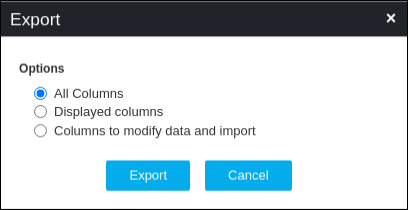
- All Columns - Select this option if you want to export all information about the firewall.
- Displayed columns - Select this option if you want to export only the information that is visible on the firewall screen.
- Columns to modify data and import - Select this option if you are exporting firewall details to make modifications and then re-import the data into the firewall Inventory.
-
On the screen that opens, select the location where you want the firewall
details file to go, then click Save.
Device details will be downloaded as a .xls file.
