
Creating a Device Backup
A device backup group is a container used to store all of the backups and restore records for a particular group within the AppViewX system.
To create a device backup group,
-
Click Menu > FIREWALL+ > GRC >
Backup and Restore.
The backup and restore home page is displayed.
-
Click the
 (Create) icon from the left command bar.
The backup page is displayed.
(Create) icon from the left command bar.
The backup page is displayed.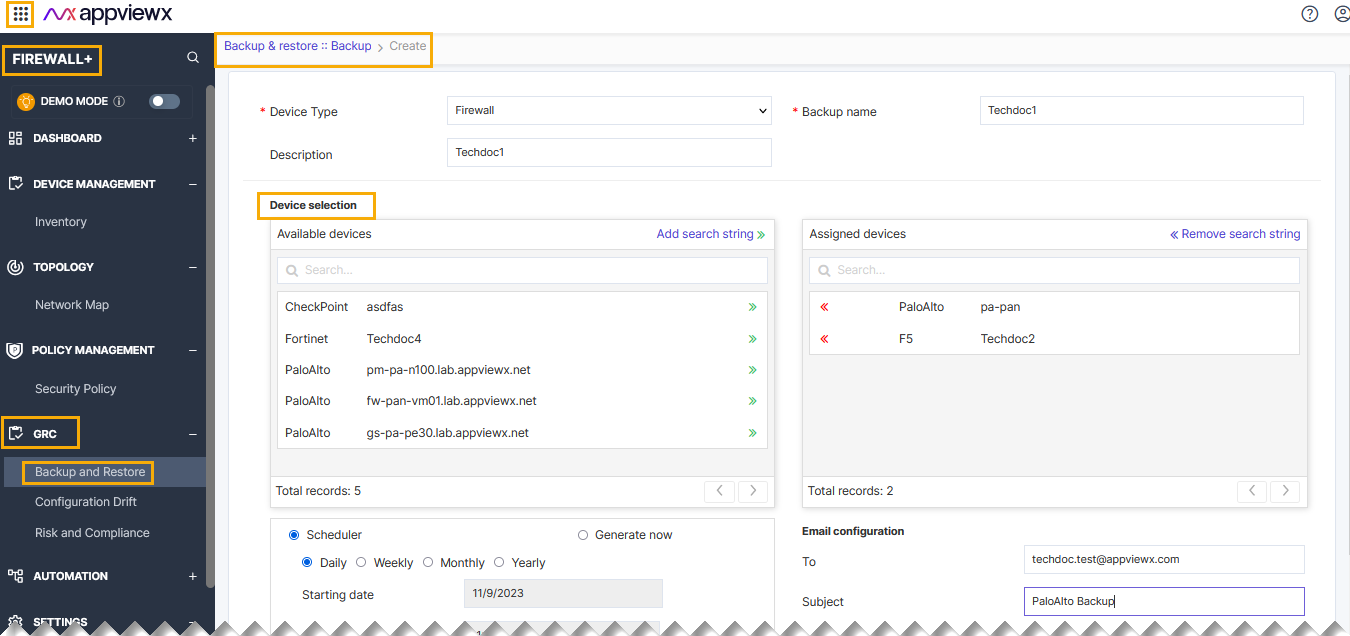
- Select the Device Type from the drop-down list.
- Enter the Back name in the field.
- Enter a description of the name that makes it easy for users to determine what sort of device backups are found within the group.
-
In the Available devices field, click the
 (Assign
item) icon beside each device whose backups and restores you want to
include.
(Assign
item) icon beside each device whose backups and restores you want to
include.
- In the scheduling field, select either the Scheduler radio button and then set the frequency, starting date, and time for the backups, or select the Generate now radio button to start the backup as soon as you click Save.
- In the Email configuration field, enter the email addresses, separated by commas, of all users who should be sent a copy of the backup.
- (Recommended) Enter a short, clear description in the Subject field so that it will help the recipients understand why they are receiving the email: for example, "Weekly backup of Firewall devices."
-
Click Save.
Note: You can customize the archive count for storing the daily, weekly, monthly, and yearly backups individually. Using this feature, you can maintain scheduled archives without it being overwritten by instant backups.
