
Setting up the Landing Page when Publishing/Sharing
- Open a Published page.
- From the top right corner of the screen, click Publish & Share.
- In the Publish & Share window, click Share.
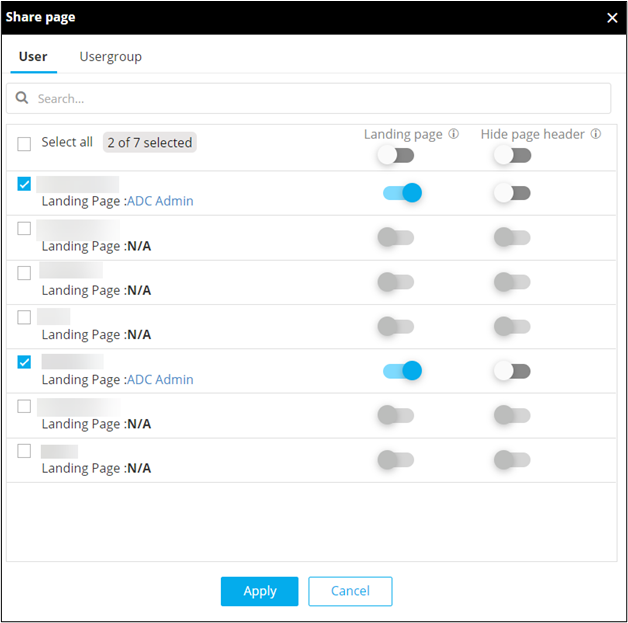
- In the Share page window, select the user(s) for which the current catalog is to be set as the Landing page.
-
To set the current catalog as the landing page for selected user(s), in the
Share page window, under Landing page, turn on the toggle for
the selected user(s).
-
To implement the selected settings, click Apply.
Note: The current active version of the catalog will be set as the Landing page for the selected users.
