
Expired Certificates
Tip: A best practice during
certificate discovery is to apply a rule to avoid the discovery of expired
certificates.
-
Go to
 (Menu) > SIGN+ > ADMINISTRATION > Expired
Certificates.
The Expired Certificates page is displayed.
(Menu) > SIGN+ > ADMINISTRATION > Expired
Certificates.
The Expired Certificates page is displayed.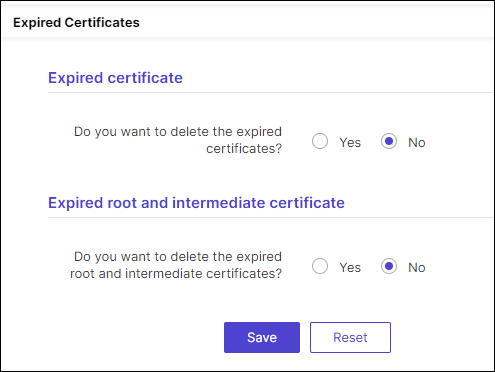
-
In the Expired certificate section, enter/select the details to
configure the deletion of expired certificates.
Field Description *Number of days after expiry Enter the number of days after expiry after which the expired certificates will be deleted. Backup Required By default, this is set to NO. To enable the backup, select Yes.
The fields Backup Limit and Deletion Batch Limit are displayed.*Backup Limit Enter a numeric value for the backup limit of the expired certificates. *Deletion Batch Limit Enter a numeric value for the deletion batch limit of the expired certificates. Do you want to delete the certificates from all groups? By default, the deletion of expired certificates from all group is enabled. To disable this, select No.
The Certificate Group dropdown list is displayed.
*Certificate Group To delete the expired certificates from only specific groups,select the required certificate group(s) from this dropdown list. *: Mandatory fields - In the Expired root and intermediate certificate section, to delete the expired root and intermediate certificates, select Yes.
- In the Number of days after expiry field, enter the number of days after certificate expiry after which the expired root and intermediate certificates will be deleted.
