
Linux Server
- Category
- Vendor
- Key Location
- Private key in Device
-
On the client (or) server certificate holistic view, click Add
Connector.

-
Enter the General Information for the connector.
Table 1. Field descriptions for the connector General Information Field Description *Category From the dropdown list, select Server. If the certificate being pushed was enrolled with CSR generation at endpoint, this field is auto populated with the category selected at the time of certificate enrollment.
*Vendor From the dropdown list, select LinuxServer. If the certificate being pushed was enrolled with CSR generation at endpoint, this field is auto populated with the vendor selected at the time of certificate enrollment.
*Connector Name Enter a name for this connector, to be able to identify it later. Tip: AppViewX recommends naming connectors according to use cases so they are easily distinguishable.Description Enter any additional details you want to record for this connector. Based on the information entered here, the SSL templates section is populated with the list of available Linux Server devices already onboarded in AppViewX. -
To select the device(s) to which the certificate will be pushed, under SSL
templates, from the list of Available Devices, click
 .
You can use the Available Devices dropdown list to filter devices based on functionality.The Selected devices list is updated automatically.
.
You can use the Available Devices dropdown list to filter devices based on functionality.The Selected devices list is updated automatically. -
Enter the Certificate Details.
Table 2. Field descriptions for the Certificate Details Field Description *Certificate Type From the dropdown list, select the file type of the certificate to be pushed. Note: When Certificate Type is set to PEM (.crt, .cer, .pem) and the certificate role is Server or Client) options for private key encryption are displayed.Enable Key Encryption Turn on this toggle to encrypt the private key file on the target Linux server during push. By default, this toggle is turned off. Note: A message stating When enabled, the private key can be encrypted using AES or Triple DES. appears. This setting applies only to Server and Client certificate types in PEM format.Encryption Type Displayed only when Certificate Type is set to PEM (.crt, .cer, .pem) and Enable Key Encryption is turned on. Select the encryption algorithm used to encrypt the private key file on the target server: - AES (Default)
- Triple DES
PKCS#12 Encryption Algorithm Displayed only when Certificate Type is set to P12 or PFX. Select the PKCS#12 encryption algorithm used to generate the keystore file: - AES
- Triple DES
Note: The default value for PKCS#12 Encryption Algorithm is dynamically derived from General Settings. You can override this selection during push configuration. This field is not applicable to JKS or PEM.Password Source Displayed when Certificate Type is set to P12, PFX, JKS, or when Enable Key Encryption is enabled for PEM (.crt, .cer, .pem) format. Select the source used to provide or retrieve the keystore password: - Manual Entry (Default): Manually specify the password in the UI.
- HashiCorp Vault: Retrieve the password from HashiCorp Vault using a configured vault identity.
- Password Vault: Retrieve the password from the internal AppViewX Password Vault.
Password Displayed only when Password Source is set to Manual Entry. Enter the password to encrypt the private key. Password Identifier Displayed and mandatory only when Password Source is set to HashiCorp Vault or Password Vault. From the drop-down list, select the configured password vault identity name. Enable Truststore Update This field is displayed for all PEM certificate types. Click the radio button to enable the Update System TrustStore option for root and intermediate certificates.
Note: By default, this option is disabled.Note: The toggle button will be enabled by default for Linux devices if it is activated in the Device Settings under the CLM > ADMINISTRATION > Device Management > Server > Device Settings < > Vendor
Specific Details section >
Update System
TrustStore.
> Vendor
Specific Details section >
Update System
TrustStore.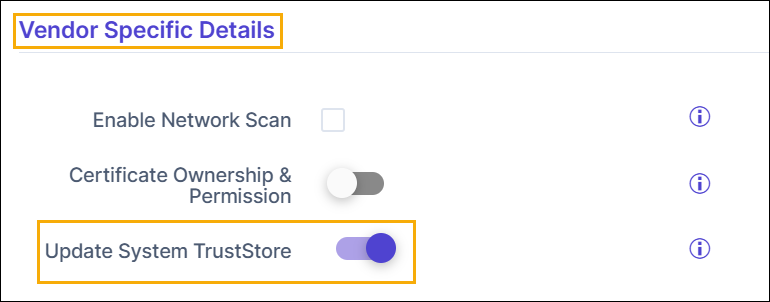
Certificate Ownership & Permission Enable the toggle button to customize the certificate ownership and define the file permissions for the certificates. Note: The toggle button will be enabled by default for Linux devices if it is activated in the Device Settings under the CLM > ADMINISTRATION > Device Management > Server > Device Settings <> Vendor Specific
Details section > Certificate
Ownership & Permission.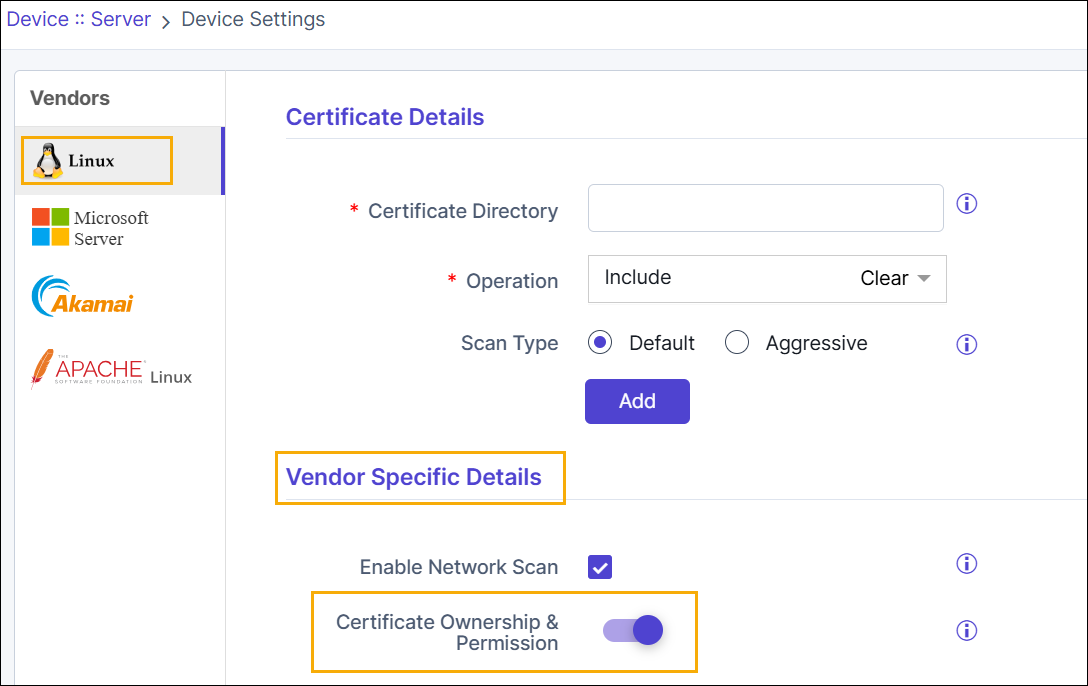 Field descriptions
for the Certificate Ownership & Permission
Details
Field descriptions
for the Certificate Ownership & Permission
DetailsCustom Push This field is displayed for all PEM and DER certificate types. From the following options, select the method of pushing certificates:
- Chain: The full certificate chain, which includes the end, intermediate, and root certificates, will be pushed to the server.
- Issuer & Server: The server’s certificate and its issuer’s certificates will be pushed to the server.
- Server Only: Only the server’s certificate will be pushed to the server.
*KDB File Name Enter the name of the KDB certificate file that will be pushed to the IBMClient server. *KDB password Enter the password required to access the KDB certificate file. Server Certificate Label This field is disabled when the Private key in device checkbox is selected. Enter the label for the server certificate.
Push Root and Intermediate Certificates To push the root and intermediate certificates, along with the end certificates, select this checkbox. For the Linux Server, this feature is enabled by default and the field is non-editable.
Intermediate Certificate Label If an intermediate certificate is available in the KDB file, the system will retain the existing label. The given label name will not be used. Root Certificate Label If a root certificate is available in the KDB file, the system will retain the existing label. The given label name will not be used. Certificate Location This field is displayed for all PEM, DER and PKCS#7 certificates. Enter the path to the location on your local system where the certificate file to be pushed is stored.
Key Location This field is displayed for all PEM, DER and PKCS#7 certificates. The private key associated with a certificate is stored in a key file.
In the Key Location field, enter the path to the location on your local system where the private key file for the certificate to be pushed is stored.
*KeyStore Location This field is displayed for the PKCS#12 and JKS certificates. A keystore is a repository used for storing private keys and certificates.
In the KeyStore Location field, enter the path to the location on your local system where the keystore file, for the certificate to be pushed, is stored.
*KeyStore Password This field is displayed for the PKCS#12 and JKS certificates. Displayed and required only when Password Source is set to Manual Entry. Enter the password used to protect the keystore and private key.
Enter the password required to access the keystore file for the certificate to be pushed.
*Alias Name This field is displayed for the PKCS#12 and JKS certificates. Enter the certificate alias assigned in the CSR generated for requesting/enrolling the certificate.
Truststore Location In the Truststore Location field, enter the path to the location on your local system where the truststore file, for the certificates to be pushed, is stored.
Note: Truststore Location can be specified without the file extension as well.Truststore password Displayed only for JKS certificate types when a Trust Store Location is configured and Password Source is set to Manual Entry. Enter the password for the trust store. Enter the password required to access the truststore file for the JKS certificate to be pushed.
Private key in device If the private key associated with the certificate being pushed has been stored on a hardware device, select this checkbox. Table 3. Field descriptions for the Certificate Ownership & Permission Details Field Description Owner Enter the username for certificate ownership on the target device. Owner Permission Select the owner permission level from the dropdown list. - Read (r)
- Read-Write (rw)
- Read-Write-Execute (rwx).
User Group Enter name of the user group that requires access to the certificate. User Group Permission Select the group permission level from the dropdown list. - Read (r)
- Read-Write (rw)
- Read-Write-Execute (rwx).
Other User Permission Select the other user permission level from the dropdown list. - Read (r)
- Read-Write (rw)
- Read-Write-Execute (rwx).
-
Enter the Push Details.
Table 4. Field descriptions for the Push Details Field Description *Script Location Script files are commonly used to perform certain tasks required to be completed before and/or after a certificate is pushed to the target system. The script to be run before the certificate is pushed is called a pre-push script and the script to be run after the push is called a post-push script.
From the following options, select the location of the script file(s):
- In AppViewX
- In Device
Pre - Push Script File Name Enter the file name of the pre-push script. Important: Read the pre and push script usage instructions here.Pre - Push Script File Path This field is displayed when Script Location = In Device. Enter the location on your local system where the pre-push script file is stored.Important: Read the pre and push script usage instructions here.Post - Push Script File Name Enter the file name of the post push script.Important: Read the pre and push script usage instructions here.Post - Push Script File Path This field is displayed when Script Location = In Device. Enter the location on your local system where the post-push script file is stored.Important: Read the pre and push script usage instructions here.Push Automatically To automatically push the certificate after it is renewed/reissued to the target system, enable this checkbox. Note: The auto push feature for a certificate works only if enabled for the certificate application connector as well the associated certificate group. To enable this feature at the certificate group level, refer the instructions here. -
Click Save.
The connector is displayed on the certificate holistic view.
What's Next
- To push a server certificate to a device, see Pushing a Server Certificate to a Device.
