
Updating the Renewal Validity of Active Certificates

You can now specify a custom validity period for the next generated server, client, or code-signing certificates prior to the parent certificate's next renewal or regeneration. This custom validity will be applied during the upcoming renewal or regeneration. This action is possible only if the certificate group is set to RW (read-write).
Note: Re-enrollment will continue to use the validity period defined in the policy.

Updating the Renewal Validity for Individual Certificates

  1. Go to (Menu) > CLM > Certificate Inventory and select a certificate type.
    For example, to update the renewal validity of a server certificate, select Certificate Inventory > Server.
    The certificate inventory for the selected certificate type is displayed.
  2. From the inventory, to go to the holistic view of the certificate you want to renew the validity, click its Common Name.
    The holistic view of the selected certificate is displayed.
  3. Click the (More) icon and from the menu options displayed, select Renewed Cert Properties.
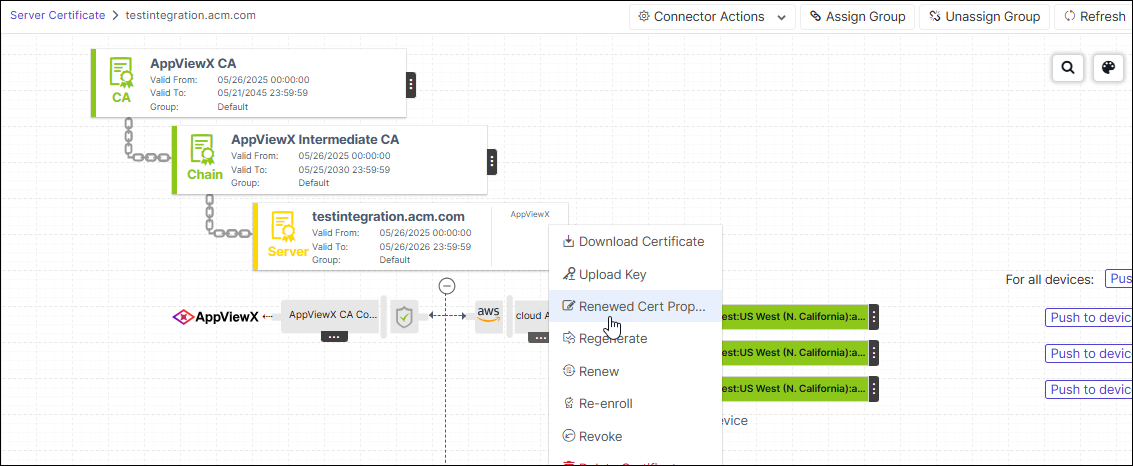
    The Renewed Cert Properties dialog box is displayed.
  4. In the Renewed Cert Properties dialog box:
    1. Under Validity, to specify the Renewed/Regenerated/Re-enroll Certificate Validity: and select the validity unit
      1. Enter the validity duration in the first text field.
      2. Select the validity unit from the dropdown list.
    2. Under Automation Settings, select one from the following:
      • To enable auto-renewal for the next generated certificate:
        1. Turn on the Enable Auto-Renew toggle.

          The *Start Renewing field and the Subscribe Email Alerts for Auto-Renewalcheck box are displayed.

        2. In the Days Before Expiry field, specify how many days prior to a certificate's expiry the renewal process should start.

          Valid range for number of days: 1 to 120

        3. To receive an email notification when the certificate is auto-renewed, select the Subscribe Email Alerts for Auto-Renewal check box.

          The notification will include the certificate details, the type of auto action, and the outcome (success/failure).

      • To enable auto-re-enrollment for the next generated certficate:
        1. Turn on the Enable Auto-Re-enroll toggle.

          The *Start Re-enroll field is displayed.

        2. In the Days Before Expiry field, specify how many days prior to a certificate's expiry the re-enrollment process should start.

          Valid range for number of days: 1 to 120

          Note: This value can exceed the certificate's validity in case of short-lived certificates.
      • To enable auto-regeneration for the next generated certificate:
        1. Turn on the Enable Auto-Regenerate toggle.

          The *Start Regenerating field and the Subscribe Email Alerts for Auto-Regenerationcheck box are displayed.

        2. In the Days Before Expiry field, specify how many days prior to a certificate's expiry the regeneration process should start.

          Valid range for number of days: 1 to 120

          Note: This value can exceed the certificate's validity in case of short-lived certificates.
        3. To receive an email notification when the certificate is auto-regenerated, select the Subscribe Email Alerts for Auto-Regenerate check box.

          The notification will include the certificate details, the type of auto action, and the outcome (success/failure).

    3. Click Save.

Bulk Updating the Renewal Validity

To bulk update the renewal validity:
  1. Go to (Menu) > CLM > Certificate Inventory and select a certificate type.
    For example, to update the renewal validity of a server certificate, select Certificate Inventory > Server.
    The certificate inventory for the selected certificate type is displayed.
  2. From the certificate inventory, select the check boxes corresponding to all the certificates for which you want to update the renewal validity.
  3. From the Actions dropdown menu, select Renewed Cert Properties.
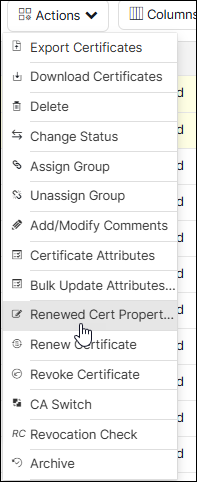
    The Renewed Cert Properties dialog box is displayed.
  4. In the Renewed Cert Properties dialog box:

    1. Under Validity, to specify the Renewed/Regenerated/Re-enroll Certificate Validity: and select the validity unit
      1. Enter the validity duration in the first text field.
      2. Select the validity unit from the dropdown list.
    2. Under Automation Settings, select one from the following:
      • To enable auto-renewal for the next generated certificate:
        1. Turn on the Enable Auto-Renew toggle.

          The *Start Renewing field and the Subscribe Email Alerts for Auto-Renewalcheck box are displayed.

        2. In the Days Before Expiry field, specify how many days prior to a certificate's expiry the renewal process should start.

          Valid range for number of days: 1 to 120

        3. To receive an email notification when the certificate is auto-renewed, select the Subscribe Email Alerts for Auto-Renewal check box.

          The notification will include the certificate details, the type of auto action, and the outcome (success/failure).

      • To enable auto-re-enrollment for the next generated certficate:
        1. Turn on the Enable Auto-Re-enroll toggle.

          The *Start Re-enroll field is displayed.

        2. In the Days Before Expiry field, specify how many days prior to a certificate's expiry the re-enrollment process should start.

          Valid range for number of days: 1 to 120

          Note: This value can exceed the certificate's validity in case of short-lived certificates.
      • To enable auto-regeneration for the next generated certificate:
        1. Turn on the Enable Auto-Regenerate toggle.

          The *Start Regenerating field and the Subscribe Email Alerts for Auto-Regenerationcheck box are displayed.

        2. In the Days Before Expiry field, specify how many days prior to a certificate's expiry the regeneration process should start.

          Valid range for number of days: 1 to 120

          Note: This value can exceed the certificate's validity in case of short-lived certificates.
        3. To receive an email notification when the certificate is auto-regenerated, select the Subscribe Email Alerts for Auto-Regenerate check box.

          The notification will include the certificate details, the type of auto action, and the outcome (success/failure).

    3. Click Save.