
Configuring PQC Readiness/Post-Quantum Policies
- Continuously evaluates your organization’s algorithms and protocols against the PQC-readiness standards
- Automatically transforms non-compliant cryptographic elements into compliant ones based on organization-specific policy decisions
- Detecting all cryptographic algorithms/protocols in use across applications, infrastructure, and source code
- Classifying each algorithm as quantum Vulnerable or Quantum Resistant per custom PQC policy
- Maintaining the auditability of decisions and changes for security and compliance reporting
- Supporting crypto-agility so policies can evolve with new PQC standards or threat intelligence
Viewing the PQC Policy Inventory
Prerequisite: Verify that your user role has the required ACF permission to view policy inventory. To enable ACF permission, click here.
To view the PQC Policy inventory, go to Menu > Quantum Trust Hub > Policy.
The PQC Policy page is displayed.
This page documents all key details related to each governance policy created for your organization’s quantum-readiness framework. It also lets you create, modify, and delete policies, and control policy enforcement.
Understanding the PQC Policy Inventory
| Fields | Description |
|---|---|
| Toolbar | The PQC policy inventory toolbar has the
following options:
|
| Policy Name | User-assigned policy name |
| Description | Additional details related to the policy, if and as specified by the user |
| Policy Scope | Cryptographic asset that the policy was created for (code, configuration, certificate) |
| Policy Enforcement | This field controls enabling/disabling a policy.
For instructions and ACF rules, see Enforcing a Policy. Important: There can be only
one active policy at a time. |
 .
.Creating a Policy
Prerequisite: Verify that your user role has the required ACF permission to create policies. To enable ACF permission, click here.
Creating a Custom Policy
-
Go to
 (Menu) > Qauntum Trust Hub
> Policy.
The Post-Quantum Policy page is displayed, which is your complete policy inventory.
(Menu) > Qauntum Trust Hub
> Policy.
The Post-Quantum Policy page is displayed, which is your complete policy inventory. -
From the toolbar, click Create.
The Post-Quantum Policy > Create page is displayed.
-
Under Crypto Policy Management:
-
Click Save.
The policy is created and listed in the PQC policy inventory.
Adding a Code Rule to Your Custom Policy
-
From the scope toolbar, click Code and then
click Add Policy.
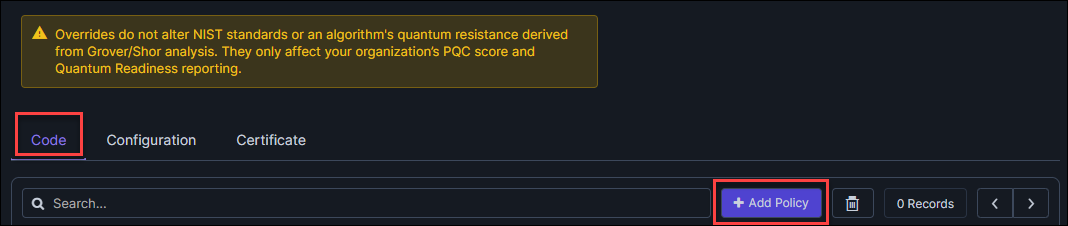 The Add Policy pop-up dialog box is displayed.
 -
Enter/Select the following details for the code rule in your custom
policy:
Important: Overrides do not alter NIST standards or an algorithm's quantum resistance derived from Grover/Shor analysis. They only affect your organization’s Quantum Readiness reporting.
Fields Description *Type To override the default quantum-safety status for an encryption algorithm, from the dropdown list, select the required algorithm type. *Override Classification From the dropdown list, select the new quantum-safety status value for the selected algorithm, which will override its default value. *Key type & strength From the dropdown list, select the new key type and strength that will override the algorithm’s default values. Notes Enter your justification for the override configured using the above fields. While this is an optional field, entering the description is a recommended practice to ensure a knowledge base to guide decisions for future configurations to a policy.
*: Mandatory fields -
Click Add Policy Rule.
The code rule is added to the rule inventory.
To read on the details in the rule inventory, click here.
Adding a Configuration Rule to Your Custom Policy
-
From the scope toolbar, click Configuration and
then click Add Policy.
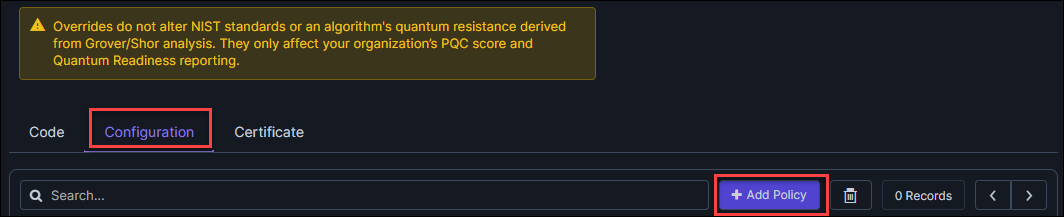 The Add Policy dialog box is displayed.
 -
Enter/Select the following details for the configuration rule in your
custom policy:
Important: Overrides do not alter NIST standards or an algorithm's quantum resistance derived from Grover/Shor analysis. They only affect your organization’s PQC score and Quantum Readiness reporting.
Fields Description *Type To override its default NIST classification, from the following options in the dropdown list, select the required protocol or cipher suite component: - Key Exchange
- Authentication
*Override Classification From the dropdown list, select the new quantum-safety status value for the selected protocol/cipher suite component, which will override its default value. *Key exchange algorithm This field is displayed when Type = Key Exchange. Based on your organization's PQC policy, from the dropdown list, select the key exchange algorithm that will override the selected protocol/cipher suite component's default values.
The dropdown list is populated with only algorithms, and not their curves and key strengths to ensure full coverage for the selected algorithm.*Key type & strength This field is displayed when Type = Authentication. Based on your organization's PQC policy, from the dropdown list, select the key type and strength that will override the selected protocol/cipher suite component’s default values.
Business Application From the dropdown list, select one or more business applications that this policy will apply to. This is an optional field.
The rule creation outcome depends on the combination of the input values selected for the Business Application and the Key exchange algorithm/Key type & strength fields.This behavior has been explained with the help of multiple use cases here.
Notes Enter your justification for the override configured using the above fields. While this is an optional field, entering the description is a recommended practice to ensure a knowledge base to guide decisions for future configurations to a policy.
*: Mandatory fields -
Click Add Policy Rule.
The configuration rule is added to the rule inventory.
To read on the details in the rule inventory, click here.
Use Cases to Understand Configuration Rule Creation Outcomes
Use Case 1: Multiple business applications mapped to one rule
| Fields | Description |
|---|---|
| Input | User selects more than one value from the Business Application dropdown list |
| Outcome | A separate rule is created for each business application selected. |
| Example-Input |
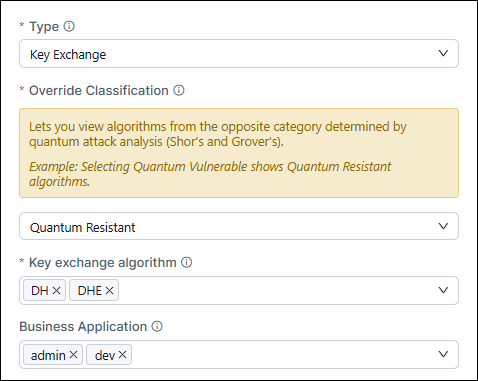 |
| Example-Outcome |
 |
Use Case 2: No business applications selected
| Fields | Description |
|---|---|
| Input | User does not select any business applications from the dropdown list |
| Outcome | The rule applies to all business applications for the selected key type & strength/key exchange algorithm(s). |
| Example-Input |
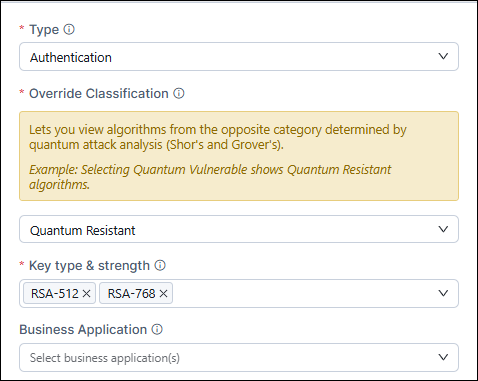 |
| Example-Outcome |
 |
Use Case 3: Duplicate rule validation
| Fields | Description |
|---|---|
| Input | User selects a key type and a business application already mapped to each other in an existing policy rule. |
| Outcome | The system prevents duplicate entries to maintain policy integrity and avoid redundancy. In such an event, the following message is displayed: A policy rule with the same business application and configuration already exists. Duplicate rules are not allowed. |
| Example-Input | Assume that the following is an existing
rule: 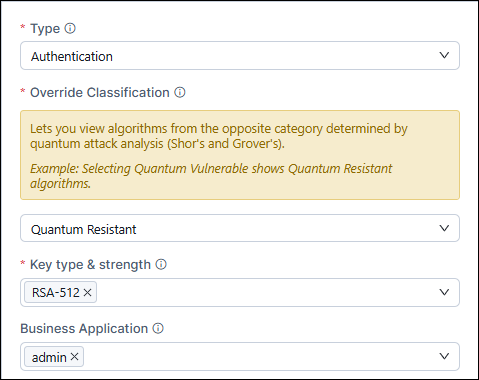 |
| Example-Outcome | You will get the above-mentioned error
message, as shown in the image below: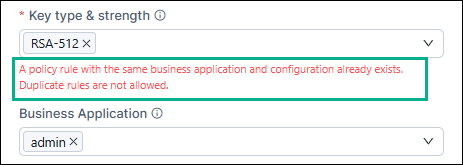 |
Use Case 4: Rule already applied to all applications
| Fields | Description |
|---|---|
| Input | User selects a key type, which is already mapped to all business applications, and a specific business application from the Business Application dropdown list. |
| Outcome | The system blocks the action since the rule is already globally applied. The following message is displayed: This rule already applies to “All Applications”. Modify the existing rule to restrict it to specific applications. |
| Example-Input | Assume the following is an existing rule
in the policy configuration: 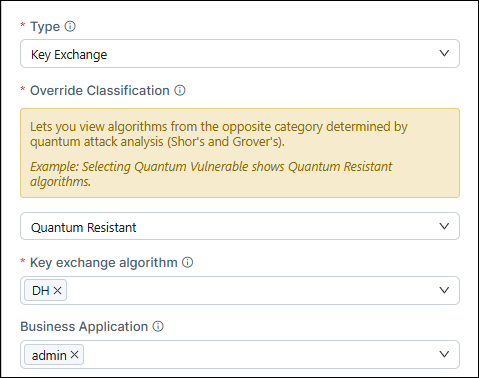 |
| Example-Outcome | On clicking Add, the following
message is displayed: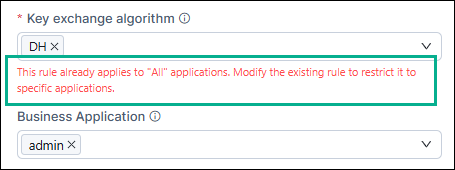 |
Use Case 5: Partial acceptance [mixed input]
| Fields | Description |
|---|---|
| Input | User selects multiple input values, some of which are already mapped in existing rules while some are not mapped to any rules. |
| Outcome | Duplicate entries are skipped. Valid entries are added to the policy inventory. |
| Example 1-Input | Assume the following are existing rules
in the policy configuration: 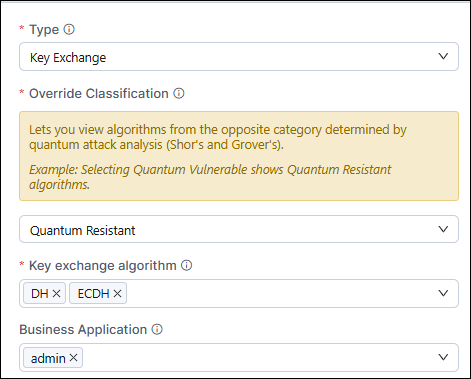 |
| Example 1-Outcome | The rule with the DH – admin
mapping from the existing rules is updated to include
the ECDH algorithm, as show in the following
image: |
| Example 2-Input | Assume the following are existing rules
in the policy configuration: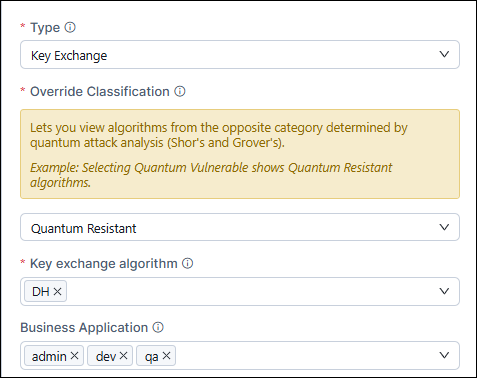 |
| Example 2-Outcome | Since the policy rule inventory already
has:

|
Use Case 6: Consolidation to all applications
| Fields | Description |
|---|---|
| Input | User selects an input value mapped to a specific business application and attempts to map it to all business applications |
| Outcome | Existing application-specific rule is updated to all applications rule. The following message is displayed: Existing application-specific rules have been replaced with an “All” applications rule. |
| Example 1-Input | Assume the following are existing rules
in the policy configuration: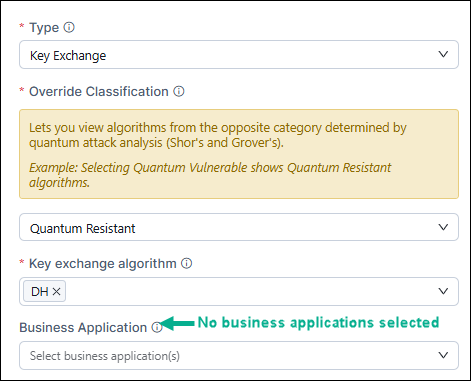 |
| Example 1-Outcome | When you click Add, the policy
rule inventory is updated as shown in the following
image: |
| Example 2-Input | Assume the following are existing rules
in the policy configuration: |
| Example 2-Outcome | When you click Add, the policy
rule inventory is updated as shown in the following
image: |
Adding a Certificate Rule to Your Custom Policy
-
From the scope toolbar, click Certificate and
then click Add Policy.
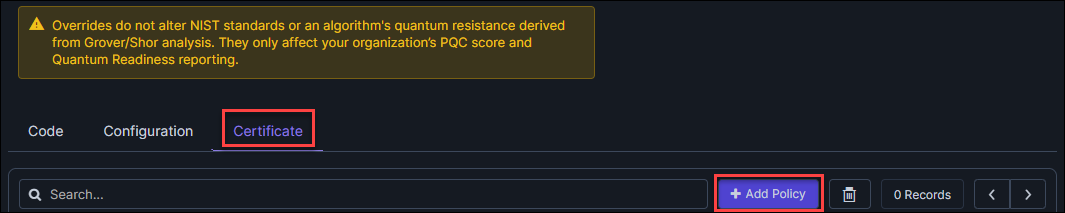 The Add Policy pop-up dialog box is displayed.
 -
Enter/Select the following details for the certificate rule in your
custom policy:
Important: Overrides do not alter NIST standards or an algorithm's quantum resistance derived from Grover/Shor analysis. They only affect your organization’s PQC score and Quantum Readiness reporting.
Fields Description *Type To override the default quantum-safety status for an encryption algorithm, from the dropdown list, select the required algorithm type. *Override Classification From the dropdown list, select the new quantum-safety status value for the selected algorithm, which will override its default value. *Key type & strength From the dropdown list, select the key type and strength that will override the selected algorithm’s default values. Business Application From the dropdown list, select one or more business applications that this policy will apply to. This is an optional field.
The rule creation outcome depends on the combination of the input values selected for the Business Application and the Key type & strength fields.This behavior has been explained with the help of multiple use cases here.
Notes Enter your justification for the override configured using the above fields. While this is an optional field, entering the description is a recommended practice to ensure a knowledge base to guide decisions for future configurations to a policy.
*: Mandatory fields -
Click Add Policy Rule.
The certificate rule is added to the rule inventory.
To read on the details in the rule inventory, click here.
Use Cases to Understand Certificate Rule Creation Outcomes
Use Case 1: Multiple business applications mapped to one rule
| Fields | Description |
|---|---|
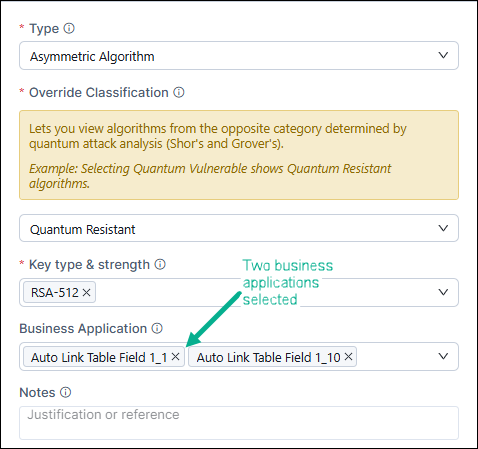
| Input | User selects more than one value from the Business Application dropdown list |
| Outcome | A separate rule is created for each business application selected. |
| Example-Input |
 |
| Example-Outcome |
 |
Use Case 2: No business applications selected
| Fields | Description |
|---|---|
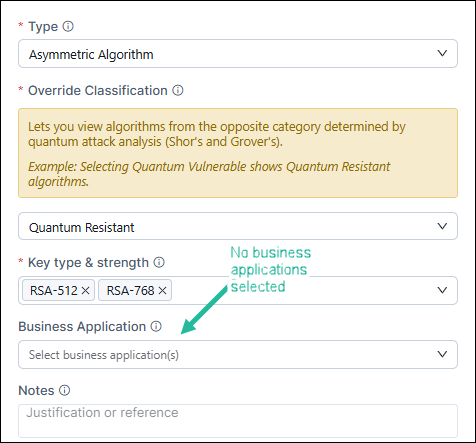
| Input | User does not select any business applications from the dropdown list |
| Outcome | The rule applies to all business applications for the selected key type & strength/key exchange algorithm(s). |
| Example-Input |
 |
| Example-Outcome |
 |
Use Case 3: Duplicate rule validation
| Fields | Description |
|---|---|
| Input | User selects a key type and a business application already mapped to each other in an existing policy rule. |
| Outcome | The system prevents duplicate entries to maintain policy integrity and avoid redundancy. In such an event, the following message is displayed: A policy rule with the same business application and configuration already exists. Duplicate rules are not allowed. |
| Example-Input | Assume that the following is an existing
rule:  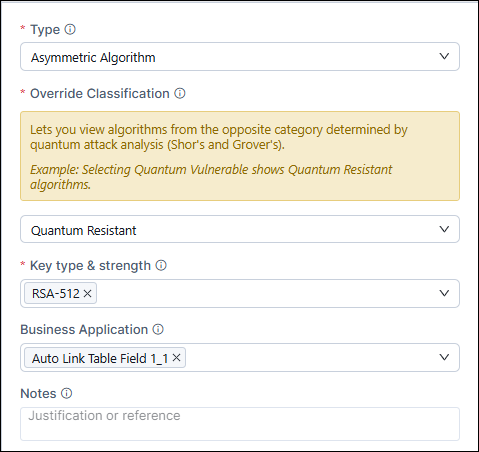 |
| Example-Outcome | You will get the above-mentioned error
message, as shown in the image below: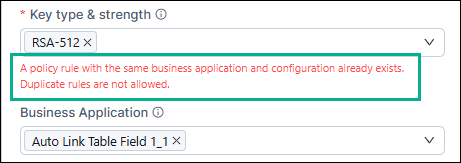 |
Use Case 4: Rule already applied to all applications
| Fields | Description |
|---|---|
| Input | User selects a key type, which is already mapped to all business applications, and a specific business application from the Business Application dropdown list. |
| Outcome | The system blocks the action since the rule is already globally applied. The following message is displayed: This rule already applies to “All Applications”. Modify the existing rule to restrict it to specific applications. |
| Example-Input | Assume the following is an existing rule
in the policy configuration:  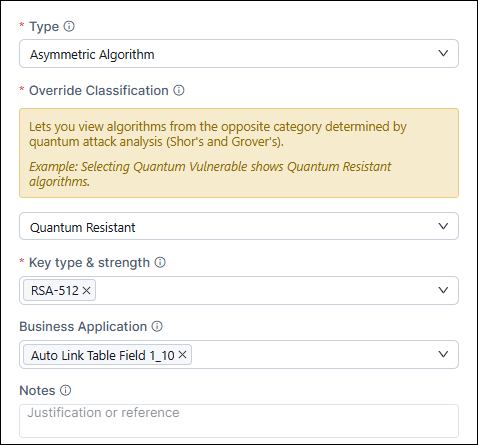 |
| Example-Outcome | On clicking Add, the following
message is displayed: 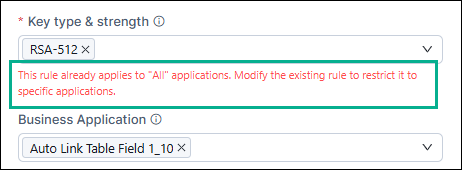 |
Use Case 5: Partial acceptance [mixed input]
| Fields | Description |
|---|---|
| Input | User selects multiple input values, some of which are already mapped in existing rules while some are not mapped to any rules. |
| Outcome | Duplicate entries are skipped. Valid entries are added to the policy inventory. |
| Example 1-Input | Assume the following are existing rules
in the policy configuration:  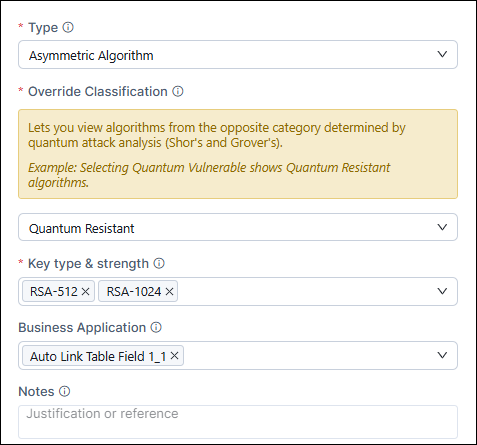 |
| Example 1-Outcome | When you click
Add, the rule with the
RSA-512 – Auto Link Table Field 1_1 mapping
from the existing rules is updated to include
RSA-1024, as show in the following
image: |
| Example 2-Input | Assume the following are existing rules
in the policy configuration: 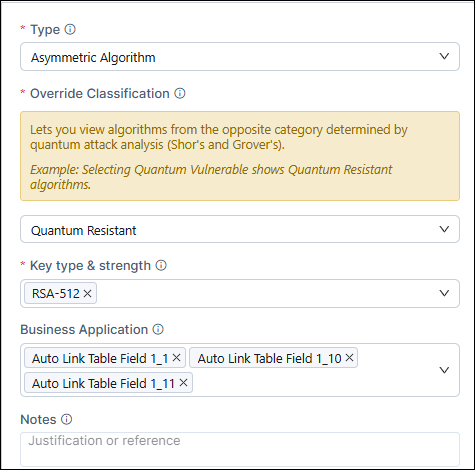 |
| Example 2-Outcome | Since the policy rule inventory already
has:

|
Use Case 6: Consolidation to all applications
| Fields | Description |
|---|---|
| Input | User selects an input value mapped to a specific business application and attempts to map it to all business applications |
| Outcome | Existing application-specific rule is updated to all applications rule. The following message is displayed: Existing application-specific rules have been replaced with an “All” applications rule. |
| Example 1-Input | Assume the following are existing rules
in the policy configuration: 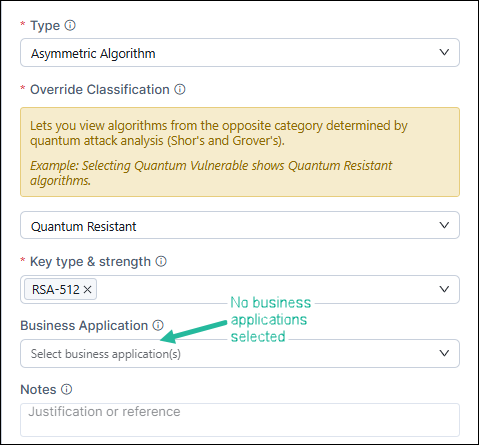 |
| Example 1-Outcome | When you click
Add, the policy rule
inventory is updated as shown in the following image:
 |
| Example 2-Input | Assume the following are existing rules
in the policy configuration:  |
| Example 2-Outcome | When you click
Add, the policy rule
inventory is updated as shown in the following
image:
|
Understanding the Rule Inventory
Common Inventory Functions
| Fields | Description |
|---|---|
| Search | Enter free text or keywords to search for specific policies in the inventory. |
 |
To delete a rule from the
inventory, select the corresponding checkbox and click
. |
| Pagination | Use the pagination control
dropdown to select the number of records that will be
displayed per page of the inventory. You can select to display 25, 50, 75, or 100 records per page of the inventory. |
| Pagination navigation | Use the pagination navigation buttons to move between the pages in the inventory. |
Rule Details
| Fields | Description |
|---|---|
| Type | Algorithm/protocol/cipher suite component for which the quantum-status classification has been modified |
| Key Type & Strength | Default key type and strength of the selected algorithm/protocol/cipher suite component |
| Default Quantum Status | Default quantum-status of the selected algorithm/protocol/cipher suite component |
| Organization override | New quantum-status classification assigned to the selected algorithm/protocol/cipher suite component, which will override the default value |
| Added By | Name of the user who created the policy rule |
| Date | Date on which the policy rule was created |
Enforcing a Policy
Enabling ACF for Policy Enforcement
Enabling/Disabling a Policy
Modifying a Policy
Prerequisite: Verify that your user role has the required ACF permission to modify policies. To enable ACF permission, click here.
-
From the PQC Policy inventory,
click the Policy Name of the policy that has to be modified.
Policy details entered at the time of policy creation are displayed.
-
Update the policy details as required.
For field descriptions, see the corresponding instruction in Creating a Policy.
- Click Save.
-
Click Update.
A confirmation message is displayed to indicate if the policy update was a success or a failure.
If the policy update is a success, all reports are updated immediately according to the modifications made.
Deleting a Policy
Prerequisite: Verify that your user role has the required ACF permission to delete policies. To enable ACF permission, click here.
-
From the PQC Policy inventory,
select the checkbox corresponding to the policy you want to delete.
You can select more than one policy.
-
From the toolbar,
click Delete.
The selected policy is/policies are deleted.
