
Manual Onboarding of Discovered Devices
- Devices from unsupported or unrecognized vendors are marked as “Not Supported”.
- For all the policy engine enabled vendors, if Auto Onboard is not selected, the device would be marked as “Not Onboarded”.
- Based on the auto-onboarding results, those devices that fail the process are marked a “Failed”.
- The Onboard Manully option is only available when the discovery results are available and user selects one of the device record in the Device tab of a Network Scan and the Discovery Source is Network, IP Range, and Subnet.
- This onboard manually feature is supported for the follwing devices:
- Category - ADC
- All vendors
- Category - Server
- "ABAP", "ADFS Server", "AkamaiCPS", "Arbor", "Cisco CallManager", "CiscoIOS", "CiscoISE", "CiscoUCS", "GigaVUE FM", "Hashicorp Vault", "IBMClient", "IBMDataPower", "IBMDomino", "ILO", "JBoss", "Java", "MQServer", "Microsoft PC", "MySQL", "PingFederate", "RabbitMQServer", "VMWare", "VMWare vCenter", "Web Dispatcher", "Weblogic", "Websphere", "Windows IBMClient", "Windows MQClient", "Windows MQServer", "Windows Weblogic", "Windows Websphere", "iDRAC", "iPlanet"
- Category - WAF
- "Barracuda", "Cloudflare", "F5", "Imperva"
- Category - Firewall
- "CheckPoint", "Cisco", "Fortinet", "PaloAlto"
- Category - ADC
- Manual onboarding is possible only when automatic onboarding is not supported.
- During the manual onboarding process, the discovered device details are prefilled and can be updated before saving.
- Once submitted, the device follows the applicable onboarding policy and the onboarding status in updated.
To onboard the devices manually,
-
Go to
 (Menu) > CLM > CERTIFICATE DISCOVERY > Discovery
Status > On Demand/Scheduled.
The Discovery Status : On-demand page is displayed with the results of the discovery instances.
(Menu) > CLM > CERTIFICATE DISCOVERY > Discovery
Status > On Demand/Scheduled.
The Discovery Status : On-demand page is displayed with the results of the discovery instances. -
Click the discovery instance name pertaining the Network Scan (Discovery
Source is Network, IP Range, and Subnet).
The Summary tab is opened by default with the Certificate Discovery Summary and the related widgets.
-
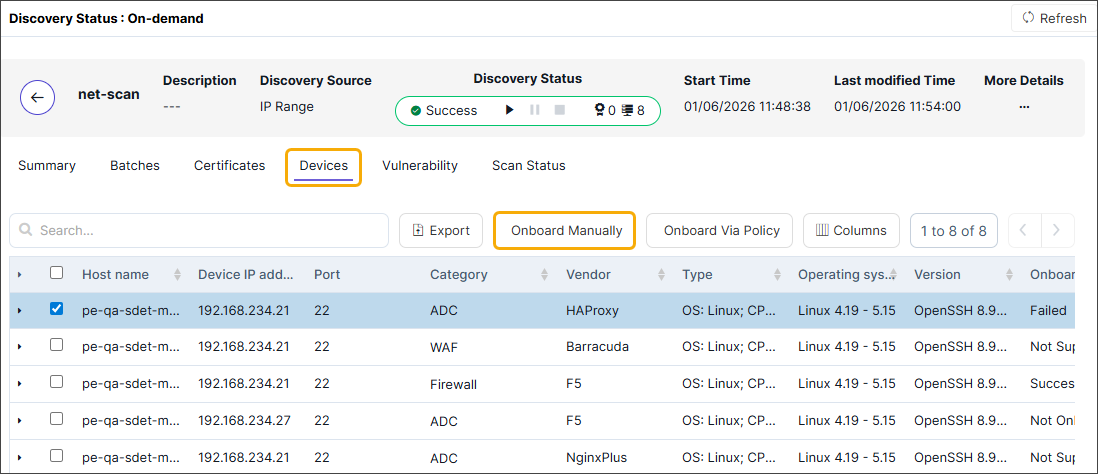
Click the Devices tab.
-
Select the devices to be Onboarded manually.
Case 1: When the scanned devices do not have a Vendor or Category.
- On selecting the device, the Onboard Manually action button is enabled.
- Click Onboard Manually.
The Discovery Status : On-demand > Device :: Server > Add screen is displayed with default to Linux device onboarding page with the pre-populated key fields from Discovery such as IP/FQDN/HostName, Category, Vendor, Port, Onboarding Group. The Device Name = hostname of discovered device.
- Enter the other required fields.
- Click Save.
Case 2: When the scanned devices have the Vendor and Category, and the Onboarding Status is either “Not Supported”, “Failed”, or “Not Onboarded” states.- On selecting the device, the Onboard Manually action button is enabled.
- Click Onboard Manually.
The Discovery Status : On-demand > Device :: Server/ ADC/ Firewall/ WAF > Add screen is displayed with the specific device onboarding details page with the pre-populated key fields from Discovery such as IP/FQDN/HostName, Category, Vendor, Port, Onboarding Group. The Device Name = hostname of discovered device.
- Enter/edit the other required fields.
- Click Save.
Case 3: When the scanned devices have the Vendor and Category, and the Onboarding Status is “Success”, “Queued” or “In Progress” states.- On selecting the device, the Onboard Manually action button is enabled.
- Click Onboard Manually.
A banner with error “Please select a device with status Not Onboarded or Failed to proceed.”is displayed.
