
AppViewX KUBE for Workload Certificate Management: An AWS EKS Add-On
For more information, read the official AWS documentation at Amazon EKS add-ons.
Benefits
- Provides simplified installation, configuration and management of x509 certificates on the Amazon EKS clusters.
- Includes the latest security patches, bug fixes, and are validated by AWS to work with Amazon EKS.
Installing the EKS Add-on
Step 1: Subscribe to the EKS Add-on in the AWS Marketplace
- You have sufficient permissions in your AWS account to enable this Add-on.
- Complete the subscription process in the AWS console. Go to the AWS Marketplace Page to add the AppViewX KUBE - EKS Add-on to your AWS account.
-
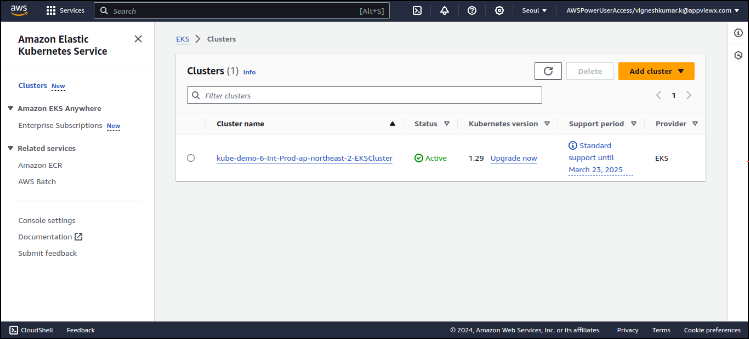
Accessing the EKS console - In your AWS account navigate to the
EKS Console > Clusters
and select the cluster where the AppViewX add-on is to be
deployed.
-
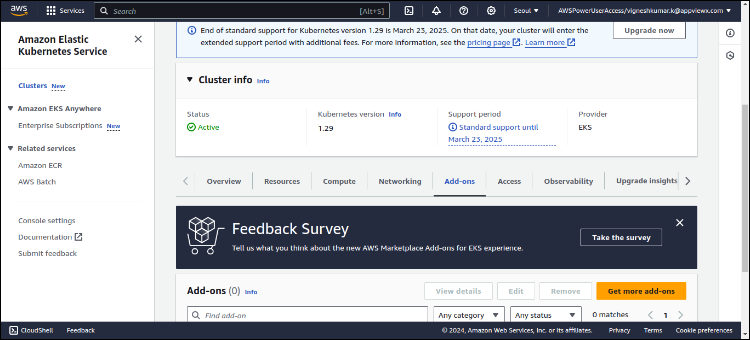
Subscribing for Marketplace Add-on - In the Cluster
info section, navigate to the
Add-ons tab and click the Get more
add-ons button.
-
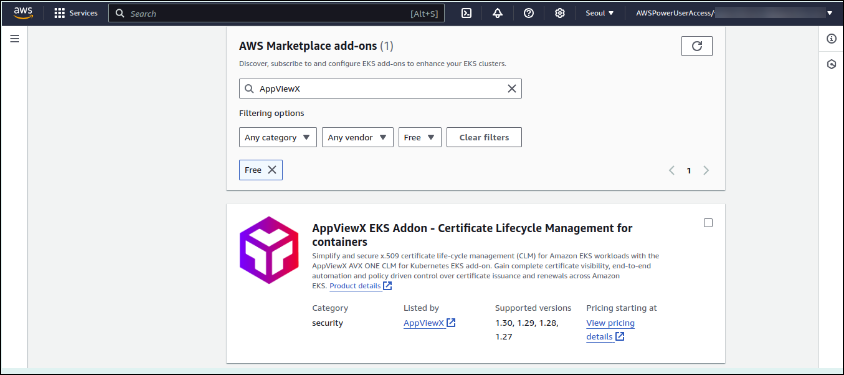
In the add-ons section, under the AWS Marketplace
add-ons, do the following steps:
- Search for AppViewX.
- Select the AppViewX EKS Addon - Certificate Lifecycle Management for containers checkbox.
-
Click Next.
-
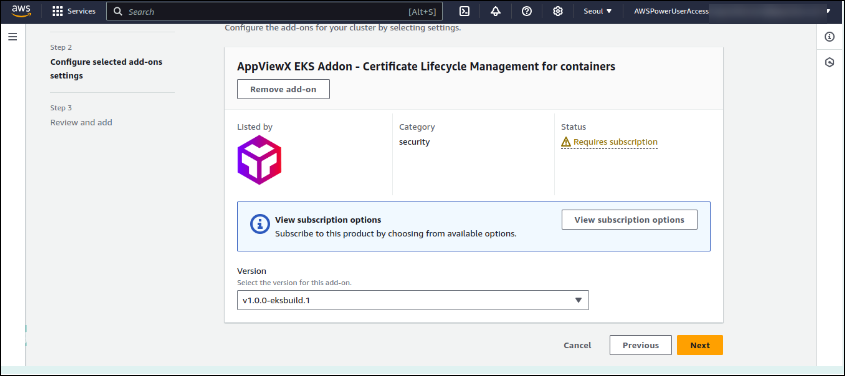
Choosing the Add-on and making the marketplace subscription:
-
Select the add-on version click on View
Subscription.
-
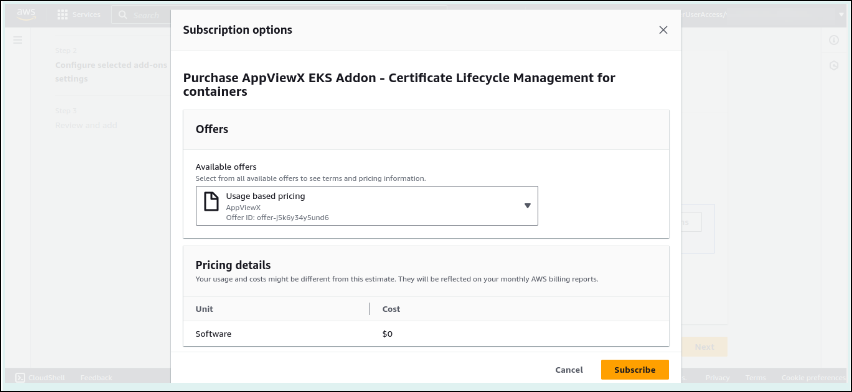
Verify the subscription options, and then click
Subscribe.
-
Select the add-on version click on View
Subscription.
-
Continuing with add-on configuration & installation
-
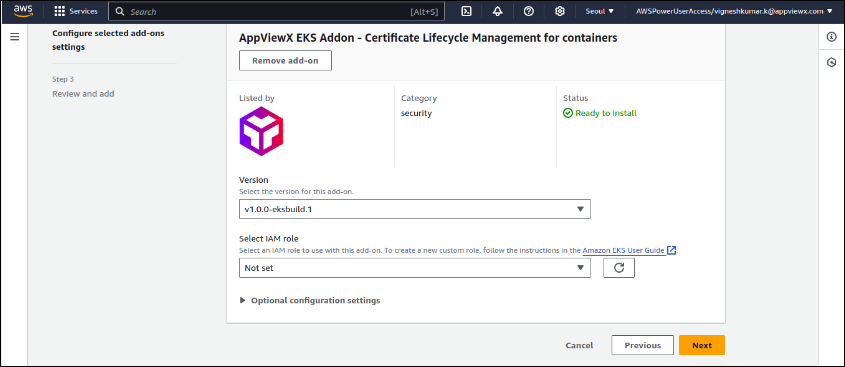
Once the subscription status is Ready to
Install continue select the version and click
Next.
-
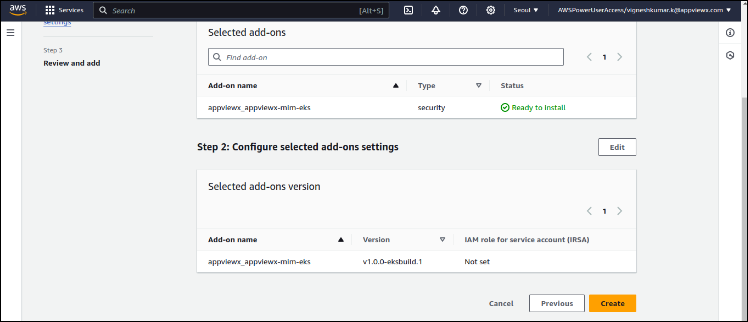
In the next page, review the subscription and the add-on
configuration, and then click Create.
-
Once the subscription status is Ready to
Install continue select the version and click
Next.
-
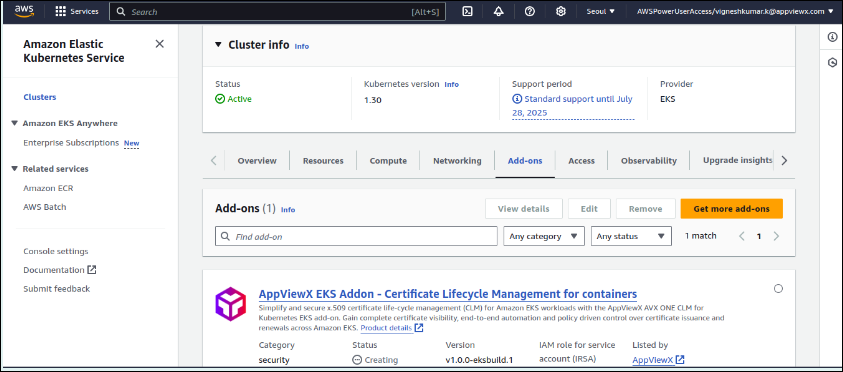
Verifying the add-on installation at the cluster end - After selecting
the Create action, the KUBE add-on is
automatically deployed to the clusters, and the status on the cluster
add-on page updates to Creating.
-
To verify the add-on pod running status, log in to the cluster and
verify the install.
-
To verify if the pod is running, execute the command
kubectl get pods -n crypto-mesh.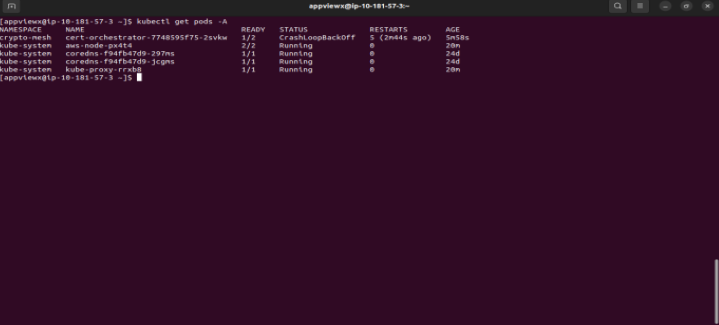 Note: The result of the command provided above is expected to have a CrashLoopBackoff status.The administrator/user should download the credentials from a valid AppViewX Subscription to connect the add-on to an AppViewX KUBE environment.
-
To verify if the pod is running, execute the command
Step 2: Ensure access to a valid AppViewX KUBE Subscription
- via the AWS Marketplace
- via request to AppViewX
- Alternatively existing AppViewX customers ensure to have KUBE license subscription
Via the AWS Marketplace
-
Navigate to the Marketplace.
The AppViewX KUBE page is displayed.

- Sign into your account or create your account if you are new to AWS Marketplace.
-
Click Continue to Subscribe.
Note: The marketplace subscription steps for KUBE product of AppViewX are provided here.
Via a Request to AppViewX
Step 3: Connecting your EKS Cluster to AppViewX
- You have access to the AppViewX (available as) SaaS, Onprem or Managed K8s based deployments.
- You have sufficient Permission to access the KUBE feature sets.
-
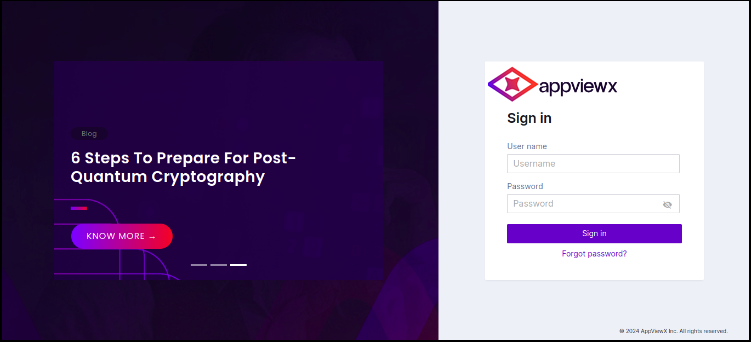
Accessing the AppViewX console - Access your AppViewX tenant/deployment
with the login credentials. Go to Menu >
KUBE.
-
Generate Credentials or Access Token for connectivity:
-
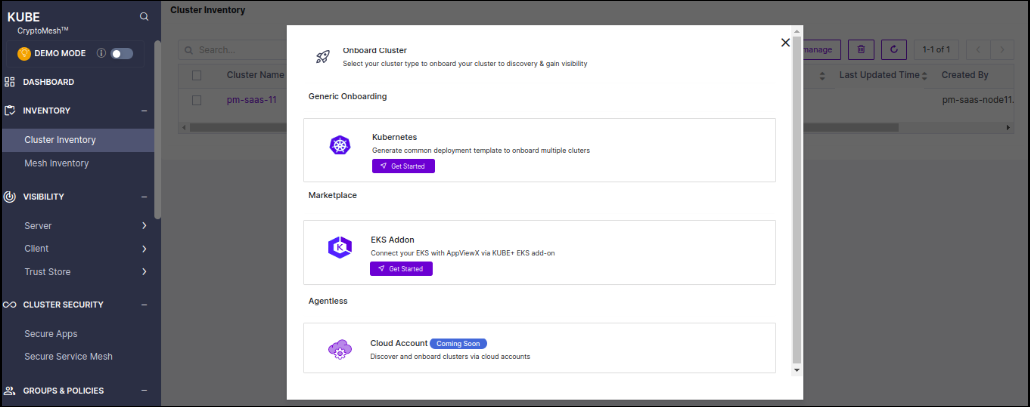
Generate authentication credentials for connecting the EKS
add-on to AppViewX. Go to Menu >
KUBE > Cluster
Inventory > Connect
Cluster > EKS Addon >
Get started.
-
Provide the cluster name and select the vendor and click
Generate Install Command.
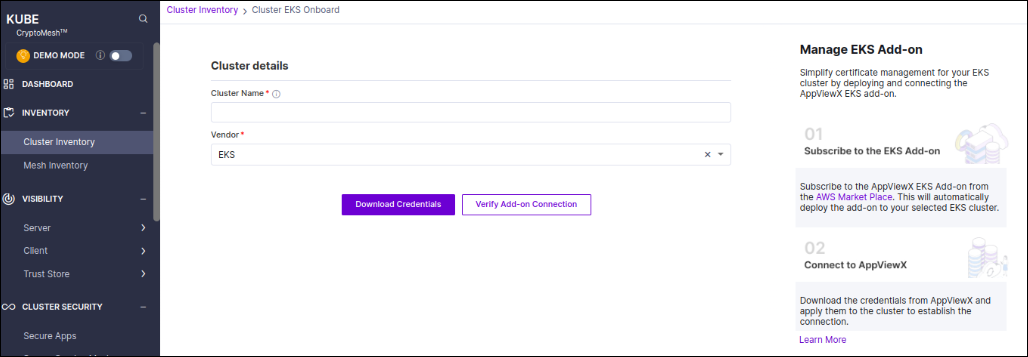
- Download the authentication credentials as YAML by clicking the Download Credentials and exit back to the inventory.
-
Generate authentication credentials for connecting the EKS
add-on to AppViewX. Go to Menu >
KUBE > Cluster
Inventory > Connect
Cluster > EKS Addon >
Get started.
- Deploy credentials in the EKS cluster: Copy the YAML to the Bastion host or to the cluster for deploying the credentials in the cluster.
Step 4: Deploy credentials and manage EKS cluster in AppViewX
Deploy the above saved YAML to the cluster with the command
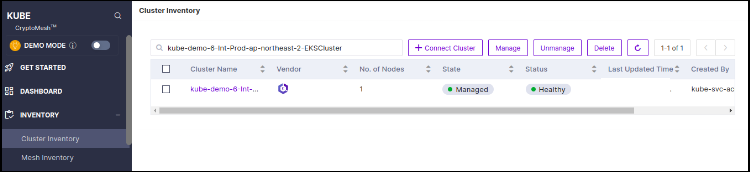
kubectl apply -f secret.yaml and once the
connection is established the cluster is automatically managed in
AppViewX KUBE Cluster Inventory.
Managing the SSL/TLS certificates in your EKS
Once the cluster is managed, you can refer to the AppViewX KUBE documentation on how to use KUBE for certificate management operations (discover, monitor and enroll certificates ) for your EKS cluster.
