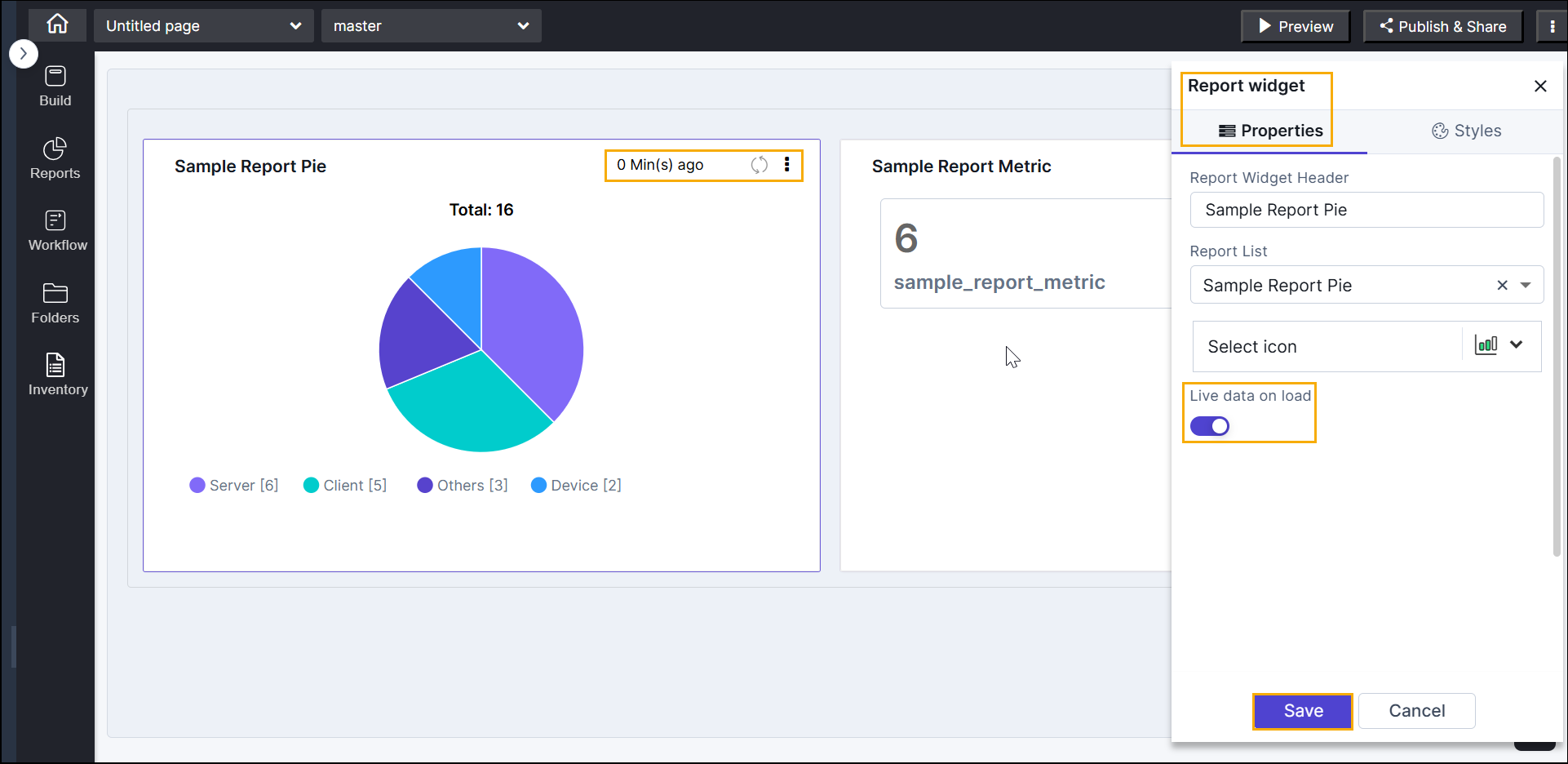
| Report Widget Header |
Allows you to provide a name for the Report
Widget. |
| Report List |
Allows you to select reports from the options available
in the dropdown. Note: Selecting a
report from this dropdown will replace the existing
report on the page. |
| Select icon |
Allows you to select an icon to be displayed next to the
widget name. |
| Chart Settings |
Allows you to choose a template, fit, and alignment for
the widget as follows: |
| Live data on load |
Allows the widget to load live report data every time the
page opens instead of using previously generated chart data.
Enable this option when the widget must always display the
latest available data. Enabling this option can impact
performance for reports with large datasets. Note: Enabling live fetch on load can
increase load on the report engine and data sources with
every page view. Enable it only when
necessary. |

 (Edit) icon.
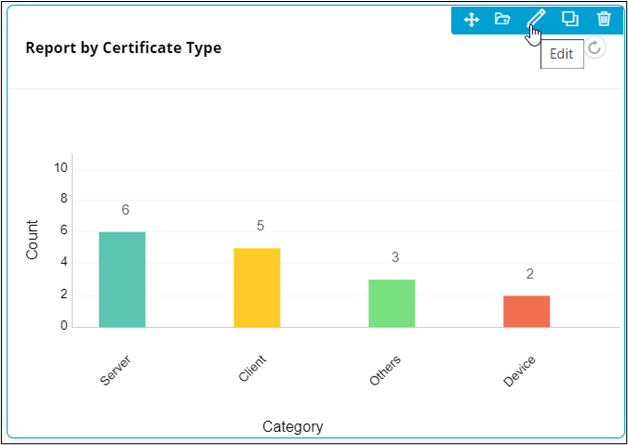 The Report widget window opens with the Properties tab open by default.