
Code Signing Dashboard
The dashboard consists of the following widgets:
- Total Active Signed
- Total Signing Policy
- Total Signed Based on Signing Keys
- Total Signed Policy Trend
- Total Signed Trend
Dashboard Controls
| Actions | Description |
|---|---|
| Refresh | Reloads the current dashboard data. |
| Republish | Fetch the latest signing data and display all users along with their
individual metrics. Important: If a non-admin
user with dashboard access triggers a republish, users logging into the platform
may observe differences in counts due to RBAC policies. |
| View Export Details | To view the export download details. Note:
|
| Dashboard Global filter | Global user-level filtering allows users to view dashboard data for a
specific individual or for all users by selecting one or more usernames from the
dropdown (multi-select supported). Note: A maximum of 100
users can be selected to view the data. |
Total Active Signed Widget
Refresh: Each widget refreshes independently, updating its own last-refreshed timestamp.
Export: Applies filters, supports CSV, Excel, and PDF formats, and manages large exports through split downloads. The exported data includes the same columns as the drilldown.
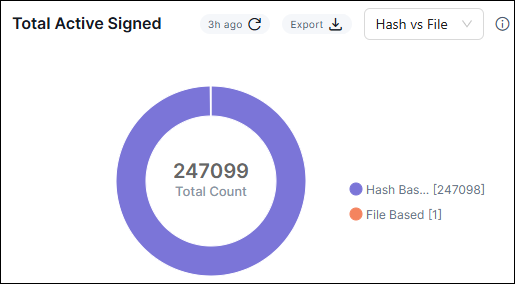
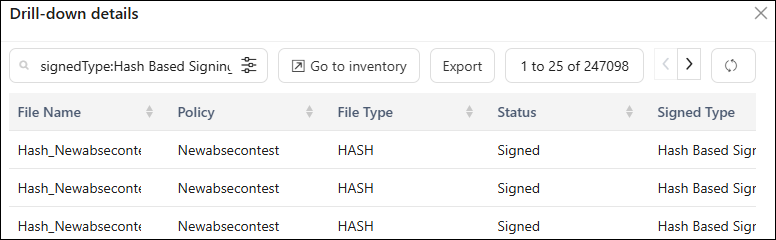
- Hash vs File: Displays total signing operations grouped by hash-based and file-based signing methods. You can drill down the data by clicking on the widget.
- File Type: Displays the total number of files signed across different file
types. (for example, EXE, DLL, MSI). You can drill down the data by clicking on the
widget.Note: The supported file types are PS1, EXE, CAT, MSI, JS, JAR, APK, VBS, CAB, WSF, DLL, PSM1, PSD1, PS1XML, JSE, and VBE among others.
- Status: Displays signing operations based on their execution status (for example, Signed / Pending / Failed). You can drill down the data by clicking on the widget.
Drill-Down
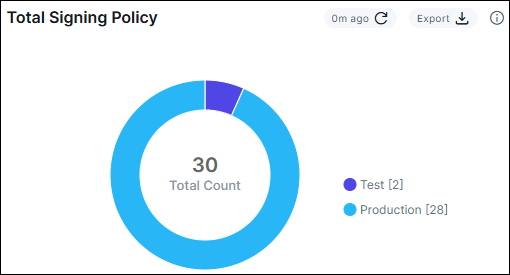
Total Signing Policy widget
Refresh: Each widget refreshes independently, updating its own last-refreshed timestamp.
Export: applies filters, supports CSV, Excel, and PDF formats, and manages large exports through split downloads. The exported data includes the same columns as the drilldown.
Drill-Down
Clicking on the donut chart opens a detailed drill-down view of selected representation. This view lists signing policy details, such as Policy Name, Hash Function, Signing Type Timestamping Authority, Key Mapping, and Meta information. You can perform the following actions within the drill-down:
- Advance Search
- Go to inventory
- Export
- Pagination
- Refresh
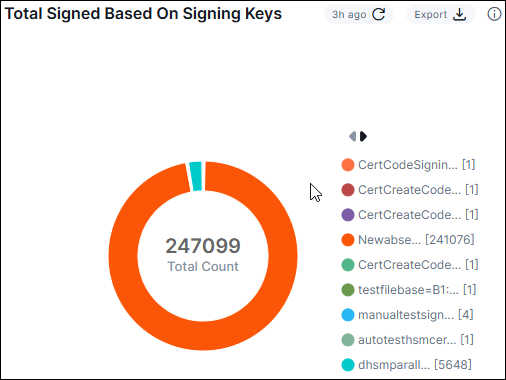
Total Signed Based on Signing Keys
Refresh: Each widget refreshes independently, updating its own last-refreshed timestamp.
Export: applies filters, supports CSV, Excel, and PDF formats, and manages large exports through split downloads. The exported data includes the same columns as the drilldown.
Drill-Down
Clicking on the donut chart opens a detailed drill-down view of selected representation. This view lists signing details, such as file name, policy, file type, status, signed type, IP address, signing key, and username.
Total Signed Policy Trend
Refresh: Each widget refreshes independently, updating its own last-refreshed timestamp.
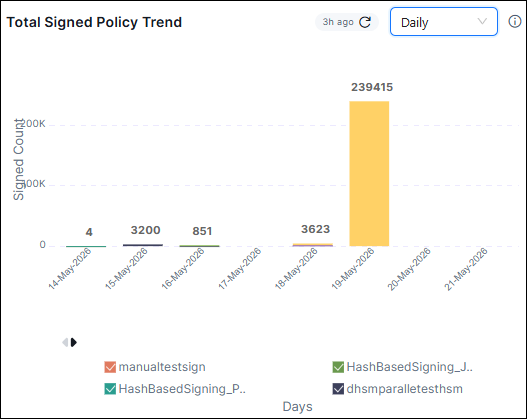
Drill-Down
Clicking on the donut chart opens a detailed drill-down view of selected representation. This view lists signing details, such as file name, policy, file type, status, signed type, IP address, signing key, and username.
Total Signed Trend
Refresh: Each widget refreshes independently, updating its own last-refreshed timestamp.
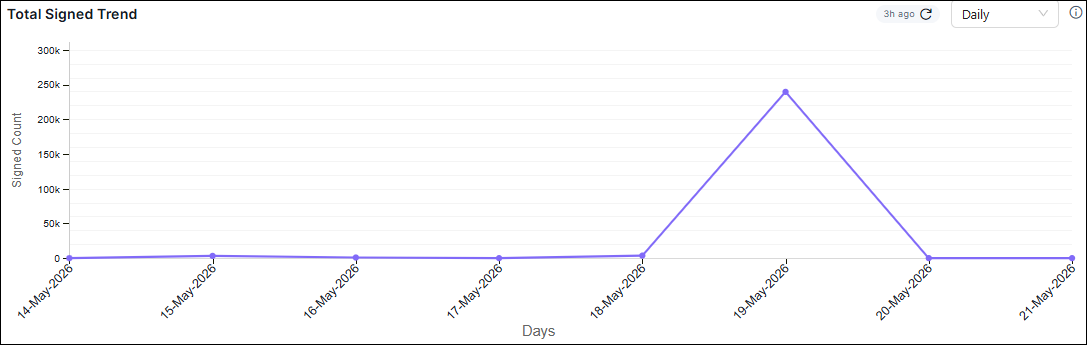
Initiate Export Request
- Click the Export option on the required widget.
- Choose the export format: CSV, XLS, or PDF.
-
Select data to include.
Select the relevant data options shown on the screen (for example, File‑based, Hash‑based, Test type, Production, or specific keys).
-
Apply filters.
Specify filters such as Signing Time Period, UserName, or IP Address.
- Click Export to initiate the download request.
